USB-C is the small, oval-shaped connector now found on phones, laptops, tablets, headphones, and plenty of accessories. It makes charging and connecting devices more convenient, but one important detail gets overlooked: a USB-C port doesn’t automatically support fast charging, fast file transfers, or an external monitor. The connector looks the same even when its capabilities are completely different.
Affiliate Disclaimer
This website participates in affiliate programs. We may earn a commission
when you purchase products through links on this page, at no additional
cost to you. Our recommendations are based on independent research and
honest opinions.
So, when you see USB-C on a product box, think of it as the physical connection rather than a promise about performance. I’ll explain what the port can do, how to check your devices, and where a simple USB-C hub fits when your laptop no longer has the ports you need.
USB-C Is a Connector, Not a Guarantee of Performance
The biggest misconception about USB-C is that every port does the same job. USB-C describes the reversible plug and socket. The technology running through that connection could be basic USB 2.0 data, much faster USB data, USB Power Delivery, or a video mode. Some devices support several of these functions at once, while others handle only charging and basic data.
A USB-C cable isn’t automatically capable of everything either. A cable that charges your phone may transfer files slowly, and another cable might handle high-speed data but lack the power rating your laptop needs. That’s why a compatible connector is only the first part of the story.
- Charging: Look for USB Power Delivery support and the actual wattage supported by the charger, cable, and device.
- File transfers: Check the advertised data speed for both ports and the cable, not just the USB-C label.
- External screens: Confirm that the host device supports video output through its USB-C port, such as DisplayPort Alt Mode or a compatible USB4/Thunderbolt implementation.
- Accessories: A USB-C hub can add connections, but it cannot create a capability your device never supported.
Why the Same USB-C Cable Can Behave So Differently
Let’s say you connect your phone to a laptop using one USB-C cable and your photos move across slowly. Replace that cable with a suitable high-speed one and the transfer might improve, but only if both devices support a faster data mode. If either end is limited to USB 2.0, a premium cable won’t change the ceiling.
Charging works the same way. A 100W-rated cable doesn’t force 100W into your phone, and a 100W charger won’t automatically make every laptop charge at that rate. Compatible devices negotiate the power they can safely use. The charger, cable, and device all need to support the arrangement, and some larger laptops have requirements beyond what a small hub can pass through.
USB Data Speeds, Thunderbolt, and USB4 Explained Simply
USB names can be confusing because they have changed over time. For an everyday purchase, the useful detail is the stated transfer rate, such as 480 Mbps, 5 Gbps, 10 Gbps, 20 Gbps, or higher. These numbers describe maximum signaling rates, not guaranteed real-world copy speeds. Your drive, computer, cable, and hub can all become bottlenecks.
Thunderbolt and USB4 use the USB-C connector too, but their supported features and performance requirements differ by version and device. Don’t assume a plain USB-C port is a Thunderbolt port just because the plug fits. For an external SSD or docking station, read your laptop’s technical specifications before spending extra on features you may not be able to use.
Video Output Is the USB-C Feature Most People Miss
The disappointment usually happens when you plug an HDMI hub into a phone or laptop and nothing appears on the monitor. That doesn’t necessarily mean the hub is broken. The USB-C port on your device must be able to send video, and some charging-focused or budget USB-C ports simply cannot.
You’ll also want to check the refresh rate. A hub advertising 4K may support that resolution at 30Hz rather than 60Hz. Thirty hertz can be fine for a presentation or a static second screen, but scrolling and pointer movement may feel less fluid than at 60Hz. If smooth 4K desktop use matters, look for the exact resolution and refresh-rate pairing in the product specifications.
The Small Port Problem on Modern Laptops and Tablets
USB-C has made slim computers easier to carry, yet it often leaves you with fewer familiar ports. Your keyboard receiver may still use USB-A, your older flash drive may use USB-A, and your monitor might accept HDMI. Plugging and unplugging adapters all day gets old quickly, especially at a desk.
This is where a small hub can be genuinely useful. Rather than buying separate adapters for each connection, you can attach one USB-C accessory and use several ports together. Still, a compact hub is not the same thing as a fully featured dock, and all its connections share the capabilities and bandwidth of the host connection.
1
UGREEN USB-C Hub 5-in-1 Review: Everyday Desk Convenience
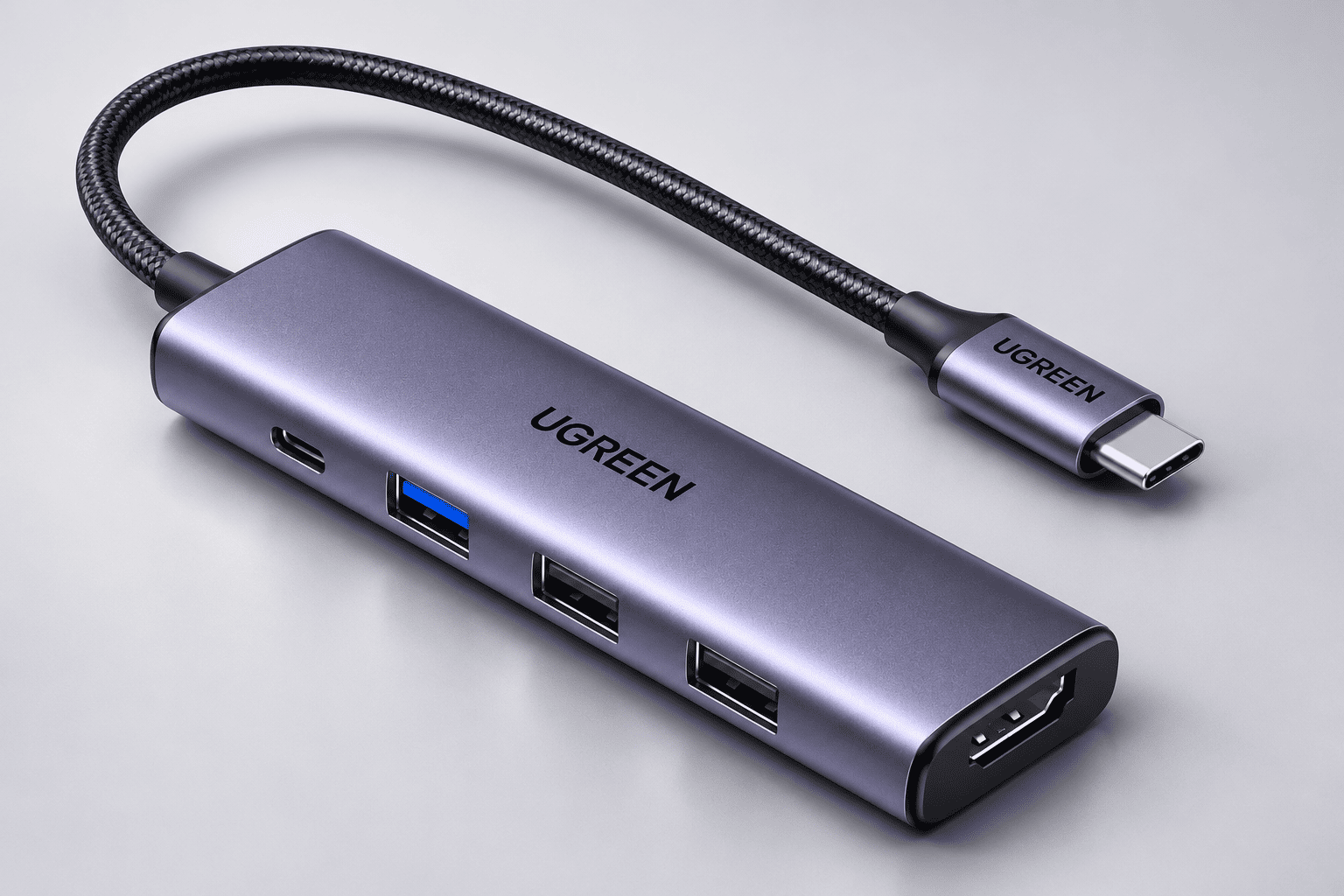
The UGREEN USB-C Hub 5-in-1 is a straightforward option if your laptop has USB-C but your everyday accessories don’t. The listing you shared puts it at $11.98, which is a modest investment for a desk where you frequently connect a mouse, keyboard, USB drive, or HDMI monitor. It’s built around the common connections you probably miss most.
You get one HDMI output, three USB-A data ports, and a USB-C input intended for Power Delivery pass-through charging. The listed UGREEN CM478 configuration has one faster USB-A connection rated up to 5 Gbps and two USB 2.0 connections rated up to 480 Mbps. That’s a sensible split for a flash drive plus lower-bandwidth accessories. Just remember that the USB-C charging input isn’t a spare USB-C data port.
Its advertised 100W Power Delivery refers to input support, not a guarantee that 100W reaches your laptop. Some power is used by the hub itself, and the actual amount delivered depends on your charger and computer. HDMI also depends on your computer’s USB-C video support, so a compatible physical plug is not enough to make an external screen work.
For ordinary office tasks, I like the logic of this setup: leave a few basic accessories connected, add a display when needed, and keep laptop charging available through the same hub. It’s less convincing if you need several fast SSDs, high-refresh-rate 4K output, or a dedicated Ethernet connection. Those needs point toward a more capable dock instead.
- Best fit: A laptop or tablet desk setup with a monitor, basic USB-A accessories, and occasional file transfers.
- Before ordering: Check USB-C video output support and confirm which USB-A port offers the faster transfer speed.
2
BENFEI USB-C Hub 5-in-1 Review: Faster USB-A Transfers
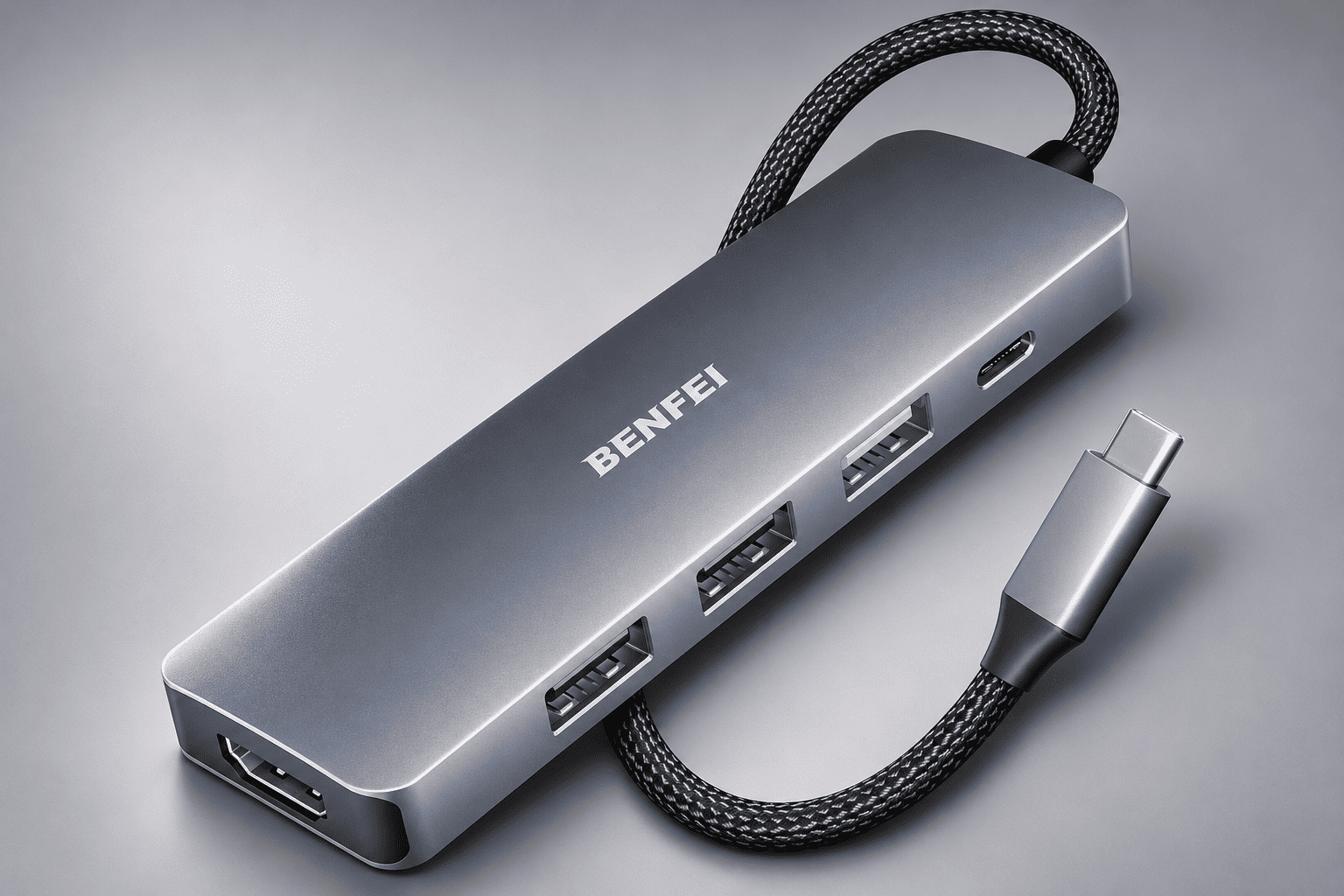
The BENFEI USB-C Hub 5-in-1 covers much the same everyday need, but its listed faster USB-A connection is rated up to 10 Gbps. At the $9.99 price supplied in your listing, it can be an appealing choice if you regularly move photos or large files using a suitable USB-A storage device. That speed benefit only appears when the drive and host connection can support it.
Its five connections include HDMI, three USB-A data ports, and a USB-C Power Delivery input. One USB-A port is specified for up to 10 Gbps, while the other two are USB 2.0 ports better suited to keyboards, mice, or other low-bandwidth gear. The listing also highlights an aluminum case and a flexible silicone-woven attached cable, which can make it convenient to pack with a laptop.
The HDMI specification is up to 4K at 30Hz, and the device you’re connecting must support video output over USB-C. BENFEI describes the hub as accepting up to 100W of charging input and delivering up to 90W to a compatible host, with some power reserved for hub operation. Its USB-C power input doesn’t provide data or video functionality.
I would consider the BENFEI when you want an inexpensive travel adapter and occasionally use a fast USB-A flash drive or external storage device. If you only connect a keyboard and a mouse, the extra rated speed isn’t likely to change your day. And if you need two monitors or guaranteed 4K at 60Hz, this compact five-port model isn’t the right starting point.
- Best fit: A portable laptop setup where one higher-speed USB-A connection is useful.
- Before ordering: Confirm the HDMI refresh rate, device compatibility, and the charging power your laptop actually requires.
How to Choose a USB-C Hub Without Wasting Money
The two hubs above have nearly identical-looking port layouts, which is exactly why the smaller specifications matter. Don’t choose only by how many ports are printed on the packaging. Think about the devices you’ll connect on an ordinary Tuesday and check whether those connections need video, high-speed data, or power.
- For a keyboard and mouse: USB 2.0 ports are normally enough; there’s little reason to pay extra for speed you won’t use.
- For an external SSD: Check the fastest supported USB-A port and the data limits of your computer and drive.
- For a 4K monitor: Verify that your device outputs video over USB-C and that the hub supports the refresh rate you want.
- For laptop charging: Look for the power delivered to the host after hub overhead, not merely the maximum PD input label.
- For several demanding devices: Consider a powered dock, especially if you need multiple displays, Ethernet, and sustained high-speed transfers.
A Few USB-C Mistakes That Are Easy to Avoid
The most common mistake is treating all USB-C cables as interchangeable. Some are excellent for charging but slow for data, and some support higher-speed modes only with particular devices. Use a cable with clear data and power ratings when you need those features, and avoid relying on a vague ‘fast USB-C’ description.
Another mistake is assuming a hub adds USB-C functionality by itself. An HDMI-equipped hub still needs a host capable of video output. A 100W pass-through label doesn’t mean the hub includes a wall charger, and it doesn’t mean every connected device can charge at 100W. Finally, remember that multiple accessories share the hub’s available bandwidth and power. Heavy workloads can require more than a small bus-powered adapter.
The Bottom Line on USB-C and Your Next Accessory
USB-C makes daily connections more convenient, but the plug shape tells you surprisingly little about what will happen after you connect a cable. Start with the capabilities of your phone or laptop, then match the cable, charger, or hub to the job. That simple habit can save you from slow transfers, blank monitors, and charging surprises.
For basic office accessories and an occasional display, the UGREEN five-in-one is a practical low-cost option. If you want the same compact layout with a faster-rated USB-A port, the BENFEI five-in-one is worth a closer look. In either case, confirm your device’s video and charging support before purchasing, because a USB-C hub can extend the connections you have, not rewrite the hardware inside your computer.