Keeping your Samsung Smart TV updated is one of the easiest ways to make sure you get the best performance from your television. Software updates can improve stability, fix bugs, improve compatibility with apps, and sometimes add new features to your TV experience.
Affiliate Disclaimer
This website participates in affiliate programs. We may earn a commission
when you purchase products through links on this page, at no additional
cost to you. Our recommendations are based on independent research and
honest opinions.
Many people only think about updating when an app stops working or the TV starts acting strangely. But regular updates can help prevent those problems before they happen.
In this guide, I’ll explain how to update Samsung TV software, update apps through Smart Hub, troubleshoot common update problems, and share a few useful accessories that can make everyday TV use easier.
Why Should You Update Samsung TV Software?
Your Samsung TV is no longer just a screen. Modern Smart TVs run an operating system that manages apps, streaming services, settings, and connected devices.
Just like your phone or computer, the software needs occasional updates.
Keeping your TV updated can help with:
- Better system stability
- Improved app compatibility
- Bug fixes
- Security improvements
- Performance improvements
- New Smart Hub features
For example, if Netflix, YouTube, or another streaming app suddenly stops working correctly, an outdated TV software version may be part of the problem.
Updates do not always bring visible changes, but they often improve the background systems that keep your TV running smoothly.
Software Updates vs App Updates: What Is the Difference?
Many Samsung TV owners confuse system updates with app updates, but they are two different things.
A software update changes the TV’s operating system. This affects the overall performance of your television.
An app update changes individual applications installed on your TV, such as:
- Netflix
- YouTube
- Disney+
- Prime Video
- Spotify
Your TV software can be fully updated while individual apps still need updates.
Both matter if you want the smoothest Smart TV experience.
Before Updating Your Samsung TV
Before starting the update process, check a few things first.
Make Sure Your TV Is Connected to the Internet
Most Samsung Smart TV updates happen through an internet connection.
Check that:
- Wi-Fi is working properly
- The TV is connected to your home network
- Your internet connection is stable
If your connection drops during an update, the process may fail or take much longer.
Keep Your TV Powered On
Do not unplug your TV during a software update.
Interrupting the process can create problems with the installation.
It is best to start the update when you know you will not need the TV for a while.
Check Your Samsung TV Model
Samsung releases updates based on different TV models and regions.
If you are trying to update manually, knowing your exact model number can help you find the correct software version.
You can usually find your model information under:
- Settings
- Support
- About This TV
How to Update Samsung TV Software Automatically
The easiest method is enabling automatic updates.
When automatic updates are turned on, your Samsung TV checks for new software and installs updates when available.
Follow these steps:
- Press the Home button on your Samsung remote.
- Open Settings.
- Select Support.
- Choose Software Update.
- Select Auto Update.
- Turn the option on.
With this enabled, your TV can update itself without requiring you to manually check every time.
How to Update Samsung TV Software Manually
If you want to check for updates yourself, you can do it directly from the settings menu.
Follow these steps:
- Press the Home button on your remote.
- Go to Settings.
- Select Support.
- Choose Software Update.
- Select Update Now.
Your TV will check Samsung’s servers for available updates.
If a new update is available, the TV will download and install it.
The process time depends on the size of the update and your internet speed.
How to Update Samsung TV Software Using USB
Sometimes a TV may not update through the internet. In those situations, Samsung also provides USB update options for supported models.
This method is usually helpful when:
- The TV cannot connect online
- The update option is unavailable
- You need a specific firmware version
The general process is:
- Download the correct firmware from Samsung’s support website
- Transfer the update file to a USB drive
- Connect the USB drive to your TV
- Start the update through the TV settings
Be careful to download the correct firmware for your exact model. Installing the wrong software can create problems.
How to Update Apps on Samsung Smart TV
Updating apps is different from updating the TV software.
Samsung Smart TVs usually manage apps through Smart Hub.
To update apps:
- Press the Home button on your remote.
- Open the Apps section.
- Select the settings icon.
- Enable automatic app updates or manually update available apps.
Keeping apps updated helps prevent problems such as:
- Apps freezing
- Streaming errors
- Login problems
- Missing features
If you mainly use streaming services, keeping apps updated is just as important as updating the TV software.
Common Samsung TV Update Problems and Fixes
Even though updating is usually simple, some users run into problems.
Update Option Is Missing
If you cannot find the update option, check:
- Your TV model
- Internet connection
- Whether the TV is already running the latest software
Some older models may have limited update support.
Samsung TV Update Gets Stuck
If the update process appears frozen:
- Wait several minutes before taking action
- Check your internet connection
- Restart the TV if necessary
Avoid unplugging the TV immediately unless the device has clearly stopped responding.
Apps Are Not Updating
If Smart TV apps are not updating:
Try:
- Restarting the TV
- Checking your internet connection
- Signing out and back into your Samsung account
- Checking available storage
Sometimes a simple restart clears temporary software issues.
Remote Problems During Updates
The remote is the main way most people interact with Samsung Smart Hub, settings, and apps.
A damaged remote or slippery buttons can make simple tasks frustrating, especially when navigating menus frequently.
That is why some Samsung TV owners add small accessories or replace their remote when needed.
1
2 Pack Silicone Remote Cover for Samsung Smart TV Remote 2019–2026
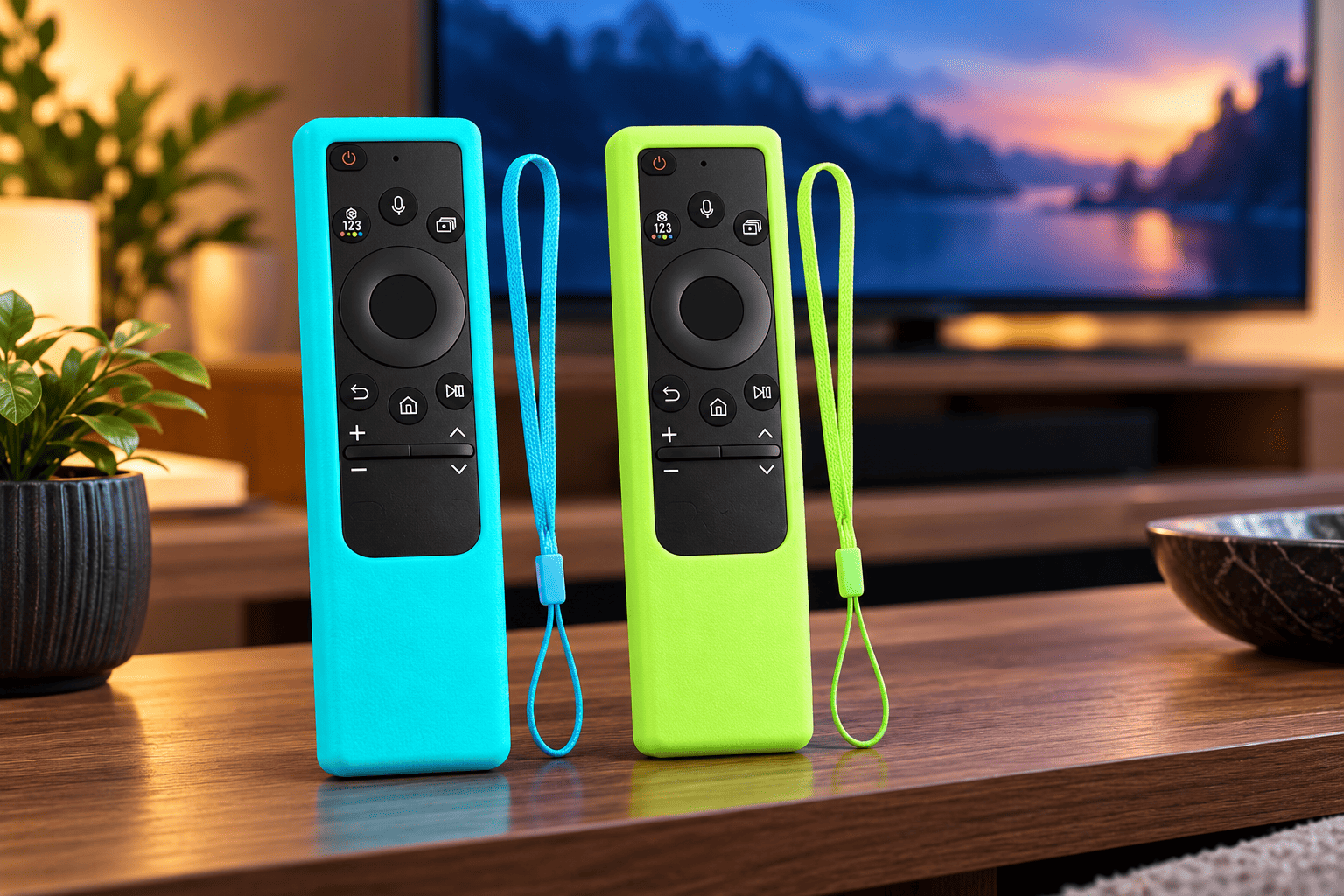
The 2 Pack Silicone Remote Cover for Samsung Smart TV Remote 2019–2026 is a simple accessory designed to protect your Samsung remote while making it easier to hold.
Remote controls are used every day, but they are often one of the most overlooked parts of a TV setup. A small drop or worn-out buttons can make controlling your TV less comfortable.
This silicone cover adds a protective layer around compatible Samsung remote models from recent years.
Features include:
- Silicone protective material
- Anti-slip grip
- Glow-in-the-dark design
- Compatible with several Samsung Smart TV remote models
- Two-color pack option
The anti-slip texture is useful because modern Samsung remotes are slim and lightweight. They can easily slide between sofa cushions or fall from a table.
The glow-in-the-dark feature is also practical. Finding a remote in a dark room is a common problem, especially during movie nights.
At around $8.98 based on the listed price, it is an inexpensive way to protect a remote that you use every day.
This accessory makes the most sense for families, homes with children, or anyone who wants extra grip and protection without replacing the remote.
2
Replacement for Samsung TV Remote, for All 2019-2026 Samsung Remote Control
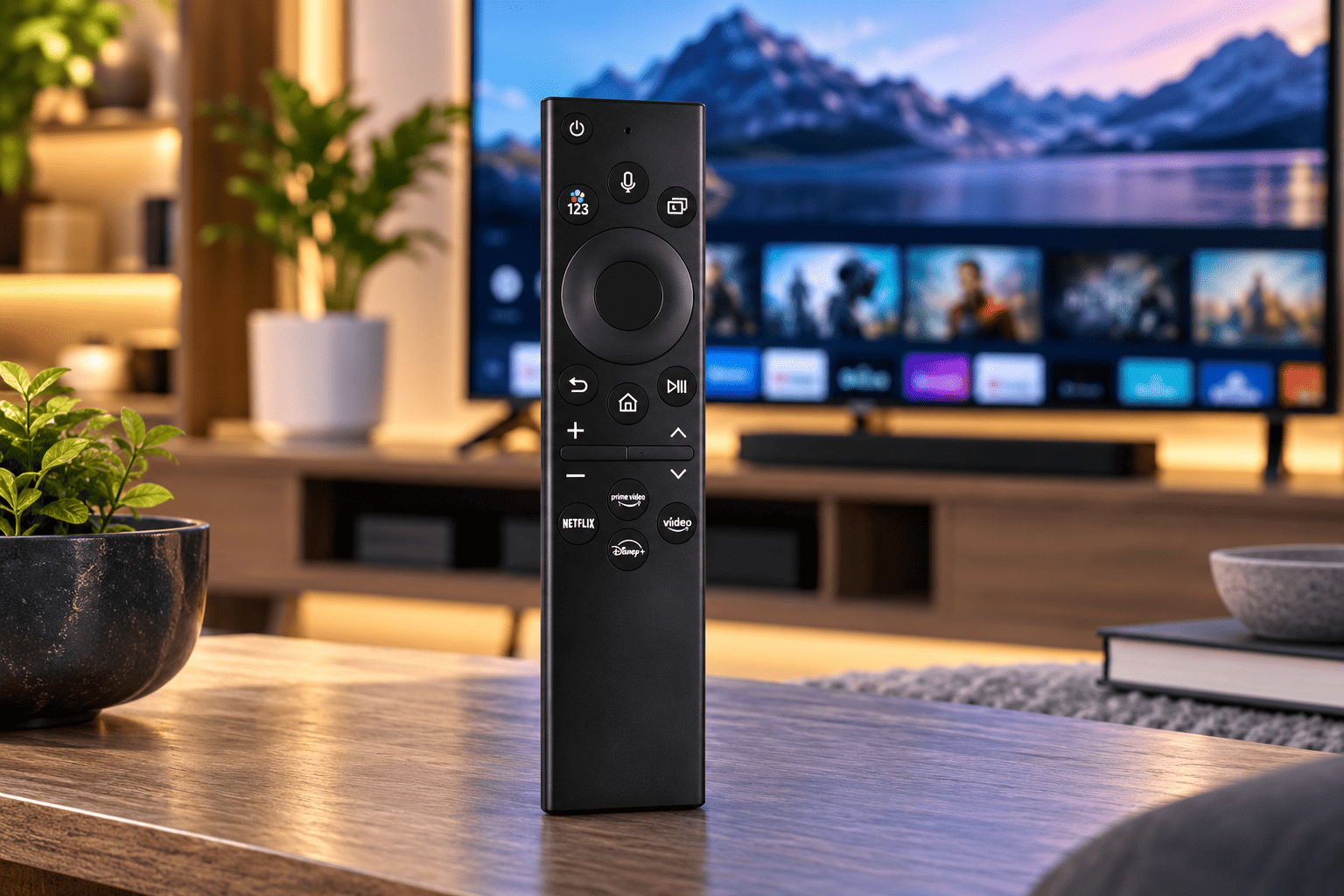
If your Samsung remote is already damaged, missing, or no longer working properly, a replacement remote may be a better option than repairing the original.
The Replacement for Samsung TV remotes for all 2019- 2026 Samsung remote controls is designed as a replacement option for compatible Samsung Smart TVs.
According to the listing, it supports models from 2019–2026 and includes voice control compatibility.
A replacement remote can be useful when:
- Buttons stop responding
- The remote is lost
- The original remote has physical damage
- You want a backup remote
The listing also mentions a 2-year full warranty, which can provide additional peace of mind compared with buying an unbranded replacement with no support.
Important things to check before buying include your exact TV model and remote compatibility. Samsung uses different remote designs across different TV models, so matching compatibility is important.
At around $17.99 based on the listed price, it is still much cheaper than replacing a Smart TV simply because the remote is not working.
For anyone dealing with a damaged Samsung remote, this can be a practical replacement option.
Tips to Keep Your Samsung Smart TV Running Smoothly
Updating your TV is important, but a few other habits can improve your experience.
Restart Your TV Occasionally
Like computers and phones, Smart TVs can benefit from occasional restarts.
A restart can help clear temporary issues and improve responsiveness.
Remove Apps You Do Not Use
Unused apps take up storage space and can make your Smart Hub experience feel cluttered.
Removing apps you no longer need keeps everything easier to navigate.
Keep Your Remote in Good Condition
The remote is something you use every time you watch TV.
Simple steps like using a protective cover and keeping it away from liquids can extend its life.
Check Updates Regularly
You do not need to check every day, but checking occasionally helps ensure your TV and apps stay compatible with new services.
Final Thoughts
Updating your Samsung Smart TV software and apps is a simple maintenance task that can improve performance and prevent common problems. Whether you use your TV mainly for streaming, gaming, or everyday entertainment, keeping the software current helps everything work more smoothly.
If your Samsung remote is becoming uncomfortable to use, the silicone remote cover is an affordable upgrade that adds protection and grip.
If your remote is already damaged or missing, a replacement remote is a more practical solution.
A Smart TV is only as convenient as the tools you use with it. Keeping both the software and accessories in good condition helps you get more from your Samsung TV for years.