Getting a new PlayStation 5 is exciting, but the initial setup process can feel a little confusing if you have never used a modern console before. From connecting cables and pairing your controller to transferring games and optimizing settings, there are several steps that can improve your first gaming experience.
Affiliate Disclaimer
This website participates in affiliate programs. We may earn a commission
when you purchase products through links on this page, at no additional
cost to you. Our recommendations are based on independent research and
honest opinions.
The good news is that PS5 setup is straightforward. You just need to follow the right order.
This guide walks you through everything you need to do when setting up your PS5 for the first time, including internet connection, account setup, system updates, storage management, display settings, and useful accessories that can improve your setup.
What You Need Before Setting Up Your PS5
Before turning on your PS5, prepare everything you need.
You should have:
- PlayStation 5 console
- DualSense wireless controller
- HDMI cable
- Power cable
- Stable Wi-Fi connection
- PlayStation Network account
- TV or monitor with HDMI input
- USB-C cable for controller pairing
If you are moving from a PS4, you may also want:
- Your existing PSN login details
- External storage drive
- Your previous console nearby for data transfer
Having these ready makes the setup process much faster.
Step 1: Connect Your PS5 to Your TV or Monitor
Start by placing your PS5 in a location with enough airflow.
Avoid putting it:
- Inside a closed cabinet
- Too close to walls
- On soft surfaces like carpets
The console needs proper ventilation to maintain stable performance.
Now connect:
- Plug the HDMI cable into the PS5 HDMI OUT port.
- Connect the other end to your TV or monitor.
- Connect the power cable.
- Turn on your TV and select the correct HDMI input.
Once everything is connected, press the power button on the PS5.
You should see the PlayStation startup screen.
Step 2: Connect Your DualSense Controller
The first time you use your PS5 controller, you need to pair it.
Follow these steps:
- Connect the DualSense controller to the PS5 using the USB-C cable.
- Press the PS button in the center of the controller.
- Wait until the controller connects.
After pairing, you can normally use the controller wirelessly.
The DualSense controller is one of the biggest upgrades from previous PlayStation generations, offering:
- Adaptive triggers
- Improved vibration feedback
- Built-in microphone
- Motion controls
Step 3: Choose Your Language and Region
After connecting your controller, PS5 will guide you through basic settings.
You will select:
- Language
- Country or region
- Time zone
- Date and time preferences
These settings affect:
- PlayStation Store availability
- Game recommendations
- System notifications
Make sure your region settings are correct because changing them later can be difficult.
Step 4: Connect Your PS5 to the Internet
A stable internet connection is important because modern games require frequent updates.
You can connect using:
Wi-Fi
Most users choose Wi-Fi because it is simple.
Go to:
Settings → Network → Settings → Set Up Internet Connection
Select your Wi-Fi network and enter your password.
Ethernet Cable
For the best gaming experience, a wired connection is usually more reliable.
Ethernet can provide:
- Lower latency
- More stable downloads
- Fewer connection interruptions
This is especially useful for online multiplayer games.
Step 5: Update Your PS5 System Software
Your PS5 may need a software update before you start playing.
Updates can include:
- Security improvements
- Performance fixes
- New features
- System improvements
Allow the console to download and install the latest update.
Keeping your PS5 updated helps ensure compatibility with new games and services.
Step 6: Sign In or Create a PlayStation Account
A PlayStation Network account gives you access to:
- PlayStation Store
- Online multiplayer
- Cloud saves
- Digital game purchases
- Friends and messaging
If you already have an account from PS4, use the same login.
If you are new to PlayStation:
- Select Create Account.
- Enter your details.
- Verify your email.
- Sign in.
Enable two-step verification for better account security.
Step 7: Transfer Data From Your Old PS4 (Optional)
If you are upgrading from a PS4, you can transfer:
- Games
- Saved data
- User profiles
- Settings
The transfer can happen through:
- Wi-Fi connection
- Ethernet cable
- External storage
Before transferring, make sure both consoles are updated.
Keep in mind that some games may still require PS5 versions or updates to take full advantage of the newer hardware.
Step 8: Adjust Display Settings
Your PS5 automatically detects your TV, but it is worth checking the display settings.
Go to:
Settings → Screen and Video
Important settings include:
Resolution
Choose the highest resolution your TV supports.
Options may include:
- 1080p
- 1440p
- 4K
HDR
If your TV supports HDR, enable it for improved:
- Brightness
- Contrast
- Colors
120Hz Mode
If your TV supports 120Hz, you can enable higher refresh rates for compatible games.
This is useful for competitive games where smoother motion matters.
Step 9: Install Your Games and Manage Storage
The PS5 comes with built-in SSD storage, but large modern games can quickly consume space.
You can manage storage from:
Settings → Storage
You can:
- Delete unused games
- Move PS4 games to external storage
- Add compatible SSD expansion storage
A good storage habit is keeping only games you actively play installed.
Useful PS5 Accessories to Improve Your Setup
The PS5 already includes everything needed to start gaming, but some accessories can make your experience more convenient.
A good accessory setup can help with:
- Controller charging
- Console organization
- Cooling
- Storage
Two popular options are designed around keeping your gaming area cleaner and more organized.
1
PS5/Slim/Pro Stand and Cooling Station with LED Controller Charging Station

The PS5/Slim/Pro Stand and Cooling Station with LED Controller Charging Station combines several useful accessories into one setup.
Instead of using separate accessories for charging and organization, this type of stand creates a central location for your console and controllers.
Features include:
- Controller charging station
- Cooling fan system
- LED lighting
- Storage organization
- Compatibility with PS5 models
For gamers who want a cleaner gaming desk or entertainment setup, this can be a convenient addition.
The controller charging feature is especially useful because it keeps your DualSense controllers ready without needing to search for charging cables.
The cooling function may help improve airflow around the console, although the PS5 itself already has built-in cooling designed for normal operation.
2
PS5/Slim/Pro Stand with RGB Lights and Cooling Station
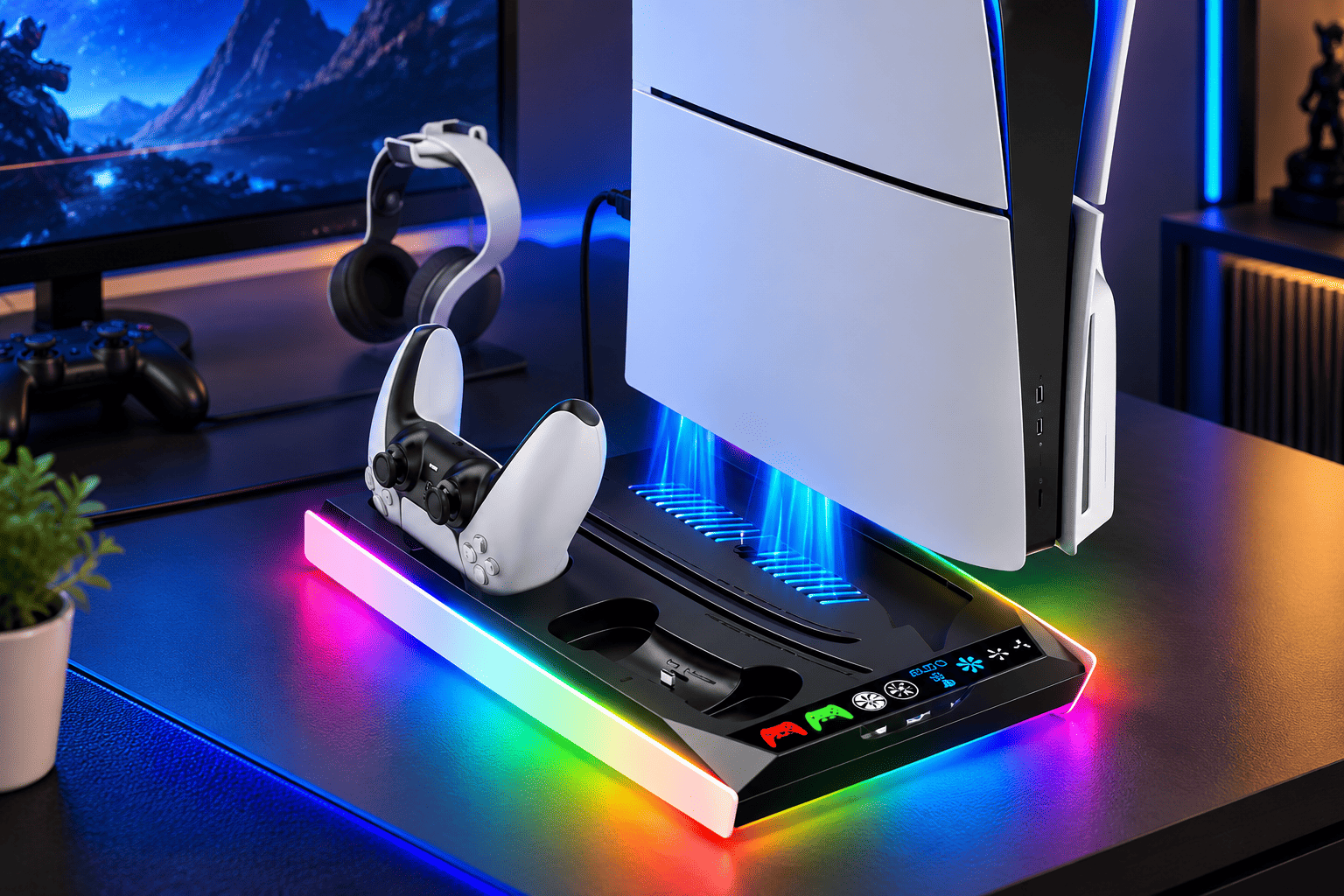
The PS5/Slim/Pro Stand with RGB Lights and Cooling Station is another option for gamers who want additional organization and charging features.
It includes:
- RGB lighting
- Controller charging
- Cooling fan
- Console stand design
- Accessory organization
This type of stand works well for users who want their gaming setup to look more organized while keeping controllers in one place.
The RGB lighting also adds a customized gaming setup aesthetic.
Best PS5 Settings to Change After Setup
After completing the basic setup, these settings are worth checking.
Enable Automatic Updates
This allows your PS5 to download:
- System updates
- Game updates
automatically.
Adjust Power Saving Settings
You can customize how long your PS5 stays active before entering rest mode.
Customize Notifications
You can control alerts for:
- Downloads
- Friends
- Messages
- Promotions
Configure Controller Settings
You can adjust:
- Trigger effects
- Vibration intensity
- Microphone settings
Common PS5 Setup Problems and Fixes
PS5 Shows No Signal on TV
Try:
- Checking HDMI connections
- Switching HDMI ports
- Restarting both devices
- Trying another HDMI cable
Controller Will Not Connect
Try:
- Using the USB cable again
- Resetting the controller
- Restarting the PS5
Slow Downloads
Possible solutions:
- Use Ethernet instead of Wi-Fi
- Restart your router
- Pause other downloads
- Check network settings
Final Thoughts
Setting up your PS5 for the first time only takes a few minutes, but completing the right steps can make your gaming experience much better.
Start with the basics:
- Connect your console properly
- Update the system
- Sign in to PlayStation Network
- Configure display settings
- Manage storage
After that, you can customize your setup with accessories like a charging stand or cooling station to keep your gaming area organized.
A properly configured PS5 gives you the best foundation for enjoying everything the console offers, from single-player adventures to competitive online gaming.