An Android phone that keeps restarting is usually dealing with a software glitch, a problematic app, low storage, overheating, a failing battery, or another hardware issue. The good news is that a random restart does not automatically mean your phone is dying.
Affiliate Disclaimer
This website participates in affiliate programs. We may earn a commission
when you purchase products through links on this page, at no additional
cost to you. Our recommendations are based on independent research and
honest opinions.
Start with the simple fixes first. Restart the phone yourself, check for system and app updates, free up storage, remove recently installed apps, and test the phone in Safe Mode. If it continues restarting even when third-party apps are not running, the problem is more likely to be deeper in the system or hardware.
Here is the order I would follow.
First, Notice When the Restart Happens
Before changing anything, pay attention to what the phone is doing immediately before it restarts.
Does it happen while you’re gaming? When the battery gets low? When you open a particular app? When the phone is charging? Or does it restart randomly while sitting on a table?
That detail can narrow things down surprisingly quickly.
A phone that restarts only during demanding games may be overheating or struggling with a power-related issue. If it restarts whenever you open one particular app, that app becomes a much stronger suspect.
If there is absolutely no pattern, start with the general fixes below.
1. Restart the Phone Properly
It sounds strange to recommend restarting a phone that is already restarting, but there is a difference between an unexpected reboot and a deliberate restart.
If the phone is currently working, turn it off normally and leave it off for a few seconds before powering it back on.
This clears temporary system processes and gives Android a clean start.
If the phone is frozen and will not respond normally, you may need to use the manufacturer’s force-restart button combination. The exact combination varies between brands, so check the support instructions for your particular model.
If the problem disappears after a restart but comes back later, keep troubleshooting rather than assuming the issue is fixed.
2. Check How Much Storage You Have Left
A nearly full phone can cause all sorts of annoying behavior.
Android needs some free storage for temporary files, app updates, system operations, and other background tasks. When your internal storage is packed with photos, videos, downloads, and applications, you can run into performance problems.
Open your phone’s storage settings and see how much space remains.
If you’re down to only a few gigabytes, start cleaning up.
You can remove:
- Apps you no longer use
- Old downloads
- Duplicate photos and videos
- Offline videos
- Large files you have already backed up
- Cached or unnecessary data where appropriate
Do not randomly delete system files just to free space.
Focus on your own files and apps first.
3. Update Android
An outdated Android version can contain bugs that have already been fixed in a newer software release.
Go to your phone’s Settings and look for System Update, Software Update, or a similarly named option.
The exact location depends on the manufacturer.
Install any available update and restart the phone afterward.
This is particularly important if the restarting problem started after a recent app installation or system change. Sometimes a software update fixes compatibility problems that are difficult to diagnose manually.
Keep in mind that Android update schedules vary between manufacturers and individual phone models.
4. Update All Your Apps
Android itself may be completely up to date while one of your apps is running an old version.
Open the Google Play Store and check for available updates.
Pay particular attention to apps you installed or updated around the time the restarting began.
A badly behaved app can crash repeatedly in the background. Depending on the problem, that may cause anything from a frozen screen to a full system restart.
If you have dozens of pending updates, install them rather than trying to guess which app is responsible.
Then use the phone normally and see whether the restarts continue.
5. Remove Apps You Recently Installed
If the problem started shortly after installing a new app, that timing is important.
Uninstall the app and see what happens.
This is especially worth trying if the application requests extensive background permissions, constantly runs in the background, or interacts closely with the phone’s system functions.
You do not have to uninstall every app on the phone.
Start with applications that were installed or updated shortly before the restarting problem appeared.
If the phone becomes stable afterward, you have a much better clue about what caused the problem.
6. Check the Phone in Safe Mode
Safe Mode is one of the most useful troubleshooting tools when an Android phone keeps restarting.
In Safe Mode, Android temporarily disables third-party apps. The exact method for entering Safe Mode varies by manufacturer, but many phones allow you to access it through the power menu or a button combination during startup.
Once you’re in Safe Mode, use the phone normally for a while.
If the phone suddenly stops restarting, a third-party app is a strong suspect.
You can then restart normally and start removing recently installed or suspicious apps.
If the phone continues restarting even in Safe Mode, the problem is less likely to be caused by an ordinary third-party app.
That does not prove that the hardware is defective, but it tells you where to focus next.
7. Check Whether the Phone Is Overheating
Heat can cause phones to reduce performance, close applications, or shut down to protect internal components.
If your phone becomes unusually hot before every restart, pay attention to what you’re doing at the time.
Gaming, recording long videos, using GPS navigation, charging while performing demanding tasks, and sitting in direct sunlight can all increase heat.
Try removing a thick case temporarily and stop demanding applications if the phone becomes excessively hot.
Also avoid using the phone in extremely hot environments.
A little warmth during heavy use is normal. A phone that becomes too hot to comfortably hold and then repeatedly shuts down deserves more attention.
8. Check the Battery and Charging Behavior
Battery problems can look like software problems.
If the phone restarts whenever the battery drops below a certain percentage, suddenly jumps from 30% to 5%, or shuts down under moderate workloads, the battery may be struggling to deliver stable power.
Pay attention to whether the problem happens more often when you’re using the camera, playing games, or running another demanding application.
Also test a different charging cable and charger if the restarting happens while charging.
If the phone only restarts when connected to one particular charger or cable, that gives you another useful clue.
For an older phone with a heavily degraded battery, replacement may ultimately be the right answer.
9. Check for Physical Damage
Think about what happened before the problem started.
Was the phone dropped? Exposed to water? Bent? Repaired recently? Did the charging port get damaged?
A phone can continue working after physical damage and then develop problems later.
If random restarts began immediately after a significant drop or liquid exposure, I would not spend hours changing software settings.
Back up your important data and have the phone inspected.
Do not keep charging a device that shows obvious signs of battery damage, swelling, or unusual heat.
10. Back Up Your Data Before Going Further
This step is easy to overlook because you’re focused on fixing the phone.
Do it anyway.
If the restarting gets worse, you could eventually lose access to your photos, messages, documents, or other important information.
Back up important files to a trusted cloud service or another device while the phone is still usable.
Make sure your photos, contacts, documents, and other irreplaceable files are actually synchronized or copied rather than simply assuming they are.
This becomes especially important before performing a factory reset.
What If Your Phone Only Restarts During Gaming?
If your phone is perfectly stable during normal use but restarts during demanding games, the problem deserves a slightly different approach.
First, check temperature.
Then reduce the game’s graphics quality and frame rate and see whether the restarts continue.
You should also check whether the phone has enough free storage and whether Android and the game are fully updated.
If the device becomes extremely hot immediately before restarting, stop pushing it until you understand why.
A restart can be the phone protecting itself from an unstable condition, rather than the game simply “crashing.”
What If It Restarts When You Open One Specific App?
That is actually good news because the problem is easier to isolate.
Update the app first.
If an update is unavailable, clear its cache through Android’s app settings if that option is available. If the problem continues, uninstall and reinstall the application.
You can also test another similar application.
For example, if your phone only restarts when using one particular camera app, try the built-in camera application.
If everything else works normally, the problematic app becomes a much stronger suspect.
What If the Phone Restarts at Random?
Random restarts are harder because there may not be an obvious trigger.
Start with the basics:
- Update Android
- Update all apps
- Free up storage
- Remove recently installed apps
- Check battery behavior
- Watch for overheating
- Test Safe Mode
- Back up your data
If the phone still restarts in Safe Mode and has plenty of free storage, software becomes a less convincing explanation.
At that point, hardware deserves more attention.
Try a Factory Reset Only as a Last Software Step
A factory reset can solve serious software problems, but I would never make it the first recommendation.
It erases your personal data and returns the phone to its original software state.
Before doing it, make absolutely sure your important information is backed up.
Then find the factory-reset option in your phone’s settings. The exact menu differs by manufacturer, but it is usually under System, General Management, or a similar section.
After the reset, do not immediately reinstall every application you previously had.
Use the phone in its clean state for a while.
If the restarting stops, you can gradually reinstall your apps and see whether the problem returns.
If it keeps restarting even after a clean factory reset, that is a strong reason to stop treating the issue as an ordinary app problem.
When Is It Time to Replace the Phone?
If you’ve updated the software, removed problematic apps, tested Safe Mode, freed storage, checked the battery, and even performed a factory reset, but the phone still keeps restarting, replacement may make more sense than continuing to troubleshoot.
The same applies to an older phone with a deteriorating battery, damaged charging port, cracked internal components, or poor software support.
You also have to consider how much time you are spending fighting the device.
A phone that randomly restarts several times every day can become a serious inconvenience even if you can technically keep using it.
If the repair cost is approaching the price of a reliable new phone, replacement becomes easier to justify.
A New Phone Can Also Be a Clean Start
If your current device is old enough that software support is becoming limited, buying a newer Android phone gives you more than just a fresh battery.
You can get newer Android software, more current security support, better processors, improved cameras, and generally more storage.
That does not mean a new phone is automatically the answer to a restarting problem.
But if your existing phone is already showing several age-related problems, putting money into another repair may not be the smartest use of it.
1
Motorola Moto g 2026: A Simple Replacement Option
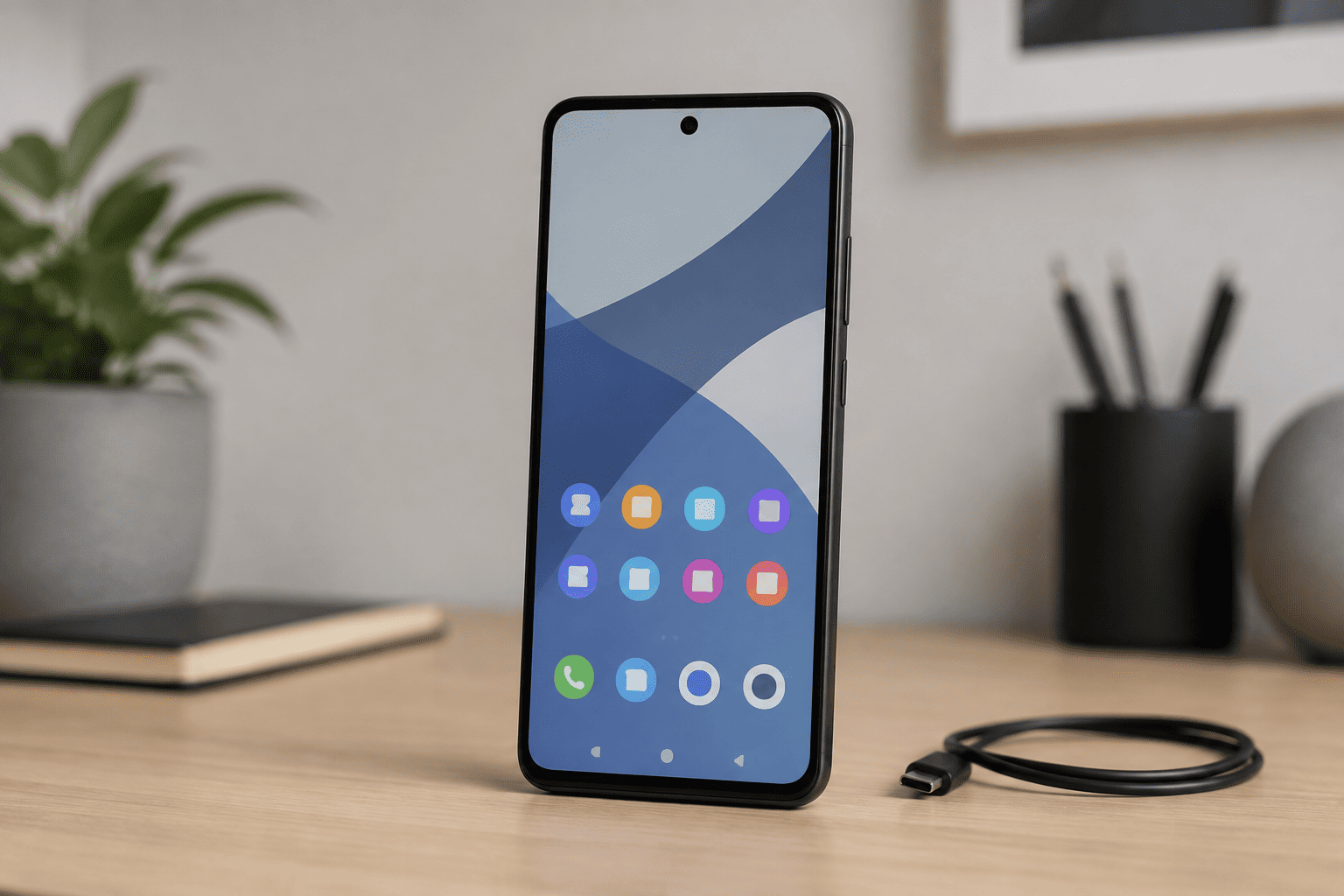
The Motorola Moto g 2026 is worth considering if your current phone is old and you’re looking for an unlocked Android replacement without moving into the higher-priced flagship category.
The supplied listing identifies this as the US version with 4GB of RAM and 128GB of storage, along with a 50MP camera. That gives you a straightforward starting point for everyday phone tasks such as calls, messaging, web browsing, streaming, and social apps.
The unlocked design is particularly useful if you prefer the flexibility to use a compatible carrier rather than buying a phone tied to one network.
At the supplied Amazon price of $299.99, however, I would look carefully at current alternatives before buying. The 4GB RAM configuration is fairly modest, so I would not recommend this as a performance-focused phone for heavy multitasking or demanding gaming.
Instead, its appeal is simplicity.
If your existing Android phone is several years old and has started developing battery, storage, software, and reliability problems at the same time, moving to a current unlocked model can be more practical than repeatedly repairing an aging device.
Just don’t buy it simply because your phone restarted twice. Troubleshoot the existing device first.
2
Samsung Galaxy A17 5G: A More Feature-Focused Alternative
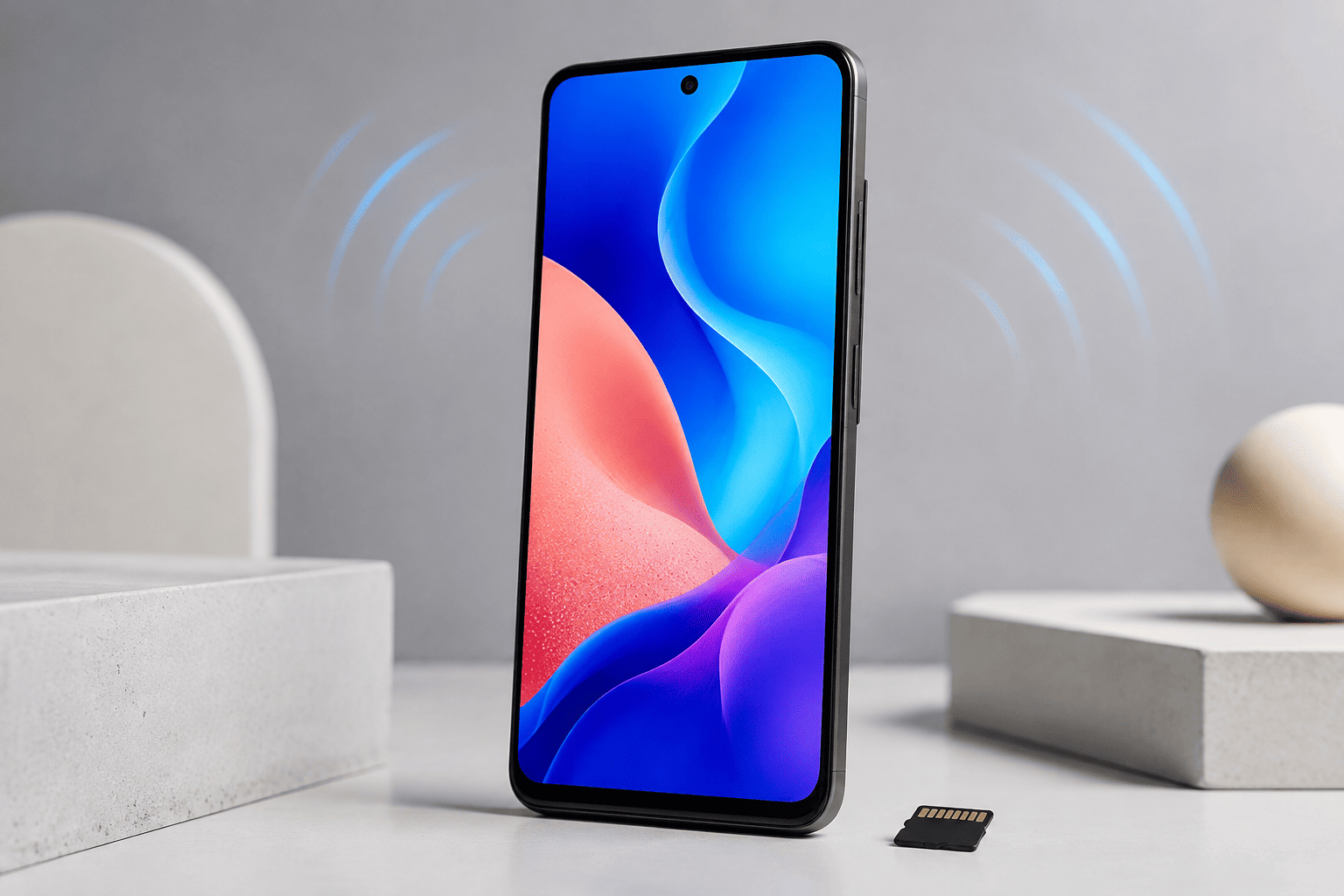
The Samsung Galaxy A17 5G is the other option I’d consider if you want a newer Android phone with a stronger feature set and Samsung’s software ecosystem.
The supplied listing identifies 128GB of internal storage, 5G connectivity, a large AMOLED display, expandable storage, a high-resolution camera system, and features such as Circle to Search. It also includes a one-year US manufacturer warranty according to the listing.
The AMOLED display is particularly nice for everyday use because you get the deeper blacks and strong contrast that OLED technology is known for.
Expandable storage is another practical advantage if you keep a large collection of photos, videos, music, or other files on the phone.
At the supplied price of $249.99, it is actually less expensive than the listed Motorola Moto g 2026, although prices can change. That makes the Galaxy A17 5G an interesting alternative if you are replacing an older Android device rather than simply repairing a minor software problem.
I would lean toward this one if you want a more feature-rich everyday phone and value the Samsung experience.
Again, don’t use a new phone as the first solution to a random restart. If a software update or problematic app is responsible, you can fix the original phone without spending anything.
Final Thoughts
An Android phone that keeps restarting does not automatically need to be replaced.
Start with the basics: restart it properly, free up storage, install Android and app updates, remove recently installed applications, check for overheating, and test the phone in Safe Mode. If the phone remains stable in Safe Mode, a third-party app is a strong suspect.
If it continues restarting in Safe Mode, especially after a factory reset, start thinking about hardware, battery condition, physical damage, or the age of the device.
Back up your important data before doing anything that could erase it.
If the phone is old and already showing several other problems, replacement can make more sense than another repair. The Motorola Moto g 2026 is the simpler unlocked option of these two, while the Samsung Galaxy A17 5G offers a more feature-focused alternative with 5G, AMOLED, expandable storage, and Samsung’s software features.
But don’t let one random restart convince you that you need a new phone.
Find the cause first. Quite often, the fix costs nothing.