Casting your phone to a TV is usually much easier than it sounds. If you have a modern smart TV, a Roku device, Google TV, Chromecast-compatible display, or another supported streaming device, you can often put photos, videos, apps, and even your entire phone screen on the big screen in just a few taps.
Affiliate Disclaimer
This website participates in affiliate programs. We may earn a commission
when you purchase products through links on this page, at no additional
cost to you. Our recommendations are based on independent research and
honest opinions.
The trick is knowing which method your phone and TV support. iPhone generally uses AirPlay, while Android phones commonly use Google Cast or a manufacturer’s screen mirroring feature. Once you know the difference between casting and screen mirroring, choosing the right method becomes much simpler.
Casting vs. Screen Mirroring: What’s the Difference?
People often use “casting” and “screen mirroring” as if they mean exactly the same thing. They don’t.
Casting usually sends specific content from your phone to the TV. For example, you can open YouTube, tap the Cast button, choose your TV, and let the TV handle playback. You can often continue using your phone for other things while the video keeps playing.
Screen mirroring is more literal. Your TV shows what is currently happening on your phone’s display. If you open another app, scroll through a website, or rotate your phone, the TV follows along.
That distinction matters because casting is generally better for watching supported movies, shows, and videos, while screen mirroring is more useful when you want to show something that doesn’t have a dedicated casting feature.
What You Need Before You Start
Before trying to connect your phone, check a few basic things.
Your phone and TV should generally be connected to the same Wi-Fi network. Google specifically requires the phone and Google Cast device or TV to be on the same wireless network for casting, while Roku gives the same requirement for AirPlay.
You’ll also need a TV that supports the technology you’re trying to use.
That could be a smart TV with built-in AirPlay or Google Cast, an Apple TV, a Chromecast or Google TV device, or a Roku streaming player that supports the relevant feature.
If your TV doesn’t have the right technology built in, don’t worry. A small streaming stick can add it through an HDMI port.
How to Cast an iPhone to a TV
If you have an iPhone, AirPlay is usually the first method to try.
AirPlay lets you send videos, photos, music, and other content from your iPhone to a compatible TV or streaming device. Compatible Roku devices also support AirPlay, so you don’t necessarily need an Apple TV just to get AirPlay on your television.
For full-screen mirroring, the basic process is:
- Connect your iPhone and compatible TV or streaming device to the same Wi-Fi network.
- Open Control Center on your iPhone.
- Tap Screen Mirroring.
- Select your TV or streaming device.
- Enter the code shown on the TV if you’re asked for one.
Your iPhone screen should then appear on the television.
To stop mirroring, open Control Center again, tap Screen Mirroring, and select Stop Mirroring.
The exact menus can vary slightly depending on your iPhone and iOS version, but the overall process is straightforward.
How to Cast an Android Phone to a TV
Android is a little less uniform because different manufacturers use different interfaces.
If your TV supports Google Cast, the easiest option is usually to open a compatible app such as YouTube or another streaming service and look for the Cast button.
Make sure your phone and TV are on the same Wi-Fi network, tap the Cast icon, and select your TV. Google says supported Cast-enabled apps can send content directly to a Google Cast-compatible TV or streaming device.
If you want to mirror your entire Android screen instead, the process depends on your phone.
You may see an option called Cast, Screen Cast, Smart View, Wireless Display, or something similar in Quick Settings.
On supported Android devices, Google also provides screen casting through Google Home. Android 8.0 and later devices support the Cast feature through Google Home controls, although the experience can vary between phones.
How to Cast From an Android Phone to Google TV
Google TV makes app-based casting particularly simple.
First, make sure your Android phone and Google TV are connected to the same Wi-Fi network.
Then:
- Open a Cast-enabled app on your phone.
- Start playing the video you want to watch.
- Tap the Cast button.
- Select your Google TV.
- Wait for the connection.
The Cast button should indicate that the connection is active.
Once playback starts, you can generally use your phone as a remote control for the content. Google notes that the phone doesn’t necessarily need to remain actively displaying the video because the Google Cast device handles playback.
This is one reason casting can feel better than simply duplicating your phone screen.
How to Mirror Your Android Screen
Sometimes you don’t want to cast a video.
Maybe you want to show someone a photo gallery, demonstrate an app, browse a website, or display something that doesn’t support casting.
That’s when screen mirroring makes more sense.
On a compatible Android phone, open Quick Settings and look for an option such as Cast, Screen Cast, Smart View, or Wireless Display.
Tap it and choose your compatible TV or streaming device.
Your phone should then appear on the television.
The exact name and location of the feature depend on the phone manufacturer. Google also points out that some Android devices may not provide an equally optimized Cast experience, so the process can vary from one phone to another.
How to Cast an iPhone to a Roku TV or Roku Stick
Roku is particularly useful if you have an older television that doesn’t have modern casting features built in.
For iPhone, compatible Roku devices can use AirPlay. Roku says supported Apple devices can stream or mirror content to compatible Roku streaming devices, provided the devices meet the necessary compatibility requirements.
The process is simple:
- Connect the iPhone and Roku to the same Wi-Fi network.
- Open Control Center on the iPhone.
- Tap Screen Mirroring.
- Choose your Roku device.
- Enter the on-screen code if requested.
For individual videos or photos, you can also use the AirPlay button within supported apps instead of mirroring your entire display.
This is usually the better option when the app supports it because you’re sending the content itself rather than duplicating every part of your phone screen.
How to Cast an Android Phone to Roku
Roku supports several ways to share content from mobile devices, but Android screen mirroring depends on device compatibility.
Roku’s current support documentation says screen mirroring is available for compatible Android and Windows devices. Roku also supports casting from supported mobile apps, where you tap the Cast icon and choose the Roku device.
If your Android phone supports Roku screen mirroring, open its wireless display or screen casting feature and select the Roku device.
You may then see a permission request on the TV. Use the Roku remote to allow the connection.
If you don’t see the Roku device, don’t immediately assume the Roku is broken. Your phone may not support the particular mirroring protocol Roku uses.
What If Your TV Doesn’t Support Casting?
This is where a streaming stick can make a big difference.
You don’t need to replace your entire TV just because it lacks AirPlay, Google Cast, or another modern connection method.
A streaming device plugs into an HDMI port and gives the TV its own streaming platform and connectivity features.
For example, Roku’s current Streaming Stick is designed for HD TVs and supports Apple AirPlay and HomeKit, along with Google Home and Alexa compatibility. It connects through HDMI and uses dual-band Wi-Fi.
That’s particularly useful if you’re working with an older TV that still has a good display but lacks the software features found on newer smart TVs.
And there’s another advantage: you’re not limited to screen sharing. The Roku becomes a standalone streaming device, so you can install supported apps and watch content directly on the TV.
1
Roku Streaming Stick HD: A Simple Way to Add Casting to an HD TV

The Roku Streaming Stick HD makes the most sense if you have a standard 1080p television and want an inexpensive way to add modern streaming features.
Roku’s current model is designed for HD TVs up to 1080p. It has a compact HDMI design, dual-band Wi-Fi, and a Voice Remote with TV power, volume, and mute controls. Roku also lists Apple AirPlay and HomeKit compatibility, which makes it useful for iPhone owners who want to share content with an older TV.
At the supplied Amazon price of $29.99, this is the more affordable of the two Roku options here.
The HD limitation is important, though. If you already have a 4K television, buying an HD-only streaming stick doesn’t make much sense unless you’re intentionally trying to save money.
For an older 1080p TV, however, this is a straightforward choice. Plug it into HDMI, connect it to Wi-Fi, and you have a much more capable TV without replacing the television itself.
2
Roku Streaming Stick 4K: Better for a 4K TV
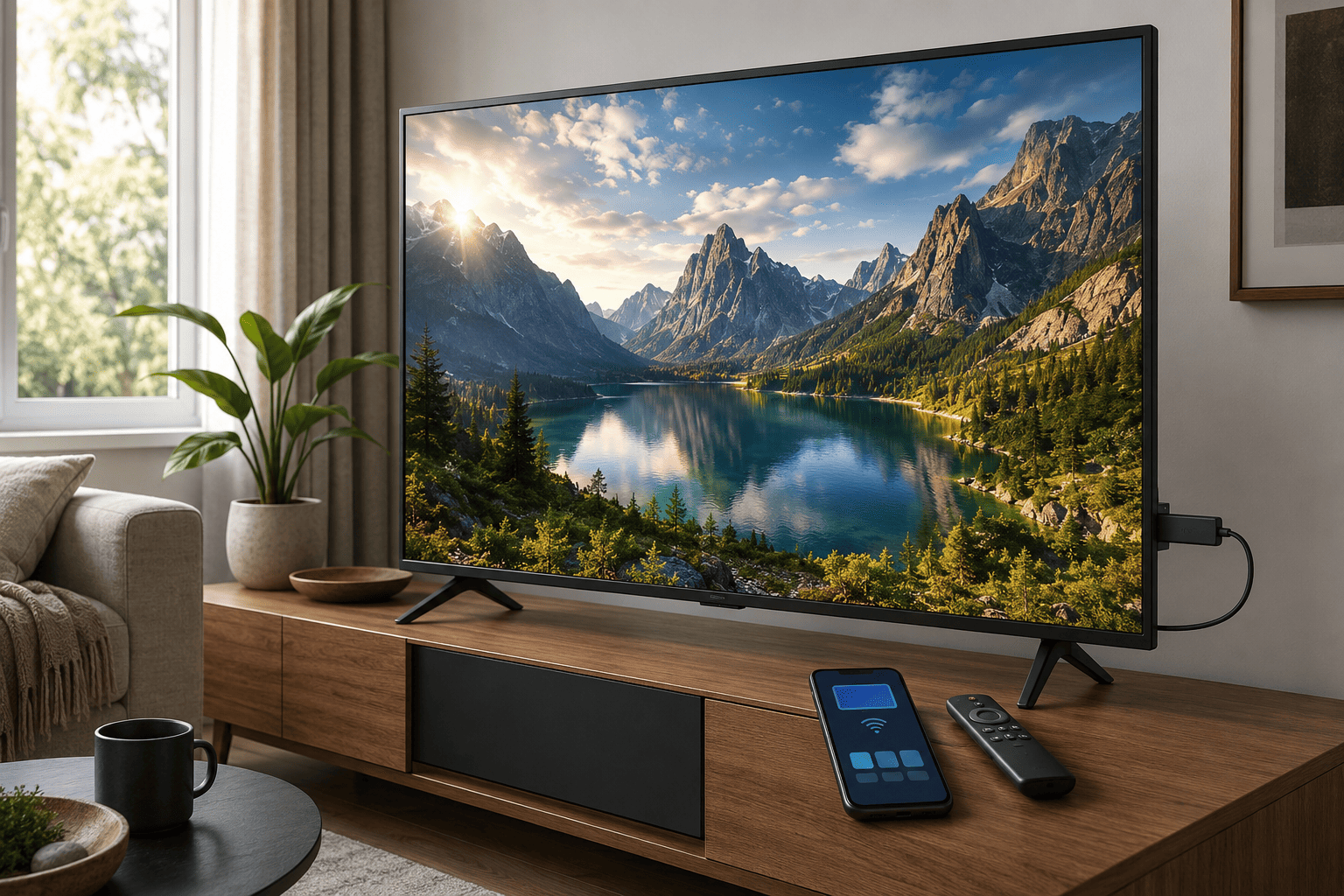
If your television supports 4K, the Roku Streaming Stick 4K is the more capable option.
The big difference isn’t just resolution. Roku positions this model above its HD Streaming Stick with 4K support, HDR10+, Dolby Vision, and long-range Wi-Fi. Roku also lists the Streaming Stick 4K as compatible with Apple AirPlay and HomeKit.
That makes it a better fit if you’re buying a streaming device for a 4K TV and want to keep it useful for several years.
The supplied Amazon listing is currently $48.87, compared with $29.99 for the HD model. That’s a meaningful difference for a budget setup, but the extra capability makes more sense if your TV can actually display 4K HDR content.
For iPhone owners, AirPlay support is also useful because you can send compatible content from your phone directly to the Roku or mirror your Apple device.
I’d choose this one when the TV itself is 4K, and you want the streaming device to match it.
Why Your Phone Sometimes Can’t Find the TV
This is probably the most common casting problem.
Start with Wi-Fi.
Your phone and TV or streaming device generally need to be connected to the same network. If your phone is on one Wi-Fi network while the TV is connected to another, the device may not appear in the casting list. Google specifically lists the same Wi-Fi requirement for Google Cast, and Roku gives the same requirement for AirPlay.
If they are definitely on the same network, try these steps:
- Restart the phone.
- Restart the TV or streaming device.
- Restart the Wi-Fi router.
- Check for software updates.
- Make sure AirPlay or screen mirroring is enabled on the TV.
- Confirm that the app you’re using supports casting.
- Turn off VPN software temporarily if it interferes with local-device discovery.
Also check your router settings if the problem keeps happening. Google notes that Wi-Fi features such as AP isolation can prevent devices from communicating with Google streaming devices.
Why Casting Works in One App but Not Another
This is normal.
Casting isn’t universal across every app.
Some apps have built-in Google Cast support. Others support AirPlay. Some support both. Others may restrict casting or behave differently because of licensing and technical requirements.
Google specifically notes that casting requires the latest version of a Chromecast-enabled app or Chrome browser for Google TV.
So if YouTube casts perfectly but another app doesn’t show a Cast button, that doesn’t necessarily mean something is wrong with your phone.
Try the app’s own sharing or playback controls first.
If the app doesn’t support the method your TV uses, full screen mirroring may be an alternative, assuming your phone and TV support it.
Does Casting Use Your Phone’s Battery?
It depends on what you’re doing.
With normal app-based casting, the streaming device or TV often handles playback after you start the session. Google specifically notes that video can continue playing on Chromecast even if your phone runs out of battery.
Screen mirroring is different.
Your phone has to continuously send what is happening on its display, so it can consume more battery and may be less efficient for long viewing sessions.
That’s another reason I prefer casting when an app supports it.
Use mirroring when you need the entire phone screen. Use casting when you simply want to watch supported content on the TV.
Can You Cast Without Wi-Fi?
Usually, not in the way most people expect.
Most common home casting setups rely on a local Wi-Fi network.
That doesn’t necessarily mean you need an internet connection for every possible wireless display technology, but standard Google Cast and Roku AirPlay setups rely on network connectivity between your phone and TV or streaming device.
Google’s setup requirements specifically call for a secure Wi-Fi network, while Google Cast instructions require the phone and TV or streaming device to be on the same network.
If you’re somewhere without normal Wi-Fi, wired HDMI adapters or certain device-specific wireless features may be better options.
Should You Use Casting or Screen Mirroring?
For watching Netflix, YouTube, Prime Video, or another supported streaming service, casting is usually the better choice.
For showing photos, a website, a presentation, a game, or an app that doesn’t offer casting, screen mirroring is usually more useful.
Here’s the simple rule I use:
- Watching a video: Cast it.
- Showing photos: Either works.
- Browsing a website: Mirror the screen.
- Demonstrating an app: Mirror the screen.
- Watching supported streaming apps: Cast whenever possible.
- Playing a fast-paced game: Consider a wired connection if latency matters.
That last point is worth remembering. Wireless mirroring adds some delay, so it isn’t necessarily the best setup for competitive gaming.
What Should You Buy If Your TV Doesn’t Have Casting?
If your television is still working well but lacks the features you need, a streaming stick is usually more sensible than replacing the TV.
For an HD television, the Roku Streaming Stick HD is the straightforward budget choice. It supports up to 1080p and includes AirPlay and HomeKit compatibility, making it particularly useful if you have an iPhone.
For a 4K television, the Roku Streaming Stick 4K makes more sense. You get 4K, HDR10+, Dolby Vision, and long-range Wi-Fi, while retaining AirPlay support for compatible Apple devices.
You don’t need to spend more simply because a newer device exists. Match the streaming stick to the television you actually own.
Final Thoughts
Casting your phone to a TV isn’t really one single technology. iPhone generally relies on AirPlay, while Android can use Google Cast or manufacturer-specific screen mirroring features. Roku devices can bridge the gap by supporting AirPlay and, on compatible Android phones, screen mirroring and app-based casting.
Start by checking what your TV already supports. If it has AirPlay or Google Cast built in, you may not need any additional hardware at all.
If it doesn’t, a streaming stick can give an older HDMI television many of the features you’d expect from a newer smart TV. For an HD set, the Roku Streaming Stick HD is the sensible lower-cost option. For a 4K TV, the Roku Streaming Stick 4K is the better long-term match.
The most important thing is to use the right method for the job. Cast when you want to watch supported content. Mirror when you need to show your entire phone screen. Once you know that distinction, getting your phone onto the big screen becomes much less frustrating.