Factory resetting a laptop is one of the most useful troubleshooting steps when a computer becomes slow, unstable, or difficult to manage. It can also be an important step before selling, donating, or giving your laptop to someone else because it removes your personal data and returns the system to a clean state.
Affiliate Disclaimer
This website participates in affiliate programs. We may earn a commission
when you purchase products through links on this page, at no additional
cost to you. Our recommendations are based on independent research and
honest opinions.
The process is different depending on whether you use Windows or macOS. Windows includes built-in reset tools that reinstall the operating system, while Mac users use macOS recovery options and erase tools to prepare the device for a fresh setup.
Before you reset anything, the most important step is protecting your files. A factory reset can remove documents, photos, applications, and settings, so having a proper backup is essential.
In this guide, I’ll explain exactly how to factory reset a Windows laptop and MacBook, what to do before resetting, and how to safely back up your important data using external storage options.
What Does a Factory Reset Actually Do?
A factory reset restores your laptop to a cleaner state by removing personal files, installed applications, and customized settings.
The exact process depends on your operating system.
On Windows, the reset feature can:
- Remove personal files
- Reinstall Windows
- Remove installed applications
- Restore system settings
On Mac, the erase process can:
- Remove your personal data
- Erase the internal drive
- Reinstall macOS
- Prepare the Mac for a new user
A factory reset does not usually repair hardware problems. If your laptop has a failing battery, damaged storage drive, or physical issues, resetting the software will not fix those problems.
When Should You Factory Reset a Laptop?
A reset is not something you need to do regularly. It is usually useful in specific situations.
Common reasons include:
Your Laptop Has Become Slow
Over time, laptops collect:
- Unused applications
- Temporary files
- Background processes
- Old settings
A fresh installation can remove years of accumulated software clutter.
You Are Selling or Giving Away Your Laptop
This is one of the most important reasons to reset.
Removing your files manually is not enough because personal information may remain in different locations.
A proper factory reset helps prepare the laptop for the next owner.
You Have Serious Software Problems
A reset can help when you experience:
- Frequent crashes
- Corrupted system files
- Persistent software errors
- Problems after major updates
You Want a Fresh Start
Sometimes you simply want to start over with a clean system.
A factory reset allows you to reinstall only the applications and files you actually need.
Before Factory Resetting: Back Up Your Data
The most important part of resetting your laptop happens before you press the reset button.
Once the process starts, recovering files can become difficult or impossible.
Before resetting, save:
- Documents
- Photos and videos
- Work files
- Browser bookmarks
- Password information
- Application licenses
- Important downloads
Ways to Back Up Your Laptop
You have several backup options.
Cloud Storage
Cloud services are convenient because your files remain accessible from different devices.
Common options include:
- iCloud
- OneDrive
- Google Drive
- Dropbox
Cloud storage works well for important documents and smaller collections of files.
External Storage
For large amounts of data, an external drive is often more practical.
External storage is useful for:
- Large photo libraries
- Video files
- Full system backups
- Project folders
A good external drive gives you a physical copy of your important information before you erase your laptop.
How to Factory Reset a Windows Laptop
Windows 10 and Windows 11 include a built-in reset feature that makes the process relatively straightforward.
Before starting, connect your laptop to power. The reset process can take some time, and losing power during installation can create problems.
Step 1: Open Windows Settings
First:
- Click the Start menu.
- Open Settings.
- Select System.
- Choose Recovery.
On some Windows versions, the recovery option may appear under Update & Security instead.
Step 2: Choose Reset This PC
Under Recovery options:
- Find Reset this PC.
- Click Reset PC.
- Choose how you want Windows to reinstall.
Windows provides two main options:
Keep My Files
This option:
- Reinstalls Windows
- Removes apps
- Removes settings
- Keeps personal files
This can be useful if you want to fix software problems without deleting everything.
Remove Everything
This option:
- Deletes personal files
- Removes applications
- Clears settings
- Creates a cleaner system
This is the better option before selling or giving away a laptop.
Step 3: Choose Reinstallation Method
Windows may offer different reinstall options.
You may see:
- Cloud download
- Local reinstall
Cloud download gets a fresh copy of Windows from Microsoft servers.
Local reinstall uses files already stored on your laptop.
Cloud download can be useful if your existing system files are damaged, but it requires a stable internet connection.
Step 4: Confirm and Start the Reset
Review your choices carefully.
Once you confirm, Windows will:
- Remove selected data
- Reinstall the operating system
- Restart several times
After completion, Windows will start like a new device.
How to Factory Reset a MacBook
Apple handles resets differently depending on the Mac model and macOS version.
Newer Macs include a simpler erase option, while older models use macOS Recovery.
Step 1: Back Up Important Files
Before erasing your Mac, make sure your important files are saved.
Mac users commonly use:
- Time Machine
- External drives
- Cloud storage
Step 2: Sign Out of Apple Services
Before resetting, it is a good idea to sign out of important services.
This includes:
- Apple ID
- iCloud
- Find My Mac
- Other connected accounts
This is especially important if you are giving the Mac to someone else.
Step 3: Use Erase Assistant on Supported Macs
On newer macOS versions:
- Open System Settings.
- Go to General.
- Select Transfer or Reset.
- Choose Erase All Content and Settings.
Follow the instructions to remove your information.
Step 4: Use macOS Recovery for Older Macs
For Macs without Erase Assistant:
- Shut down the Mac.
- Start it in macOS Recovery mode.
- Open Disk Utility.
- Erase the internal drive.
- Reinstall macOS.
The exact recovery method depends on whether your Mac uses Apple silicon or an Intel processor.
What To Do After a Factory Reset
After the reset completes, your laptop will need basic setup.
You should:
- Install system updates
- Sign in to your accounts
- Reinstall necessary applications
- Restore your files
- Configure security settings
Avoid reinstalling every old application immediately. A reset is a good opportunity to keep your system cleaner.
Why External Storage Matters Before a Reset
A factory reset is much easier when you already have a reliable backup plan.
Many people underestimate how much data they have stored on their laptops. Years of photos, documents, videos, and work files can take hundreds of gigabytes.
This is where external storage becomes useful. A portable drive gives you a simple way to move files before resetting and keep a backup afterward.
Two common options are portable SSDs and traditional portable hard drives.
1
SanDisk 2TB Extreme Portable SSD
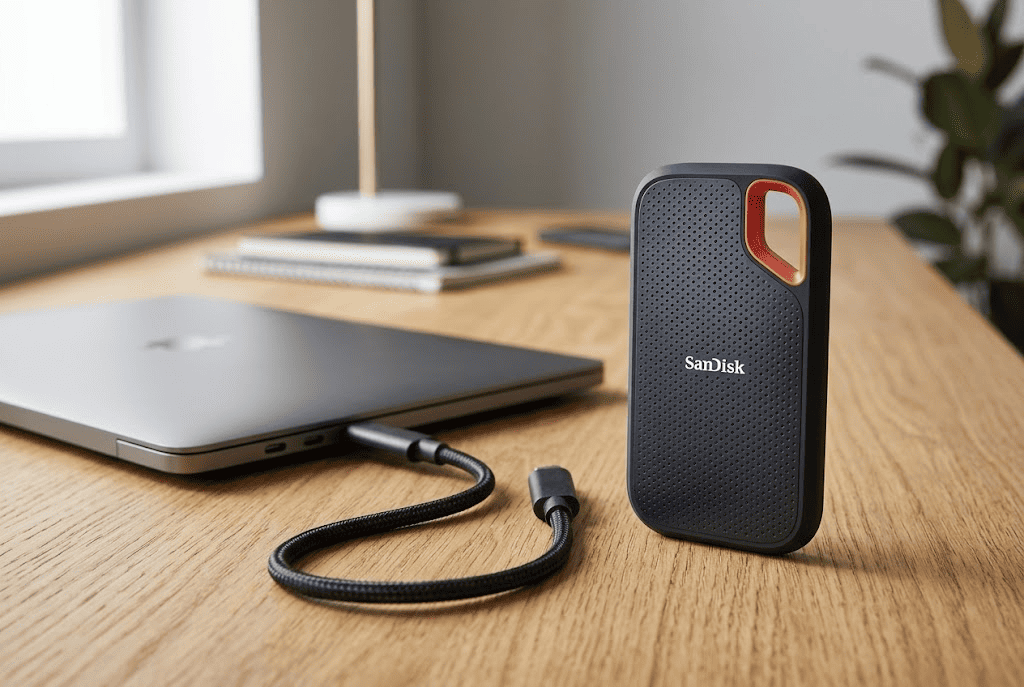
The SanDisk 2TB Extreme Portable SSD is designed for people who want fast, portable storage for backups and file transfers.
Unlike traditional hard drives, SSDs have no moving parts. This allows them to provide faster performance and better resistance to movement during travel.
For laptop backups, speed can make a noticeable difference. Moving large folders, photo libraries, or video files takes less time compared with slower storage options.
Key features include:
- 2TB storage capacity
- Up to 1050MB/s transfer speeds
- USB-C connectivity
- USB 3.2 Gen 2 support
- IP65 water and dust resistance
- Portable SSD design
At around $329.99, it costs more than traditional external hard drives, but the higher price comes from faster performance and a more durable design.
This makes it a strong choice if you frequently move large files or want a faster backup process before resetting your laptop.
For photographers, creators, professionals, or anyone who keeps large amounts of important data, the SanDisk Extreme Portable SSD provides a convenient backup solution.
2
Seagate 2TB Portable Hard Drive

The Seagate 2TB Portable Hard Drive is a more affordable option for everyday laptop backups.
It uses traditional hard drive technology, which means it focuses on providing large storage capacity at a lower cost.
For simple backup tasks like saving documents, photos, and personal files before a factory reset, a portable HDD can be a practical choice.
Important features include:
- 2TB storage capacity
- USB 3.0 connection
- Plug-and-play setup
- Compatible with Windows and macOS
- Portable design
- Includes one-year warranty
At around $150.80, it offers significantly more affordable storage compared with many portable SSD options.
The trade-off is speed. Traditional hard drives are slower than SSDs, especially when transferring large amounts of data.
However, for occasional backups, the Seagate Portable Hard Drive provides plenty of space without a high price.
It is a good fit for people who mainly need reliable storage for documents, photos, and general laptop backups.
SSD vs Hard Drive: Which Backup Option Should You Choose?
Both storage types can work well before a factory reset.
Choose an SSD if you:
- Need faster file transfers
- Work with large files
- Travel frequently
- Want more durable portable storage
Choose a hard drive if you:
- Need affordable storage
- Mainly back up documents and photos
- Do not transfer large files often
- Want maximum storage for your budget
The important thing is not the storage type itself. The most important step is having a backup before resetting your laptop.
Final Thoughts
Factory resetting a laptop is a useful way to solve software problems, clean up an old system, or prepare a device for a new owner. The process is straightforward, but the backup step should never be skipped.
On Windows, the built-in Reset This PC feature makes it easy to reinstall the operating system. On Mac, Apple provides tools like Erase Assistant and macOS Recovery to create a fresh setup.
Before starting the reset, make sure your files are safely stored somewhere else. For faster backups and large file transfers, the SanDisk 2TB Extreme Portable SSD is a strong choice. If you mainly need affordable storage for personal files, the Seagate 2TB Portable Hard Drive provides plenty of space at a lower cost.
A factory reset gives your laptop a fresh beginning, but a good backup ensures you do not lose the important things you want to keep.