A laptop that keeps disconnecting from Wi-Fi can quickly become frustrating, especially when you are working, streaming, attending online meetings, or downloading large files. The good news is that most Wi-Fi connection problems are caused by software settings, outdated drivers, network configuration issues, or simple hardware limitations.
Affiliate Disclaimer
This website participates in affiliate programs. We may earn a commission
when you purchase products through links on this page, at no additional
cost to you. Our recommendations are based on independent research and
honest opinions.
Before replacing your laptop or router, there are several fixes worth trying. Windows and macOS both include tools that can solve many common wireless problems, and small changes like updating drivers or adjusting power settings can often restore a stable connection.
In this guide, I’ll explain why your laptop Wi-Fi keeps disconnecting and walk you through nine practical solutions. I’ll also cover when a USB Wi-Fi adapter makes sense if your built-in wireless hardware is outdated or unreliable.
Why Does Laptop Wi-Fi Keep Disconnecting?
Wi-Fi disconnects can happen for several reasons. The problem is not always your internet connection. Sometimes the issue is between your laptop and the wireless network.
Common causes include:
- Weak Wi-Fi signal
- Router issues
- Outdated network drivers
- Incorrect network settings
- Power-saving features
- Wireless interference
- Damaged Wi-Fi hardware
- Overloaded networks
Finding the actual cause saves time because different problems require different fixes.
For example, if every device in your home loses connection at the same time, the router or internet provider may be the problem. If only your laptop disconnects, the issue is more likely related to the laptop itself.
Before Fixing Your Laptop Wi-Fi
Start with a few simple checks.
Try these quick steps:
- Restart your laptop
- Restart your router
- Move closer to the Wi-Fi router
- Disconnect unnecessary devices from the network
- Test another Wi-Fi network if available
These basic steps can identify whether the problem is temporary or specific to your laptop.
If your laptop stays connected after moving closer to the router, the issue may be signal strength rather than software.
1. Restart Your Laptop and Router
Restarting is one of the simplest fixes, but it solves many temporary network problems.
Your router and laptop constantly manage network connections, IP addresses, and wireless communication. Sometimes these processes can fail or become unstable after long periods of use.
Restart both devices:
- Turn off your laptop.
- Unplug your router for about 30 seconds.
- Plug the router back in.
- Wait until the connection is fully restored.
- Turn your laptop back on.
This clears temporary network errors and creates a fresh connection.
2. Check Your Wi-Fi Signal Strength
A weak wireless signal can cause frequent disconnections.
Wi-Fi performance becomes less reliable when:
- You are far away from the router
- Walls block the signal
- Multiple devices compete for bandwidth
- Your laptop uses an older wireless standard
Try moving closer to the router and see if the connection improves.
For better stability:
- Place your router in an open area
- Avoid keeping it near microwaves or other electronic devices
- Use the 5GHz band when close to the router
- Use the 2.4GHz band for longer range
The 5GHz band is usually faster, but the 2.4GHz band travels farther and handles obstacles better.
3. Update Your Wi-Fi Drivers
Your laptop uses wireless drivers to communicate with the Wi-Fi adapter. If those drivers are outdated or corrupted, connection problems can occur.
On Windows:
- Right-click the Start button.
- Open Device Manager.
- Expand Network Adapters.
- Find your wireless adapter.
- Select Update Driver.
Windows may automatically find a newer driver.
You can also visit your laptop manufacturer’s website and download the latest wireless driver directly.
Updated drivers can improve:
- Connection stability
- Compatibility
- Performance
- Security
4. Disable Wi-Fi Power Saving
Windows sometimes turns off network hardware to save battery power. While useful for battery life, this setting can occasionally cause random Wi-Fi disconnects.
To change this:
- Open Device Manager.
- Select your Wi-Fi adapter.
- Open Properties.
- Go to the Power Management tab.
- Disable “Allow the computer to turn off this device to save power.”
This prevents Windows from shutting down the wireless adapter during use.
If your Wi-Fi disconnects mostly when your laptop goes idle, this setting is worth checking.
5. Forget and Reconnect to Your Wi-Fi Network
Sometimes stored network information becomes outdated.
Your laptop saves details about:
- Wi-Fi password
- Security settings
- Connection preferences
Removing and reconnecting can refresh those settings.
On Windows:
- Open Settings.
- Go to Network & Internet.
- Select Wi-Fi.
- Open Manage known networks.
- Choose your network.
- Select Forget.
- Connect again.
This creates a new connection profile.
6. Reset Network Settings
If your laptop has incorrect network configurations, a full network reset can help.
A network reset removes saved network settings and reinstalls network adapters.
On Windows:
- Open Settings.
- Select Network & Internet.
- Choose Advanced network settings.
- Select Network reset.
- Restart your laptop.
Keep in mind that you will need to reconnect to Wi-Fi networks afterward because saved connections are removed.
7. Check Router Settings and Firmware
Sometimes the laptop is not the problem.
Your router manages every wireless connection in your home, and outdated firmware or incorrect settings can create instability.
Check:
- Router firmware updates
- Connected device limits
- Wireless channel settings
- Security settings
If many devices disconnect at the same time, focus on the router first.
8. Disable VPN or Network Software Temporarily
VPN applications and security software can sometimes interfere with wireless connections.
If your Wi-Fi disconnects after enabling a VPN, try disabling it temporarily and test again.
Other software that may affect networking includes:
- Firewall tools
- Network monitoring apps
- Corporate security software
This does not mean you should remove security tools. It simply helps identify whether software is causing the issue.
9. Consider Replacing Your Wi-Fi Adapter
If you have tried everything and your laptop still disconnects, the internal Wi-Fi adapter may be outdated or failing.
Older laptops may use wireless hardware that struggles with modern routers and newer Wi-Fi standards.
A USB Wi-Fi adapter can provide an easy upgrade without opening your laptop.
This is especially useful if:
- Your built-in Wi-Fi card is old
- Driver support is limited
- The internal adapter is damaged
- You want dual-band Wi-Fi support
Modern USB adapters are small, affordable, and simple to install.
When a USB Wi-Fi Adapter Makes Sense
A USB Wi-Fi adapter is not always necessary, but it can solve specific problems.
It can be a good choice if your laptop:
- Has an unreliable wireless connection
- Supports only older Wi-Fi standards
- Has poor signal reception
- Cannot easily upgrade internal hardware
Before buying one, check compatibility with your operating system and available USB ports.
A good adapter can extend the useful life of an older laptop without replacing the entire device.
1
TP-Link Nano AC600 USB WiFi Adapter

The TP-Link Nano AC600 USB WiFi Adapter is a compact option for improving wireless connectivity on a laptop or desktop.
Its biggest advantage is portability. The adapter is small enough to leave connected to your computer without taking much space, making it convenient for travel or everyday use.
It supports dual-band Wi-Fi, allowing connections on both 2.4GHz and 5GHz networks.
Key features include:
- Dual-band Wi-Fi support
- Up to AC600 wireless speed
- Compact nano design
- USB connection
- Support for Windows versions and selected macOS versions
At around $10.23, it is an affordable way to add wireless capability or replace a weak internal adapter.
The AC600 speed rating is suitable for normal activities such as:
- Web browsing
- Video calls
- Streaming
- Online work
It is not designed for demanding network tasks like transferring large files at maximum speeds, but for everyday laptop use, it provides a simple solution.
If your laptop Wi-Fi problem comes from an aging internal adapter, the TP-Link Nano AC600 is an easy upgrade that requires minimal setup.
2
TP-Link AC1300 USB WiFi Adapter (Archer T3U)
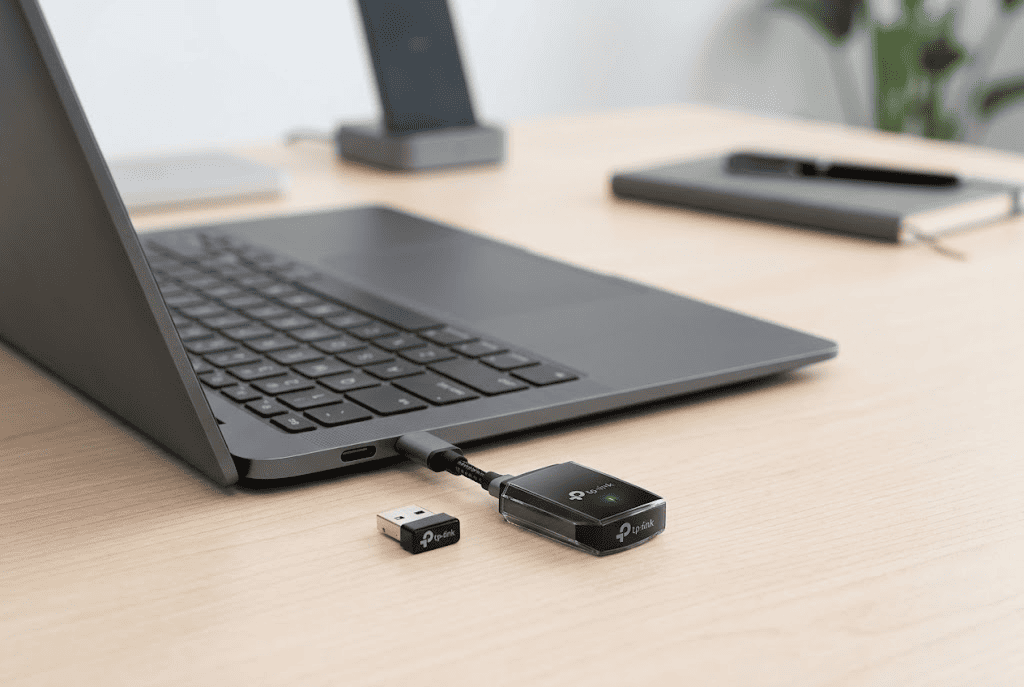
The TP-Link AC1300 USB WiFi Adapter is a more powerful option for people who need better wireless performance.
Compared with smaller nano adapters, the Archer T3U focuses more on speed and reliability. It uses USB 3.0 connectivity and supports AC1300 dual-band Wi-Fi.
Key features include:
- AC1300 dual-band Wi-Fi
- USB 3.0 connection
- MU-MIMO technology
- Support for Windows systems
- Compact adapter design
At around $15.96, it costs slightly more than the AC600 model but offers higher performance.
The USB 3.0 connection helps when transferring larger amounts of data, while MU-MIMO technology can improve performance when multiple devices are connected to the same network.
This makes it a better option for:
- HD streaming
- Online gaming
- Large downloads
- Faster file transfers
For older laptops with weaker wireless hardware, the Archer T3U can provide a noticeable improvement.
How to Prevent Future Wi-Fi Disconnects
Once your Wi-Fi is working properly, a few habits can help maintain a stable connection.
Keep your laptop and network updated:
- Install Windows updates
- Update network drivers
- Update router firmware
Also:
- Restart your router occasionally
- Keep your router in a good location
- Remove unused network profiles
- Avoid overcrowding your Wi-Fi network
A stable connection is usually the result of both good hardware and proper settings.
Final Thoughts
A laptop that keeps disconnecting from Wi-Fi is usually fixable without replacing the entire computer. Start with simple solutions like restarting your devices, checking signal strength, updating drivers, and adjusting power settings.
If software fixes do not solve the problem, your wireless adapter may be the weak point. A USB Wi-Fi adapter can be a practical and affordable upgrade, especially for older laptops.
The TP-Link Nano AC600 USB WiFi Adapter is a good choice for basic everyday connectivity, while the TP-Link AC1300 USB WiFi Adapter makes more sense if you need faster speeds and better performance.
Before spending money on a new laptop, checking your Wi-Fi hardware and settings may be all you need to restore a reliable connection.