If your iPhone feels slower than usual or you keep seeing the “Storage Almost Full” warning, clearing unnecessary cached data can help create more space and keep things running smoothly. However, iPhone cache management works differently from computers because iOS automatically handles many temporary files in the background.
Affiliate Disclaimer
This website participates in affiliate programs. We may earn a commission
when you purchase products through links on this page, at no additional
cost to you. Our recommendations are based on independent research and
honest opinions.
Unlike some devices where you can clear all cache with one button, iPhone requires you to manage cache based on the source. Safari data, app storage, downloaded files, and large media libraries all need different approaches.
In this guide, I’ll explain what iPhone cache is, whether clearing it actually improves performance, and the best ways to free up storage. I’ll also cover when an external flash drive makes sense if your photos and videos are taking up most of your space.
What Is Cache on an iPhone?
Cache is temporary data that apps and websites store to make things load faster.
For example, when you visit a website, Safari may save certain files so the page opens faster next time. Apps can also store temporary information to improve performance.
Common types of cached data include:
- Website files
- App temporary data
- Downloaded content
- Image previews
- Login information
- Streaming data
Cache is not always bad. In fact, it improves the experience by reducing loading times.
The problem happens when cached files grow too large or when apps store unnecessary data over time.
Does Clearing Cache Make an iPhone Faster?
Sometimes, but not always.
If your iPhone has plenty of free storage, clearing cache may not create a noticeable performance improvement. Modern iPhones are designed to manage temporary files automatically.
However, clearing unnecessary data can help when:
- Your storage is almost full
- Apps are behaving incorrectly
- Safari pages are loading strangely
- An app takes up unusually large space
Free storage is important because iOS needs available space to handle updates, temporary files, and normal system operations.
Check What Is Taking Up iPhone Storage
Before deleting anything, it helps to understand what is using your space.
To check:
- Open Settings.
- Tap General.
- Select iPhone Storage.
You will see a breakdown of storage usage, including:
- Apps
- Photos
- Messages
- iOS files
- System Data
The System Data category can include caches, logs, temporary files, and other system resources.
Apple does not provide a direct button to manually clear all System Data, but restarting, updating iOS, and managing apps can sometimes reduce it.
1. Clear Safari Cache on iPhone
Safari is one of the easiest places to clear cached data.
Over time, Safari stores website information that can take up storage.
To clear Safari cache:
- Open Settings.
- Scroll down and tap Safari.
- Select Clear History and Website Data.
- Confirm the action.
This removes:
- Browsing history
- Cookies
- Website cache files
Keep in mind that clearing this data may sign you out of some websites.
If you only want to remove data from specific websites:
- Go to Settings.
- Select Safari.
- Tap Advanced.
- Choose Website Data.
- Remove selected entries.
2. Clear App Cache by Offloading Apps
Unlike Android phones, iPhones usually do not provide a “clear cache” button for individual apps.
Instead, iOS offers app offloading.
Offloading removes the app itself but keeps your documents and data.
To offload an app:
- Open Settings.
- Tap General.
- Select iPhone Storage.
- Choose an app.
- Tap Offload App.
This is useful for apps you rarely use but do not want to completely delete.
When you reinstall the app later, your saved data can return.
3. Delete and Reinstall Apps With Large Cache Files
Some apps store large amounts of temporary data.
Examples include:
- Social media apps
- Video apps
- Streaming apps
- Messaging apps
If an app is using much more storage than expected, deleting and reinstalling it can remove accumulated cache.
Before deleting:
- Check whether your account data is synced
- Make sure you remember your login details
- Save important downloads
Some apps store data locally that may disappear after deletion.
4. Remove Downloaded Files
Many apps automatically save offline content.
Examples:
- Music downloads
- Video downloads
- Podcasts
- Documents
Check apps like:
- Netflix
- Spotify
- YouTube
- Apple Music
- Files
Removing content you no longer need can recover several gigabytes.
5. Manage Photos and Videos
For many iPhone owners, photos and videos are the biggest storage users.
High-resolution photos and 4K videos can quickly fill your device.
Ways to free space:
- Delete duplicate photos
- Remove unwanted videos
- Empty Recently Deleted
- Use iCloud Photos with optimized storage
- Transfer files to external storage
The Recently Deleted folder is important because deleted photos remain there for a limited time before being permanently removed.
6. Delete Old Messages and Attachments
Messages can quietly consume a lot of storage because conversations may contain:
- Photos
- Videos
- Voice recordings
- Documents
To manage message storage:
- Open Settings.
- Tap General.
- Select iPhone Storage.
- Choose Messages.
You can review large attachments and remove unnecessary files.
You can also adjust message retention:
- Open Settings.
- Tap Messages.
- Select Keep Messages.
- Choose a shorter period if desired.
7. Restart Your iPhone
A simple restart can sometimes help clear temporary system files.
Restarting does not erase your data, but it refreshes system processes and memory.
It is a good habit if your iPhone:
- Feels unusually slow
- Has apps freezing
- Shows strange storage behavior
8. Update iOS
Apple regularly improves storage management and system performance through iOS updates.
To check for updates:
- Open Settings.
- Tap General.
- Select Software Update.
Keeping iOS updated can help fix bugs that affect performance and storage.
9. Use External Storage for Large Files
If your iPhone storage is constantly full, clearing cache may not solve the bigger problem.
Photos and videos often create the largest storage pressure.
Instead of deleting important memories, an external flash drive can help move files away from your iPhone while keeping them accessible.
This is especially useful for:
- Travel photos
- Family videos
- Work documents
- Large media files
Modern iPhone-compatible flash drives make transferring files much easier, especially on newer iPhones with USB-C ports.
When Should You Use an External Flash Drive?
An external flash drive is useful when:
- Your iPhone has limited storage
- You record lots of videos
- You do not want to pay for more cloud storage
- You need offline file access
It does not clear cache directly, but it helps solve the larger storage problem by moving personal files elsewhere.
Before buying one, check:
- Connector compatibility
- iPhone model support
- Transfer speed
- Storage capacity
1
Lexar D40E 256GB Dual USB 3.2 Gen 1 Type-C Jump Drive
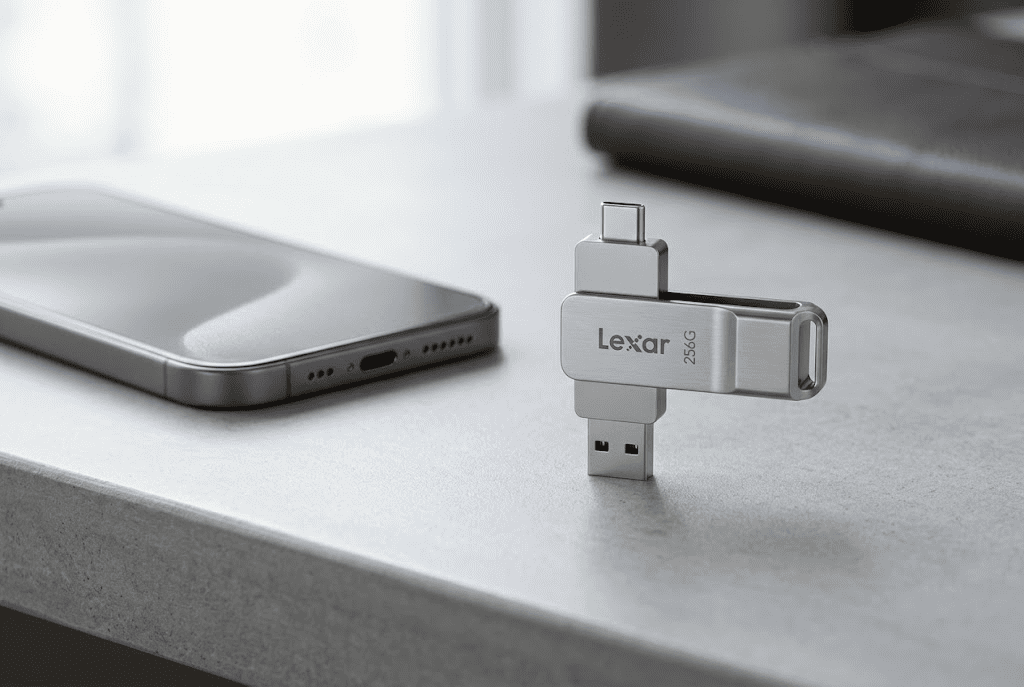
The Lexar D40E 256GB Dual USB 3.2 Gen 1 Type-C Jump Drive is designed for people who want a simple way to move files between their iPhone and other devices.
Its dual USB design makes it useful for modern devices, especially iPhones with USB-C ports, as well as computers and tablets that support USB connections.
Key features include:
- 256GB storage capacity
- USB Type-C connection
- USB 3.2 Gen 1 support
- Metal housing
- Swivel design
- Portable form factor
At around $48.99, it provides a convenient way to store photos, videos, and documents outside your iPhone.
The biggest advantage is flexibility. You can transfer files from your phone and access them on another compatible device without relying completely on cloud storage.
For people who frequently record videos or travel with limited iPhone storage, a compact drive like this can make managing files much easier.
It is especially useful if you want a physical backup option while keeping your iPhone storage cleaner.
2
MFi Certified 256GB Flash Drive for iPhone
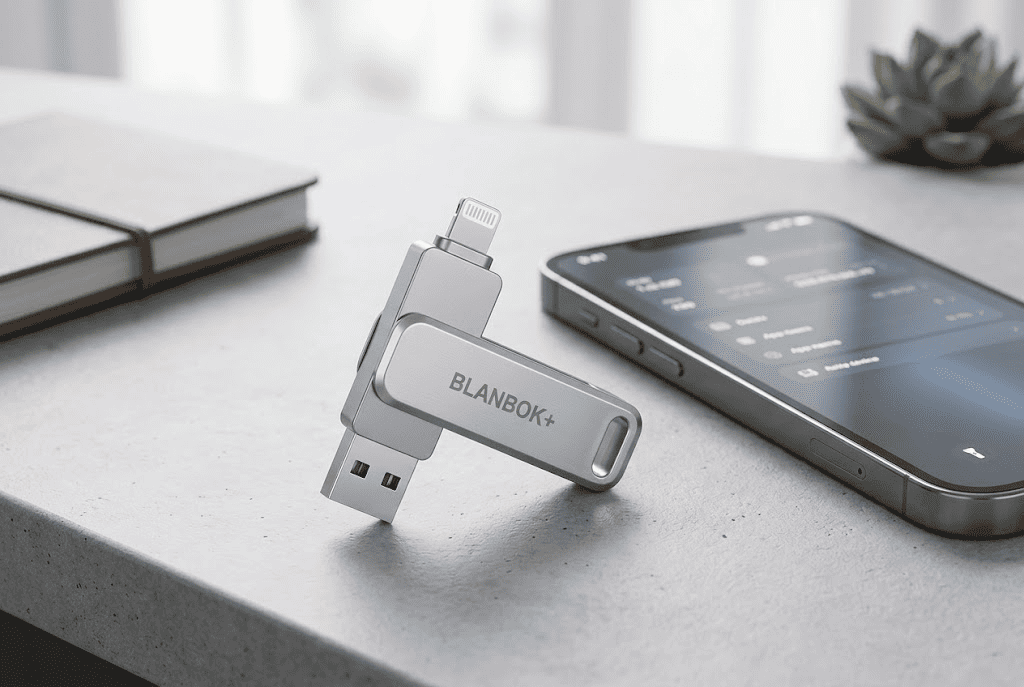
The MFi Certified 256GB Flash Drive for iPhone is another storage option focused specifically on expanding iPhone storage.
MFi certification means the accessory is designed to meet Apple’s compatibility requirements, which can provide better confidence when connecting with Apple devices.
Key features include:
- 256GB storage capacity
- Designed for iPhone, iPad, Android, and PC use
- External storage design
- Metal finish
- Portable thumb drive format
At around $27.99, it offers a lower-cost way to move photos, videos, and files away from your iPhone.
This type of drive is useful for people who mainly want extra space for media storage.
If your iPhone constantly runs low on storage because of photos and videos, moving older files to an external drive can free significant space without deleting important content.
Best Ways to Keep iPhone Storage Under Control
After cleaning your iPhone, a few habits can prevent storage problems from returning.
Try these:
- Review iPhone Storage every few months
- Delete unused apps
- Remove old downloads
- Transfer large videos regularly
- Clear unnecessary Safari data
- Keep iOS updated
A small amount of regular maintenance prevents storage from filling up unexpectedly.
Final Thoughts
Clearing cache on an iPhone is not the same as clearing cache on a computer. iOS already manages many temporary files automatically, but removing unnecessary Safari data, app files, downloads, and old media can help recover valuable space.
If your iPhone feels slow or storage is constantly full, start by checking what is using your space. In many cases, photos and videos are the real reason behind storage problems.
For expanding storage without deleting important files, the Lexar D40E 256GB Dual USB 3.2 Gen 1 Type-C Jump Drive offers a flexible option for file transfers, while the MFi Certified 256GB Flash Drive for iPhone provides an affordable way to move photos and videos away from your device.
Keeping your iPhone storage organized does not require complicated tools. A few simple cleanup habits and the right storage solution can keep your device running smoothly for longer.