Audio delay on your TV happens when the sound and picture aren’t playing at exactly the same time. You might see someone’s lips moving before hearing their voice, or a sound effect might arrive slightly before the action appears on screen. In most cases, you can fix this by adjusting your TV’s audio sync settings, changing its digital audio format, or checking the connection to your soundbar.
Affiliate Disclaimer
This website participates in affiliate programs. We may earn a commission
when you purchase products through links on this page, at no additional
cost to you. Our recommendations are based on independent research and
honest opinions.
The good news is that you usually don’t need a new TV or an expensive audio system. Many lip-sync problems come from processing delays, incorrect settings, or communication issues between connected devices.
I’ll walk you through what causes TV audio delay, how to identify where the problem starts, and which fixes are worth trying before spending money on replacement cables or equipment.
Why Your TV Sound and Picture Sometimes Fall Out of Sync
Your TV processes video and audio separately before delivering them to your screen and speakers. Even though both signals come from the same movie or television show, they may travel through different processing stages.
Video processing can include scaling, motion smoothing, color adjustments, and image enhancement. Audio processing may involve decoding surround sound, adjusting volume, or transmitting sound to an external speaker.
When those processes take different amounts of time, the picture and sound can fall out of sync.
There are several common reasons this happens:
- Audio processing delays: Your TV or soundbar takes extra time to decode or process sound.
- External audio systems: Soundbars and home theater receivers introduce additional processing stages.
- Bluetooth connections: Wireless transmission and buffering can delay sound reaching your headphones or speakers.
- Incorrect audio settings: Digital output formats or synchronization controls may not match your setup.
- Streaming and broadcast issues: Some channels, apps, or video files may already contain synchronization problems.
- Connection problems: Loose cables, unstable connections, or communication errors can interfere with normal playback.
Sony and Samsung both identify external audio processing and connection settings as possible causes of TV lip-sync problems.
The important thing is figuring out which part of your setup introduces the delay. Once you know that, you can avoid changing settings that aren’t actually causing the problem.
First, Check Whether the Sound Is Early or Late
Before opening your TV settings, pay attention to whether the audio arrives before or after the picture. This distinction matters because many audio sync controls work in only one direction.
For example, a television may allow you to delay sound further but not make it play earlier.
Here’s how to identify the problem:
- Sound comes before the picture: You hear a word or sound effect before seeing the matching action. Adding audio delay may help.
- Sound comes after the picture: You see lips moving before hearing the words. You need to reduce audio processing delay or find a way to delay the picture.
- The delay changes during playback: The problem may involve a streaming app, wireless connection, or unstable synchronization.
- Only one channel is affected: The original broadcast or streaming content may be responsible.
Try watching a scene where someone speaks directly toward the camera. Clear dialogue usually makes it easier to notice whether the sound is arriving early or late.
You can also test different apps or channels. If the problem disappears when you switch sources, your television’s audio hardware probably isn’t the main issue.
Adjust Your TV’s Audio Sync Settings Before Buying Anything
Most modern smart TVs include some form of audio synchronization adjustment. Depending on the manufacturer, it might be labeled Audio Delay, AV Sync, Lip Sync, or Match Screen and Sound.
These settings let you change how audio playback aligns with the video.
For example, Samsung TVs commonly include a Digital Output Audio Delay setting under the Sound menu. LG televisions provide synchronization controls through their Match Screen and Sound settings, although menu locations vary by model.
Start with these steps:
- Open your television’s Settings menu.
- Find Sound, Audio, or Advanced Sound Settings.
- Look for Audio Delay, AV Sync, or a similar option.
- Play a video with clear dialogue.
- Make small adjustments and check whether the sound matches the picture.
If your audio is arriving too early, increasing the delay may correct it. If the audio is already late, reduce any existing delay toward zero.
Some TVs offer a bypass or automatic synchronization option. On certain LG models, for example, enabling Bypass can reduce audio processing delays.
Be patient with these adjustments. Change one setting at a time so you can tell which adjustment actually improves synchronization.
Check Your Soundbar Connection and Digital Audio Format
If your TV’s built-in speakers work normally but the soundbar has noticeable delay, the external audio connection deserves attention.
Soundbars process audio before playing it, especially when decoding surround sound formats or applying virtual surround effects. That processing can introduce delay even when the cable and connection are functioning correctly.
Start by testing your TV speakers without the soundbar. If the sound and picture match, reconnect the soundbar and check its available audio settings.
There are a few useful adjustments to try.
Switch Between PCM and Compatible Surround Sound Formats
Your television may offer digital audio output settings such as PCM, Auto, Dolby Digital, or Pass-through.
PCM stereo is often useful for troubleshooting because it can avoid additional surround-sound decoding steps. However, it isn’t guaranteed to produce lower latency on every television or soundbar.
Try the following:
- PCM: Useful for testing a simpler stereo audio signal.
- Auto: Lets the television choose a supported audio format.
- Pass-through: Sends supported audio formats to an external device without certain television processing stages.
- Dolby Digital: Supports compressed multichannel audio when your equipment is compatible.
Samsung recommends selecting an audio format based on the capabilities of the connected sound system.
If changing to PCM fixes the delay, you can decide whether improved synchronization is worth giving up a particular surround-sound format.
Check HDMI ARC and eARC Settings
HDMI ARC and eARC allow compatible televisions to send audio to soundbars and receivers through an HDMI connection.
These systems can support audio synchronization features, but incorrect settings or compatibility problems may still cause delays.
Check that your HDMI cable is connected to the ports labeled ARC or eARC on both devices. If supported, try enabling or disabling automatic AV synchronization to see whether it improves playback.
Sony also recommends checking digital audio output and pass-through settings when troubleshooting connected home theater equipment.
Can an Optical Audio Cable Fix TV Sound Delay?
An optical audio cable can sometimes help you troubleshoot TV audio delay, particularly if your current connection is unreliable or your soundbar supports a simpler optical setup.
However, an optical cable doesn’t automatically eliminate lip-sync problems.
Optical audio uses light to transmit digital sound between compatible devices. It avoids electrical interference and provides a reliable connection for supported audio formats.
The connection itself introduces negligible propagation delay over a typical six-foot cable. Most noticeable delays come from audio processing, buffering, or synchronization settings rather than the cable carrying the signal.
An optical connection may be worth trying when:
- Your soundbar and TV both have optical audio ports.
- Your current HDMI connection has persistent audio-related problems.
- You’re replacing a damaged or unreliable optical cable.
- You want to test whether a different audio connection changes the synchronization problem.
- Your audio system doesn’t require the advanced formats or features available through HDMI eARC.
Optical connections generally support stereo PCM and compatible compressed surround formats, including conventional Dolby Digital 5.1. They don’t provide the same format support as HDMI eARC.
If your existing cable works properly, buying a more expensive optical cable won’t make the audio travel noticeably faster.
Two Affordable Optical Audio Cables Worth Considering for Your TV
If you’ve checked your settings and decided that an optical connection makes sense, you don’t need to spend much.
Both KabelDirekt and Amazon Basics offer six-foot TOSLINK cables for connecting compatible televisions, soundbars, and home audio equipment.
These are connection accessories, not electronic audio-delay processors. They can help establish or replace a reliable optical connection, but neither has a special feature that directly corrects lip-sync timing.
1
KabelDirekt Optical Audio TOSLINK Cable Review: Best for Durable Connections
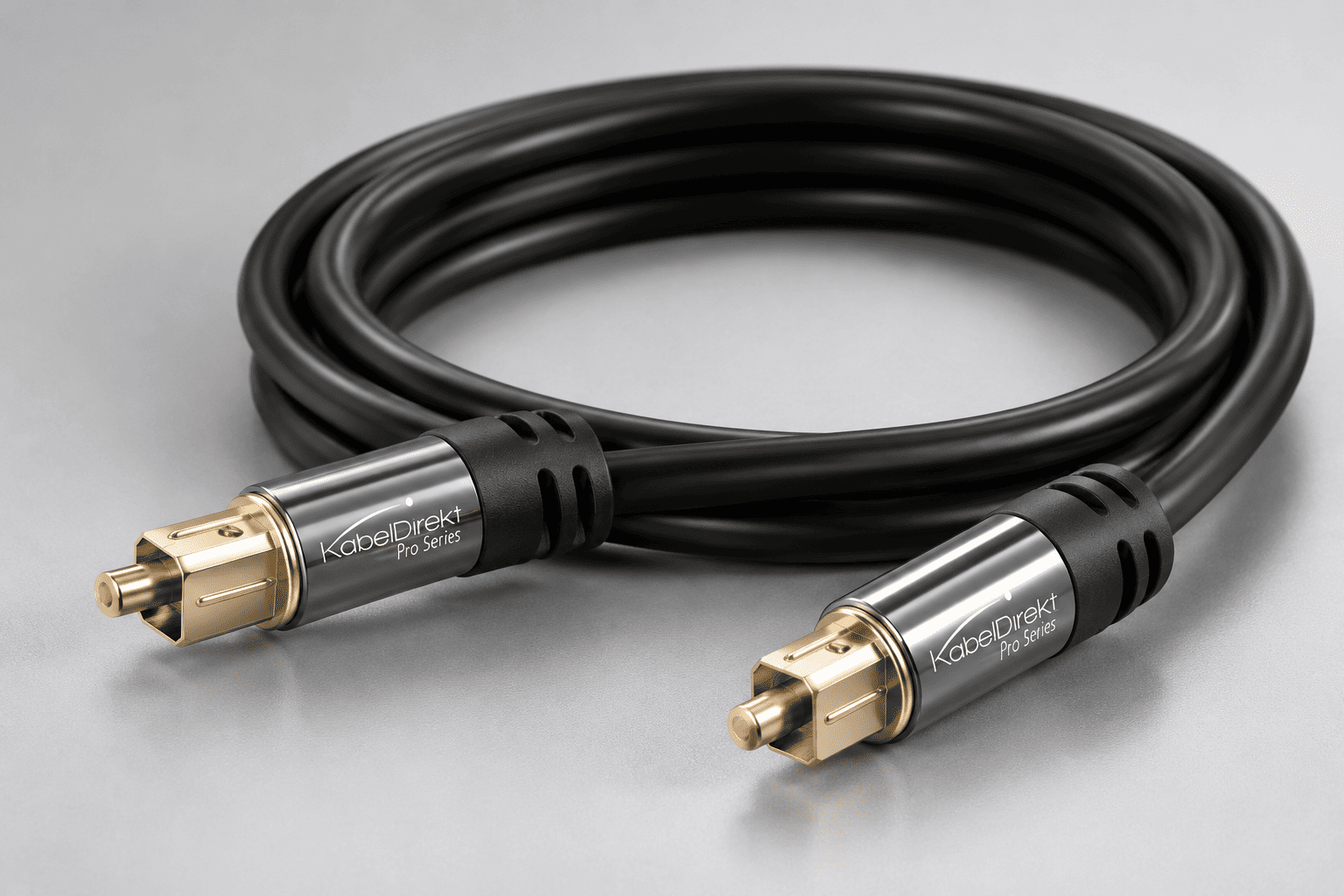
The KabelDirekt Optical Audio TOSLINK Cable is worth considering if you need a reliable digital audio connection between your television and soundbar. At the listed price of $8.99, it’s an inexpensive accessory that supports equipment with standard optical audio ports.
Its six-foot length should be enough for many setups where the soundbar sits directly below or near the television.
The cable uses a fiber-optic design, meaning it transmits digital audio through light rather than an electrical audio signal. This makes the optical transmission path immune to electromagnetic interference that can affect certain electrical connections.
KabelDirekt also uses a flexible PVC jacket and metal connector housings intended to withstand regular handling. The connectors feature corrosion-resistant gold plating, although that plating doesn’t improve the speed of optical audio transmission.
Here are the useful details:
- Six-foot length: Suitable for many nearby TV and soundbar installations.
- TOSLINK connectors: Work with compatible optical digital audio inputs and outputs.
- Fiber-optic construction: Avoids electrical interference along the audio signal path.
- Flexible PVC jacket: Helps protect the cable during ordinary installation.
- Metal connector housings: Add physical protection around the plugs.
- Digital audio compatibility: Supports formats that both connected devices can handle over optical audio.
The cable is useful when replacing a damaged connection or setting up an optical audio system for the first time.
However, it won’t correct audio delay caused by surround-sound processing, incorrect synchronization settings, or a streaming application. Those problems require adjustments elsewhere in the system.
I’d consider the KabelDirekt cable if you want a sturdy optical connection and don’t mind spending slightly more for its connector construction.
For an ordinary TV and soundbar setup, it provides the basic features needed without the price of more expensive specialty cables.
2
Amazon Basics TOSLINK Optical Audio Cable Review: Best Budget Option

The Amazon Basics TOSLINK Digital Optical Audio Cable is a practical alternative if you simply need to connect your television to a compatible soundbar or audio receiver.
At the listed price of $7.22, it’s slightly cheaper than the KabelDirekt option while providing the same basic connection type.
The six-foot cable uses fiber-optic transmission and standard TOSLINK connectors. It also includes a protective outer jacket and connector caps to help keep the optical tips protected before installation.
Amazon describes the cable as suitable for digital audio connections involving TVs, soundbars, home theater systems, and other compatible audio equipment.
A few features make it useful for straightforward setups:
- Standard TOSLINK connection: Fits compatible optical audio ports.
- Six-foot cable: Offers a practical length for nearby home theater equipment.
- Fiber-optic transmission: Carries digital audio without electrical signal interference.
- Protective connector caps: Help protect the optical tips when the cable isn’t connected.
- PVC outer layer: Provides basic cable protection and flexibility.
- Affordable pricing: Keeps replacement costs low when you don’t need special installation features.
The Amazon Basics cable doesn’t include any special processing or synchronization technology.
Like the KabelDirekt option, it simply transports digital audio between compatible devices. If the soundbar takes additional time to decode the incoming signal, that delay can still occur regardless of which cable you use.
That’s why I wouldn’t recommend replacing a functioning optical cable solely to improve lip-sync performance.
However, if your existing optical cable is damaged, missing, or too short, this is a reasonable replacement at a low price.
For most ordinary TV-to-soundbar installations, I’d be comfortable choosing the Amazon Basics cable when the main goal is a simple, reliable connection.
KabelDirekt vs Amazon Basics: Which Optical Cable Makes More Sense?
Both cables perform essentially the same job. They transmit digital audio through a standard TOSLINK connection and are suitable for compatible televisions and soundbars.
The biggest differences are their connector construction and listed prices.
Here’s how I’d decide:
- For the lowest price: Amazon Basics costs $7.22 and provides the essential optical connection.
- For more protective connector construction: KabelDirekt offers metal connector housings and a flexible jacket.
- For a standard TV-to-soundbar connection: Either cable should work when the devices support TOSLINK.
- For preventing electrical interference: Both use fiber-optic transmission.
- For improving audio synchronization: Neither cable guarantees lower processing delay.
The price difference is only $1.77, so durability and personal preference are more meaningful than cost alone.
I’d choose Amazon Basics for a basic installation that rarely needs to be moved. KabelDirekt makes sense if you prefer its connector construction or expect to reconnect your equipment occasionally.
Neither should be treated as an automatic fix for audio arriving late.
How to Fix Bluetooth Headphone Audio Delay on Your TV
Bluetooth headphones introduce another potential source of delay because the television must encode, transmit, and buffer the audio before your headphones play it.
Depending on the Bluetooth implementation, that delay can become noticeable when watching dialogue-heavy content.
Some televisions compensate automatically, but not every model handles synchronization equally well.
If Bluetooth headphones are causing the problem, try these adjustments:
- Enable AV Sync: Check whether your TV supports automatic audio and video synchronization with Bluetooth devices.
- Reduce existing audio delay: If your TV applies additional audio delay, move the setting toward zero.
- Check headphone features: Some headphones have a low-latency mode that works with compatible devices.
- Update device software: TV firmware and headphone updates may correct connection-related problems.
- Test built-in speakers: If they remain synchronized, the Bluetooth connection is a likely contributor.
- Consider a different connection: Wired headphones or compatible low-latency wireless systems may work better for demanding applications.
Keep in mind that a standard optical cable won’t connect directly to ordinary Bluetooth headphones.
You would need compatible additional audio equipment to convert or transmit the signal, and that equipment could introduce its own processing delay.
Other Simple Fixes Worth Trying Before Replacing Equipment
If the audio still doesn’t match the picture, a few additional checks may help identify whether the problem comes from your television, source device, or external audio system.
Start with the easiest possibilities.
1. Restart your television and soundbar
Temporary software problems can sometimes affect audio processing. Completely restarting both devices may restore normal synchronization.
2. Disable unnecessary audio effects
Virtual surround sound, dialogue enhancement, and other processing features can introduce additional delay on some equipment. Try switching to a standard sound mode.
3. Check for software updates
TV manufacturers periodically release firmware updates that address compatibility and playback problems. Install available updates for both your television and connected audio equipment.
4. Test different streaming apps
If the delay occurs only in one app, it may involve that application’s playback or decoding behavior. Try another source before changing your entire audio setup.
5. Inspect HDMI and optical connections
Make sure cables are firmly connected and aren’t visibly damaged. A loose connection is more likely to cause dropouts than a consistent lip-sync offset, but it’s still worth checking.
6. Change one setting at a time
Avoid adjusting multiple audio options simultaneously. If synchronization improves, you want to know which change actually worked.
Sony’s troubleshooting guidance includes checking cable connections, sound modes, firmware, and external audio settings when dealing with persistent lip-sync problems.
Final Thoughts: Fix the Audio Settings Before Replacing Your Cable
TV audio delay is frustrating, but it usually doesn’t mean your television or soundbar is defective. The problem often comes from differences in audio and video processing, incorrect output settings, or synchronization behavior between connected devices.
I’d start by testing your television’s built-in speakers, then checking the AV Sync setting and digital audio format. If the issue appears only with a soundbar, try PCM or a compatible pass-through setting and compare the results.
If you need a new optical connection, the KabelDirekt TOSLINK Cable is a reasonable choice at $8.99, especially if you prefer its protective connector construction. The Amazon Basics TOSLINK Cable is the more affordable option at $7.22 and should be sufficient for most standard TV-to-soundbar connections.
Neither cable can compensate for excessive audio processing delay by itself. If your current optical cable already works reliably, I’d keep it and focus on your TV and soundbar settings instead.
Once you identify where the delay starts, the fix is often much simpler than replacing your entire audio setup.