A slow laptop can turn even simple tasks into a frustrating experience. Apps take forever to open, web pages lag, and multitasking becomes almost impossible. Before you assume it’s time to buy a new computer, there’s good news. Many laptops can be made significantly faster with a few simple changes.
Affiliate Disclaimer
This website participates in affiliate programs. We may earn a commission
when you purchase products through links on this page, at no additional
cost to you. Our recommendations are based on independent research and
honest opinions.
In this guide, I’ll walk you through five practical steps that actually improve laptop performance. These tips work for most Windows laptops, and many also apply to older Macs. Some take only a few minutes, while others require a small hardware upgrade that can completely transform an aging machine.
Why Do Laptops Slow Down?
Laptops don’t usually become slow overnight. Performance gradually declines as software, files, and background processes accumulate over time.
Some of the most common causes include:
- Too many startup programs
- Low storage space
- Aging hard drives
- Background apps
- Malware
- Outdated software
The key is identifying which issue is affecting your laptop before spending money on upgrades.
Step 1: Disable Unnecessary Startup Programs
Every program that launches when your laptop starts uses system resources.
Over time, dozens of applications may quietly add themselves to the startup list, increasing boot times and slowing overall performance.
To improve startup speed on Windows:
- Open Task Manager.
- Select the Startup tab.
- Disable programs you don’t need immediately after startup.
Focus on applications you rarely use rather than essential system services.
Reducing startup programs often produces one of the quickest performance improvements.
Step 2: Free Up Storage Space
A nearly full drive can noticeably slow your laptop.
When storage runs low, your operating system has less room for temporary files, updates, and virtual memory.
Try removing:
- Large downloads
- Duplicate files
- Old videos
- Unused applications
- Temporary files
Also remember to empty the Recycle Bin, since deleted files continue occupying storage until it’s cleared.
Keeping at least 15 to 20 percent of your storage free helps maintain smoother performance.
Step 3: Update Your Operating System and Drivers
Software updates aren’t only about security.
Many updates also include performance improvements, bug fixes, and better hardware compatibility.
Make sure you regularly update:
- Windows or macOS
- Graphics drivers
- Wi Fi drivers
- Chipset drivers
- Device firmware
These updates often resolve performance issues that users mistake for aging hardware.
Step 4: Scan for Malware
Malicious software can quietly consume processing power without obvious signs.
Symptoms may include:
- Constant fan noise
- High CPU usage
- Slow browser performance
- Unexpected pop-ups
- Programs opening slowly
Run a full scan using Windows Security or another trusted antivirus program.
Removing malware often restores performance immediately.
Step 5: Reduce Background Applications
Even if you’re only using one program, dozens of background applications may still be running.
Some synchronize cloud storage.
Others check for updates or monitor hardware.
While each one uses only a small amount of memory, together they can significantly affect older laptops.
Closing unnecessary background programs frees memory for the tasks you’re actually performing.
When Cleaning Up Isn’t Enough
The steps above solve many software-related performance problems.
However, if your laptop still feels slow after trying them, the bottleneck may be the hardware itself.
Older laptops often rely on traditional mechanical hard drives, which are dramatically slower than modern solid-state drives.
Signs your storage drive may be limiting performance include:
- Long boot times
- Slow application launches
- Frequent loading screens
- Constant hard drive activity
- Delays when opening files
If your laptop still uses a traditional hard drive, upgrading to an SSD is often the single biggest performance improvement you can make.
Why an SSD Makes Such a Big Difference
Unlike mechanical hard drives, SSDs have no moving parts.
This allows them to access data much faster, resulting in:
- Faster startup times
- Quicker application launches
- Improved file transfers
- Better multitasking
- A more responsive overall experience
For many older laptops, installing an SSD makes the system feel years newer without replacing the entire computer.
The Best Upgrade for an Older Laptop
If you’ve already cleaned up your software, removed unnecessary programs, and freed up storage space, but your laptop still feels slow, it’s probably time for a hardware upgrade.
For most older laptops, replacing a traditional hard drive with a solid-state drive (SSD) provides the biggest improvement for the least amount of money. Unlike adding more RAM, which only helps in certain situations, an SSD speeds up nearly everything you do.
You’ll usually notice improvements such as:
- Faster boot times
- Quicker application launches
- Shorter file transfer times
- More responsive multitasking
- Reduced loading screens
Even laptops that are several years old often feel dramatically faster after switching to an SSD.
If you’re ready to upgrade, these two drives are excellent options.
1
fanxiang S101 1TB SSD: Best Budget Performance Upgrade
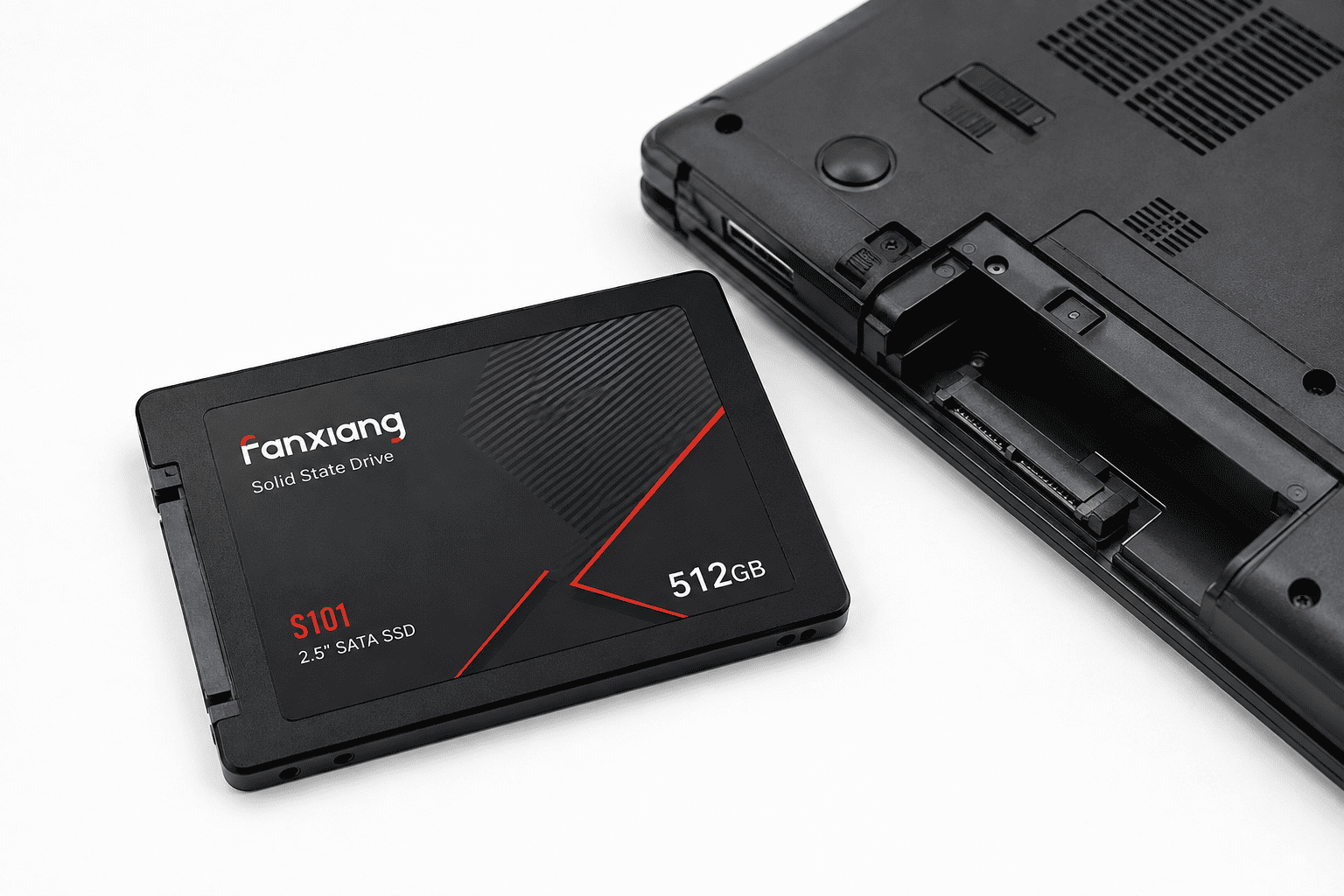
If you’re looking for an affordable way to breathe new life into an older laptop, the Fanxiang S101 1TB SATA SSD offers impressive value. At around $122, it provides plenty of storage while delivering a significant speed improvement over traditional hard drives.
Using a SATA III 6 Gb/s interface, the drive reaches read speeds of up to 520 MB/s, allowing Windows to boot faster and applications to open much more quickly. Whether you’re browsing the web, working with documents, or streaming media, everyday tasks feel noticeably more responsive.
The drive uses 3D NAND TLC flash memory, which offers a good balance of speed, reliability, and durability for everyday computing. Installation is straightforward for most laptops and desktops that support standard 2.5-inch SATA drives.
With 1 TB of storage, you’ll also have plenty of room for Windows, applications, photos, videos, and documents without constantly worrying about running out of space.
The Fanxiang S101 is an excellent choice if you:
- Want an affordable SSD upgrade
- Are replacing an older hard drive
- Need plenty of storage
- Want faster everyday performance
- Use a laptop with a SATA drive bay
For budget-conscious users, it’s one of the easiest ways to make an older laptop feel much more responsive.
2
Crucial BX500 1TB SSD: Best Trusted Brand Upgrade

If you prefer buying from one of the most established names in computer memory and storage, the Crucial BX500 1TB SSD is an excellent option. Priced at around $168, it combines dependable performance with a long track record of reliability.
Like the fanxiang drive, the BX500 uses the SATA III interface and delivers read speeds of up to 540 MB/s, helping reduce boot times, shorten application loading, and improve overall system responsiveness.
Crucial’s experience in memory and storage products gives many buyers additional confidence, especially when upgrading laptops used for work or school. The drive is also well suited for extending the life of aging systems without investing in an entirely new computer.
Installation is straightforward for most compatible laptops, and the 1 TB capacity provides enough space for operating systems, software, games, and large personal files.
The Crucial BX500 is a great choice if you:
- Prefer a well-known storage brand
- Want dependable everyday performance
- Need a reliable replacement for an aging hard drive
- Use your laptop for work, school, or home
- Want long-term value
For users who prioritize brand reputation alongside performance, the BX500 remains one of the most popular SATA SSD upgrades available.
Buying Guide: Choosing the Right SSD for Your Laptop
Before purchasing an SSD, make sure it’s compatible with your laptop.
Check the Drive Type
Older laptops typically use 2.5-inch SATA SSDs, while newer systems may use faster M.2 NVMe SSDs. Buying the correct type is essential.
Choose Enough Storage
A 1 TB SSD offers plenty of room for most people, but lighter users may be satisfied with 500 GB if they’re looking to save money.
Read Speed
While most SATA SSDs perform similarly, drives with read speeds around 500 to 550 MB/s generally provide excellent everyday performance.
Reliability
A dependable SSD should provide consistent performance over years of daily use. Buying from a reputable manufacturer can offer extra peace of mind.
Installation
Many laptops make SSD upgrades relatively simple, though some newer ultrabooks have storage soldered to the motherboard. Check your laptop’s specifications before purchasing.
Final Thoughts
A slow laptop doesn’t always mean it’s time to buy a new one. Simple software maintenance, removing unnecessary startup programs, freeing storage space, and keeping your operating system updated can solve many performance issues.
If those steps aren’t enough, upgrading to an SSD is often the single most effective improvement you can make. It speeds up nearly every aspect of using your laptop, from booting Windows to opening programs and transferring files.
If you’re looking for excellent performance at a competitive price, the fanxiang S101 1TB SSD delivers outstanding value for older laptops.
If you prefer a trusted brand with a long history in computer storage, the Crucial BX500 1TB SSD is a dependable choice that’s built to keep your system running smoothly for years.
For many laptops, an SSD upgrade can make the difference between replacing your computer and enjoying several more years of fast, reliable performance.