Ray tracing is a graphics technique that simulates how light behaves as it moves through a scene. In games, it can create more convincing reflections, shadows, lighting, and indirect illumination than traditional rendering methods, but it also puts a much heavier workload on the graphics hardware.
Affiliate Disclaimer
This website participates in affiliate programs. We may earn a commission
when you purchase products through links on this page, at no additional
cost to you. Our recommendations are based on independent research and
honest opinions.
Your PC or console may support ray tracing, but that does not automatically mean every game will use it well or run smoothly with it enabled. Support depends on your GPU, console generation, the game itself, and the specific ray-tracing features the developer decided to include.
Before thinking about upgrading anything, it helps to understand what ray tracing actually changes and how to check whether your current hardware can handle it.
What Is Ray Tracing?
Traditional game graphics rely heavily on a rendering method called rasterization.
Rasterization is very good at drawing millions of polygons quickly, which is one reason games have used it for decades. Developers then add techniques such as shadow maps, screen-space reflections, ambient occlusion, baked lighting, and other effects to make scenes look more realistic.
Ray tracing approaches lighting differently.
Instead of relying entirely on approximations, the GPU calculates how virtual rays of light interact with objects in the game world. A ray might hit a wall, bounce toward another surface, pass through glass, or reflect off water.
That allows the game to calculate lighting behavior in a more physically believable way.
The result can look much more natural, especially in scenes with mirrors, glass, shiny floors, neon lighting, dark interiors, and complicated shadows.
What Does Ray Tracing Actually Improve?
“Ray tracing” is often treated like one graphics setting, but games can use it for several different effects.
You may see options such as:
- Ray-traced reflections
- Ray-traced shadows
- Ray-traced global illumination
- Ray-traced ambient occlusion
- Ray-traced lighting
- Path tracing
Each one affects the image differently.
Ray-Traced Reflections
Reflections are one of the easiest ray-tracing effects to notice.
Traditional screen-space reflections can only reflect information that is currently visible on the screen. If an object moves outside the camera view, its reflection may disappear or break.
Ray-traced reflections can use more complete information about the game world.
That means a puddle, mirror, car window, or polished floor can reflect objects even when those objects are not directly visible to the camera.
In games with lots of reflective surfaces, the difference can be dramatic.
Ray-Traced Shadows
Traditional shadow techniques often rely on pre-calculated maps and approximations.
Ray tracing can create shadows that react more naturally to the size and position of a light source.
You may notice softer shadow edges, more accurate contact shadows, and better behavior when several objects overlap.
The improvement can be subtle during fast gameplay, though. If performance is limited, ray-traced shadows are often one of the settings I would reduce before sacrificing resolution or texture quality.
Ray-Traced Global Illumination
Global illumination deals with light bouncing around an environment.
Imagine sunlight entering through a red curtain. In the real world, some of that red light can bounce onto nearby surfaces.
Traditional games often approximate this kind of indirect lighting.
Ray-traced global illumination can calculate more of it dynamically, allowing rooms and outdoor environments to react more naturally when lighting changes.
This is one of the more impressive uses of ray tracing, but it can also be computationally expensive.
What Is Path Tracing?
Path tracing takes the basic ray-tracing idea much further.
Instead of using ray tracing for only a few selected effects, path tracing can simulate a much larger part of the lighting process through ray calculations.
The visual results can be excellent.
The hardware requirements can also be brutal.
If you see a game offering both “Ray Tracing” and “Path Tracing,” do not assume the two settings have similar performance requirements. Path tracing can require substantially more GPU power and often depends heavily on technologies such as DLSS, FSR, ray reconstruction, or frame generation to maintain playable performance.
Why Does Ray Tracing Reduce FPS?
Ray tracing requires the GPU to perform additional calculations for each frame.
Rasterized graphics already ask the GPU to process geometry, textures, shaders, effects, and post-processing. Ray tracing adds another layer of work involving ray intersections, lighting calculations, denoising, and sometimes AI-assisted reconstruction.
That extra work takes time.
If your game runs at 100 FPS without ray tracing, enabling several ray-traced effects might reduce performance significantly.
How much depends on:
- Your graphics card
- Resolution
- The game engine
- The ray-tracing effect being used
- DLSS or FSR settings
- Your CPU
- VRAM capacity
- Graphics quality settings
This is why two games can behave completely differently on the same GPU.
One might run comfortably with ray-traced reflections enabled. Another might struggle even with medium ray-tracing settings.
Does Every Game Support Ray Tracing?
No.
Your hardware can support ray tracing perfectly, but the game still has to include ray-tracing features.
Developers decide whether to implement them and which effects to use.
Some games offer just ray-traced reflections. Others add shadows and global illumination. A smaller number go much further with full ray tracing or path tracing.
You should therefore check the game’s graphics menu or official system requirements rather than assuming every modern game includes ray tracing.
It is also normal for a game to support ray tracing on one platform but provide different settings or effects on another.
Does Your PC Support Ray Tracing?
On a PC, the graphics card is the most important part.
Modern NVIDIA GeForce RTX GPUs include dedicated RT Cores designed to accelerate ray-tracing calculations. NVIDIA’s RTX 3050 6GB, for example, uses second-generation Ray Tracing Cores, while the current RTX 5060 uses fourth-generation Ray Tracing Cores.
AMD Radeon RX graphics cards from supported generations can also run hardware-accelerated ray tracing, and Intel Arc cards support ray-tracing features as well.
The easiest way to check your GPU in Windows is:
Settings > System > Display > Advanced display
You can also open Task Manager > Performance > GPU.
Once you know the exact graphics card model, check whether that specific GPU supports hardware ray tracing.
Does a GTX Graphics Card Support Ray Tracing?
This is where the terminology gets confusing.
Some older NVIDIA GTX cards have been able to run certain DirectX Raytracing workloads through drivers, but they do not have the dedicated RT hardware found in RTX cards.
That distinction matters.
Being technically capable of launching a ray-traced effect does not mean the hardware can run it at useful gaming performance.
If ray tracing is important to you, I would treat a modern RTX, Radeon RX with ray-tracing support, or Intel Arc GPU as the practical starting point rather than relying on an older GTX card.
What About DLSS?
DLSS and ray tracing are different technologies, but they often appear together.
Ray tracing increases graphics workload.
DLSS can help recover performance.
NVIDIA DLSS uses AI-assisted techniques to improve image reconstruction and performance on supported RTX GPUs. Newer RTX generations support increasingly advanced DLSS features.
The RTX 5060 currently supports NVIDIA’s DLSS 4 family, including Super Resolution, Ray Reconstruction, Frame Generation, and Multi Frame Generation.
The RTX 3050 supports DLSS as well, but it belongs to an older RTX generation and does not provide the same feature set as current RTX 50 Series hardware.
This is important because raw ray-tracing performance is only part of the modern graphics story.
Upscaling, frame generation, and ray reconstruction can have a huge effect on how usable ray tracing feels in demanding games.
Does the PS5 Support Ray Tracing?
Yes, the PlayStation 5 supports hardware-accelerated ray tracing in games that implement it.
The important phrase is “in supported games.”
You do not turn on one universal PS5 ray-tracing switch and get ray tracing everywhere.
Instead, individual games decide how to use the hardware.
You may see graphics modes such as:
- Quality
- Performance
- Fidelity
- Ray Tracing
- Performance RT
A Fidelity or Quality mode may use ray-traced reflections or lighting while targeting a lower frame rate.
A Performance mode may turn ray tracing off to aim for 60 FPS or higher.
Some games offer a middle ground with reduced ray-tracing quality while maintaining smoother performance.
This is why console ray tracing often feels different from PC ray tracing. The developer has already decided which settings and compromises make sense for the fixed hardware.
Does Xbox Series X Support Ray Tracing?
Yes, Xbox Series X supports hardware-accelerated ray tracing in compatible games.
Again, support depends on the game.
Some titles use ray-traced reflections, shadows, or lighting, while others stick with traditional rasterized rendering to prioritize higher frame rates.
The Xbox Series S also supports hardware ray-tracing features, although developers often make more aggressive visual compromises because the Series S has less graphics performance than the Series X.
So owning a current Xbox does not guarantee that every game will offer a ray-tracing mode.
The game has to include one.
How Can You Tell If a Game Is Actually Using Ray Tracing?
The easiest method is to look inside the game’s graphics or display menu.
On PC, search for terms such as:
- Ray Tracing
- RTX
- DXR
- RT Reflections
- RT Shadows
- Global Illumination
- Path Tracing
On consoles, you may instead see predefined modes.
A “Fidelity + Ray Tracing” mode is fairly obvious.
A generic “Quality” mode is less clear, so check the game’s official graphics-mode description when you want to know exactly what is enabled.
You can also compare screenshots, but some effects are surprisingly difficult to notice without moving through the scene.
Reflections and changing lighting tend to make the difference easiest to spot.
Is Ray Tracing Worth Turning On?
I would not automatically enable every ray-tracing option just because your hardware supports it.
The visual improvement needs to justify the performance cost.
Ray tracing tends to be most worthwhile in slower, visually detailed games where you have time to notice lighting, reflections, and shadows.
Think cinematic single-player games, atmospheric horror titles, open-world adventures, and racing games with reflective environments.
For fast competitive games, I would usually prioritize frame rate and latency.
Going from 240 FPS to 120 FPS for better reflections is not an attractive trade if your main goal is competitive responsiveness.
For a single-player game running at 80 FPS with ray tracing instead of 120 FPS without it, however, I might happily take the better lighting.
Settings I Would Change Before Turning Ray Tracing Off
If you like how ray tracing looks but performance is a little too low, you do not necessarily need to disable it completely.
Try adjusting other settings first.
I would look at:
- DLSS or FSR Quality mode
- Render resolution
- Shadow quality
- Volumetric effects
- Crowd density
- Reflection quality
- Motion blur
- Depth of field
If the game has several separate ray-tracing settings, reduce the least important one first.
You might keep ray-traced reflections while disabling ray-traced shadows, for example.
That kind of selective approach often gives you a better balance than simply switching the entire ray-tracing menu off.
When Your GPU Becomes the Real Limitation
There is a point where settings can only do so much.
If your graphics card does not have hardware ray tracing, or if enabling even basic ray-traced effects cuts performance below what you consider playable, a GPU upgrade becomes the real answer.
That does not mean you need the most expensive graphics card available.
The right choice depends on resolution, the games you play, your power supply, case size, and how much ray tracing actually matters to you.
For someone entering RTX gaming on a tighter budget, an RTX 3050 can technically give you modern NVIDIA ray-tracing support.
For stronger ray tracing and newer DLSS features, a current RTX 5060 is a much more capable direction.
1
ASUS Dual GeForce RTX 3050 6GB: An Entry Point for RTX Features

The ASUS Dual GeForce RTX 3050 6GB is the cheaper of these two ways into NVIDIA RTX features.
The card has 6GB of GDDR6 memory and 2,304 CUDA cores. NVIDIA lists the RTX 3050 6GB with second-generation Ray Tracing Cores, third-generation Tensor Cores, DirectX 12 Ultimate support, and DLSS support.
ASUS lists this particular Dual model with a 96-bit memory interface, PCIe 4.0, a two-slot design, and a recommended 450W power supply. It also does not require an external GPU power connector, which can make it easier to use in some lower-power desktop upgrades.
That does not make it a ray-tracing powerhouse.
I would think of the RTX 3050 6GB as an entry-level 1080p card where ray tracing is something you can experiment with rather than something you should automatically max out.
In demanding games, I would expect to use DLSS, lower ray-tracing settings, or both.
The 6GB VRAM capacity is another limitation worth keeping in mind. Modern games can be demanding at higher texture settings, so this is much more naturally suited to 1080p gaming than high-end 1440p or 4K use.
At the supplied Amazon price of about $257, I would compare it carefully with newer cards before buying. Its strongest appeal is compatibility with modest systems and access to RTX features, not maximum ray-tracing speed.
Why Newer Ray-Tracing Hardware Matters
Ray tracing has changed significantly since the first RTX cards appeared.
Newer GPUs do not just increase raw shader performance. They also improve dedicated ray-tracing hardware and the AI hardware used for technologies such as DLSS.
That matters because demanding ray-traced games increasingly rely on a combination of traditional rendering, dedicated RT acceleration, upscaling, ray reconstruction, and frame generation.
If ray tracing is something you genuinely want to use rather than simply test, newer hardware gives you considerably more room to work with.
That is where the RTX 5060 becomes the more interesting option.
2
ASUS Dual GeForce RTX 5060 8GB: Better for Modern Ray-Traced Gaming
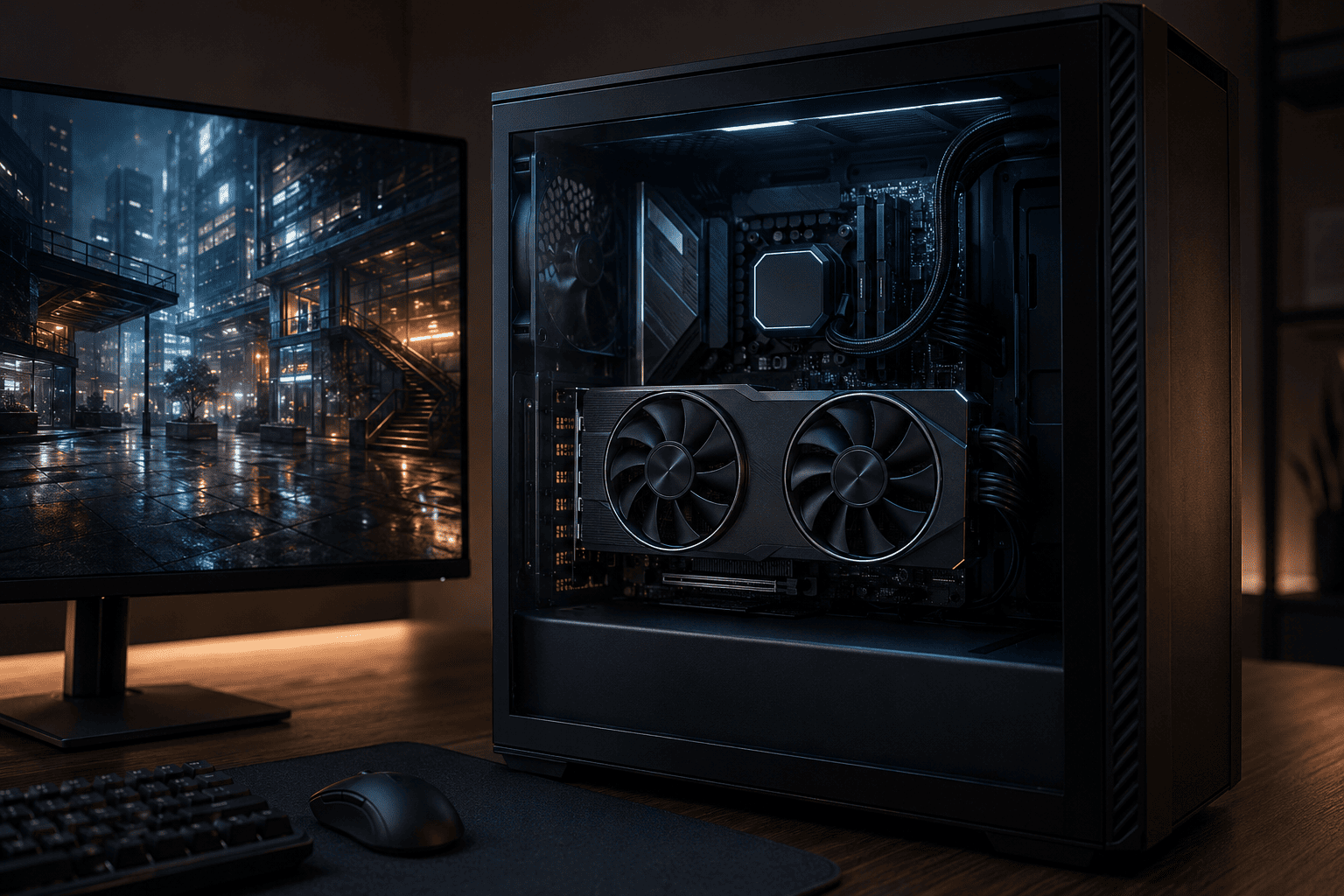
The ASUS Dual GeForce RTX 5060 8GB is the stronger choice if you are buying specifically with modern ray tracing in mind.
The RTX 5060 uses NVIDIA’s Blackwell architecture with 3,840 CUDA cores, fourth-generation Ray Tracing Cores, fifth-generation Tensor Cores, and 8GB of GDDR7 memory on a 128-bit interface. NVIDIA also lists support for DLSS 4, Ray Reconstruction, Frame Generation, and Multi-Frame Generation.
That gives the card a much more current graphics feature set than the RTX 3050.
ASUS’s Dual RTX 5060 design uses a compact 2.5-slot cooler with its Axial-tech fan design and supports the RTX 50 Series features built around Blackwell.
I would look at this card if you primarily game at 1080p or 1440p and want enough ray-tracing performance to actually use the feature in modern games rather than turning it off immediately.
The 8GB VRAM capacity still means I would pay attention to texture settings in especially demanding titles, particularly at higher resolutions. It is not a substitute for a much higher-end GPU.
Still, relative to the RTX 3050, this is the one I would choose for someone who specifically cares about ray tracing.
At the supplied Amazon price of about $470, it is a much larger investment, so make sure the rest of your PC is ready for the upgrade before ordering.
Check Compatibility Before Buying a GPU
A graphics-card upgrade involves more than checking whether the card fits the PCIe slot.
Before buying, check:
- Your power supply wattage
- Required GPU power connectors
- Case clearance
- Card thickness
- CPU performance
- Motherboard compatibility
- Monitor resolution
- Available DisplayPort and HDMI connections
A faster GPU can also be held back by an older CPU, particularly at 1080p and very high frame rates.
You do not need the newest processor just to use ray tracing, but it makes little sense to spend heavily on graphics hardware if the rest of the system cannot keep up.
Final Thoughts
Ray tracing is a more realistic way of calculating lighting, reflections, shadows, and other visual effects in games. It can make a big difference in the right scene, but it can also reduce FPS substantially because the GPU has much more work to do.
PS5 and Xbox Series consoles can use hardware-accelerated ray tracing in supported games. On PC, you need a compatible graphics card and a game that actually implements ray-tracing features.
If your current system supports it, try ray tracing before assuming you need an upgrade. Use DLSS or another upscaler, reduce less important RT effects, and decide whether the visual improvement is worth the frame-rate cost.
If you need new hardware, the ASUS Dual RTX 3050 6GB is the lower-cost route into RTX features and makes the most sense for modest 1080p systems.
The ASUS Dual RTX 5060 8GB is the one I would choose if ray tracing is genuinely important to you. Its newer RT hardware, GDDR7 memory, and DLSS 4 feature set give it much more room for modern ray-traced games.
Supporting ray tracing and running it well are two very different things.
Your goal should not be to turn every graphics option on. It should be to find the combination of lighting quality, image quality, and FPS that actually makes the game better to play.