A PS5 controller that refuses to connect is usually dealing with one of a few things: a drained battery, a bad USB cable, a pairing problem, outdated controller software, or a temporary communication issue with the console. The good news is that most DualSense connection problems can be fixed at home in a few minutes.
Affiliate Disclaimer
This website participates in affiliate programs. We may earn a commission
when you purchase products through links on this page, at no additional
cost to you. Our recommendations are based on independent research and
honest opinions.
I would not assume the controller is broken right away. Start with the simple fixes below, work through them in order, and only think about replacing the controller if it still refuses to connect after a reset and software check.
Start With the Fastest Fix
Before changing settings or resetting anything, connect the DualSense controller directly to the PS5 with a USB cable.
Turn the console on, connect the controller, and then press the PS button.
Sony’s official pairing instructions use this exact process when connecting a DualSense controller to a PS5. Once the light bar blinks and the player indicator turns on, the controller should be paired with the console.
If that works, you can disconnect the cable after the controller has enough charge and go back to wireless play.
If nothing happens, keep going.
1. Make Sure the Controller Actually Has Power
This sounds obvious, but a completely drained DualSense can look like a pairing problem.
Connect it to your PS5 with a USB cable and leave it connected for a while before trying again. When charging in Rest Mode, the DualSense light bar can slowly blink orange, and the light turns off when charging is complete.
If you normally charge while the console is in Rest Mode, make sure the PS5 is configured to supply power through its USB ports during Rest Mode.
A controller that has been sitting unused for several weeks may need more than a few seconds on the cable before it responds.
Try pressing the PS button after it has had some time to charge.
2. Try a Different USB Cable
A cable can charge a device without reliably carrying data.
That distinction matters because pairing the controller with the PS5 requires communication between the controller and console, not just electrical power.
If you connect the controller and see charging activity but pressing the PS button does not pair it, try another USB cable that supports both power and data.
Ideally, use the cable that came with your PS5 or another known-good USB data cable.
Also try another USB port on the console.
A damaged cable or troublesome port is one of the easiest problems to rule out, and it costs nothing to test if you already have another compatible cable around.
3. Pair the Controller With the PS5 Again
Controllers can lose their expected pairing relationship, especially after being connected to another console or device.
Sony says a DualSense controller needs to be paired with the PS5 you want to use it with. The standard process is straightforward: turn on the PS5, connect the controller with USB, and press the PS button.
If you recently used the controller with another PS5, PC, Mac, phone, or tablet, this is one of the first things I would try.
Do not assume that because the controller worked wirelessly yesterday, it must still be properly connected to the same device today.
Reconnect it by cable and let the PS5 establish the connection again.
4. Restart the PS5 Completely
Rest Mode is convenient, but it is not the same as a full restart.
If the controller suddenly stopped connecting after previously working normally, shut the PS5 down completely and turn it back on.
Do not just put it into Rest Mode and wake it up again.
Once the console has restarted, reconnect the DualSense using USB and press the PS button.
Temporary wireless, USB, or system-process problems sometimes disappear after a clean restart.
If you can control the console using another controller, use the normal power menu. If you cannot, use the PS5’s physical power button carefully to shut the system down.
5. Reset the DualSense Controller
If pairing again does not work, resetting the controller is the next important step.
Turn off the PS5 first.
Flip the DualSense over and look for the small reset hole on the back of the controller. Sony instructs you to use a pin or similar small tool to press the reset button inside. After resetting it, reconnect the controller to the PS5 using USB and press the PS button.
The process is simple:
- Turn off your PS5
- Find the small reset button on the back of the DualSense
- Use a pin or similar tool to press the button
- Connect the controller to the PS5 with USB
- Turn on the console
- Press the PS button
Sony notes that resetting the DualSense does not reconfigure the controller or affect its pairing settings in the way you might expect from a full factory reset.
This is one of the most useful fixes when the controller lights up but refuses to communicate correctly.
6. Update Your PS5 System Software
The controller and console depend on software to communicate properly.
Sony recommends keeping PS5 system software updated, and DualSense controller software updates are also distributed alongside PS5 system updates.
To check your PS5 system software, go to:
Settings > System > System Software > System Software Update and Settings
If an update is available, install it before continuing with deeper troubleshooting.
System updates can include compatibility changes, stability improvements, and fixes that affect accessories.
If your controller connection problem started after the console had been offline for a long period, outdated software becomes even more worth checking.
7. Update the DualSense Controller Software
The DualSense itself has device software that can be updated.
If you can get the controller connected temporarily through USB, go to:
Settings > Accessories > Controller (General) > DualSense Wireless Controller Device Software
Sony provides this path for manually checking and updating the DualSense controller software.
You can also update DualSense controller software using a PC through Sony’s PlayStation Accessories software.
I would especially try this if the controller works through USB but behaves strangely over wireless.
A controller that has not been updated for a long time may simply need its software brought up to date.
8. Check Whether the Controller Is Connecting to Another Device
This has become more relevant as the DualSense has gained broader support across PCs, phones, tablets, and other devices.
If you have paired your controller with another device, Bluetooth behavior may not always match what you expect when you return to the PS5.
Sony expanded DualSense device switching so supported controllers can maintain pairings with multiple devices and switch between them using specific button combinations.
That is convenient, but it also means you should pay attention to what device the controller is trying to reach.
If your controller seems active but the PS5 does not respond, temporarily turn Bluetooth off on nearby PCs, tablets, or phones that previously used the controller.
Then connect the DualSense directly to the PS5 using USB and press the PS button.
This helps remove other devices from the equation.
9. Test the Controller With a Wired Connection
If wireless pairing keeps failing, find out whether the controller itself still works.
Connect it directly to the PS5.
If the controller works reliably through USB but constantly disconnects or refuses to work wirelessly, that points toward a wireless connection problem rather than a completely dead controller.
If the controller also fails through a known-good data cable and several USB ports, the issue becomes more likely to involve the controller hardware, USB connector, internal electronics, or battery.
Testing wired operation gives you useful information before you spend money replacing anything.
10. Remove Possible Wireless Interference
Bluetooth operates in a busy wireless environment.
Your router, wireless headset, keyboard, mouse, smartphone, smart-home devices, and other Bluetooth accessories may all be operating nearby.
Normal home electronics should not prevent a DualSense from working, but if your controller connects only when you’re standing close to the console, interference is worth investigating.
Try temporarily moving wireless equipment away from the PS5.
You can also test the controller with fewer nearby Bluetooth devices turned on.
Physical placement matters too. Avoid burying the PS5 behind dense furniture or surrounding it with other electronic equipment if you’re already having wireless problems.
If the controller works perfectly over USB but becomes unreliable as soon as you go wireless, this is a more relevant test than repeatedly resetting it.
What Do the DualSense Lights Mean?
The light bar can give you a clue about what the controller is doing.
During normal pairing, Sony says the light bar blinks before the player indicator lights up. When charging in Rest Mode, the light bar can slowly blink orange.
What matters most during troubleshooting is whether the controller shows any response at all.
If the lights come on but the PS5 does not respond, I would focus on pairing, resetting, cables, and software.
If there are no lights and no charging response with several known-good cables, the controller may have a battery, USB port, or internal hardware problem.
What If the Controller Keeps Disconnecting?
A controller that connects and then drops out repeatedly is a slightly different problem from one that never connects.
Start by fully charging it.
Then update both the PS5 system software and DualSense device software. After that, reset the controller and pair it again.
I would also test it through USB for a longer gaming session.
If it stays connected for an hour over USB but disconnects every few minutes wirelessly, you have narrowed the issue significantly.
Try another DualSense with the same PS5 if you have access to one. If two controllers experience identical wireless problems, I would start suspecting the console or local wireless environment rather than both controllers failing at once.
When Should You Stop Troubleshooting?
At some point, troubleshooting stops being useful.
If you have already tried a known-good USB data cable, multiple USB ports, a full PS5 restart, controller reset, software updates, wired testing, and re-pairing, you have covered most of the practical fixes available at home.
Sony directs people who still have controller connection problems after resetting toward its PlayStation Repairs diagnostic service.
If your controller is still under warranty, checking repair or replacement options should come before buying another one.
But there are situations where having a second controller makes sense anyway.
Maybe the original controller has years of use behind it. Maybe the USB port is damaged. Maybe you already wanted a second controller for local multiplayer or to keep one charged while using the other.
At that point, replacement becomes a reasonable part of the conversation.
Why I Would Stick With an Official DualSense
If you’re replacing a standard PS5 controller, I would generally stay with Sony’s DualSense unless you specifically need features from a specialized third-party controller.
The DualSense is designed around the PS5’s controller features, including haptic feedback and adaptive triggers in supported games.
You also know exactly what you’re getting from a compatibility standpoint.
The main choice between the two options below is not performance. Both are standard DualSense controllers.
It is mainly color and price.
1
PlayStation DualSense Wireless Controller Sterling Silver: Best If You Want a Different Look
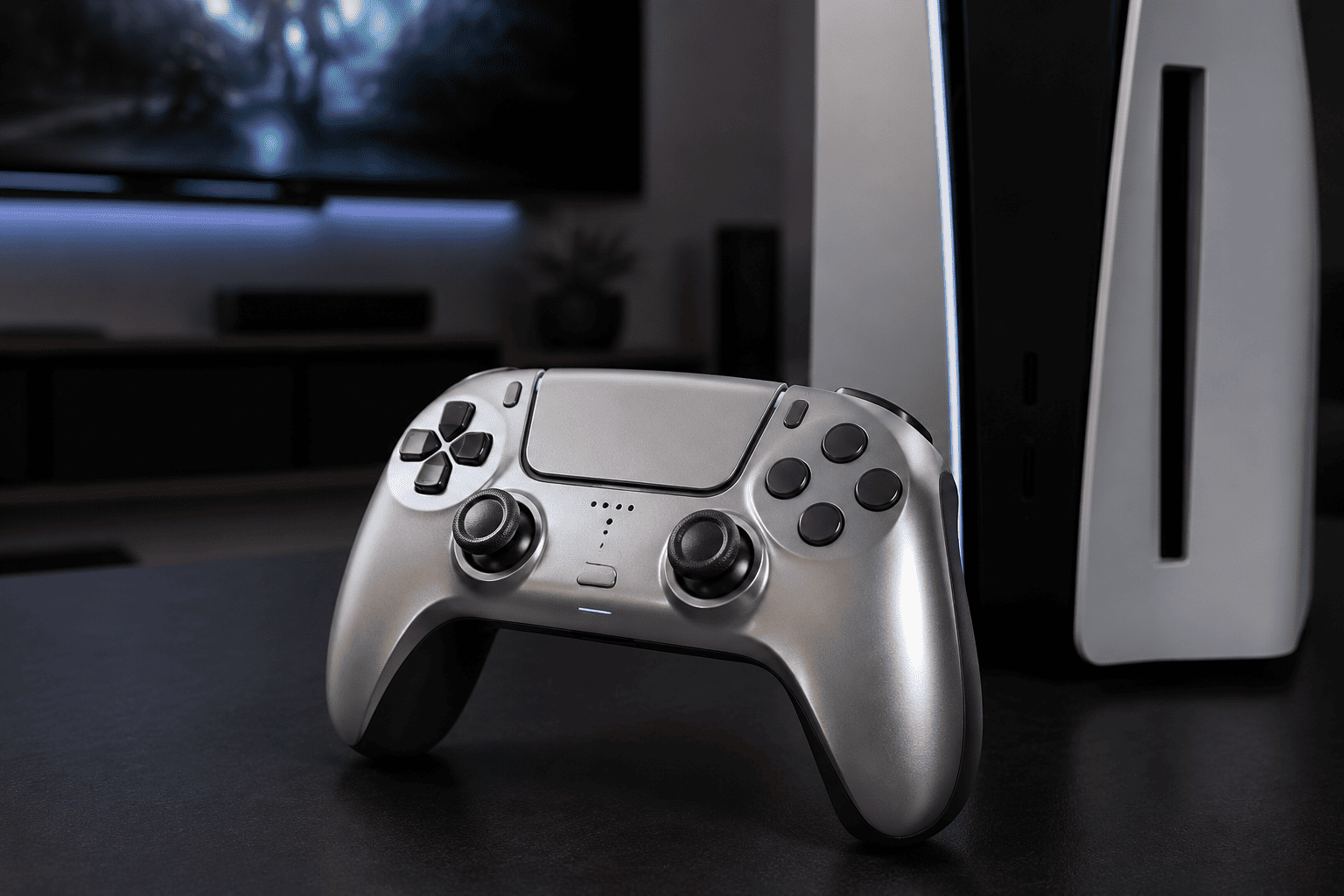
The PlayStation DualSense Wireless Controller in Sterling Silver makes sense if you want a straightforward official replacement but prefer something different from the standard white controller.
Functionally, this is still a DualSense. You’re getting the familiar PS5 layout, wireless connection, built-in microphone, motion controls, adaptive triggers, and haptic feedback in supported games.
The Sterling Silver finish is the real reason to choose this specific version.
It has a more metallic appearance than the standard controller, which can work nicely if the controller is going to sit out with the rest of your gaming setup rather than disappear into a drawer after every session.
The supplied Amazon listing shows a price of about $78.99, so I would compare it with other DualSense colors before ordering. Color variations often move around in price even when the underlying controller functionality is essentially the same.
I would choose this one if your existing controller has genuinely failed and you were already considering adding a second controller with a more distinctive look.
It also works well as a second controller for local multiplayer or as a backup that stays charged while your main controller is in use.
If appearance does not matter to you, though, there is little reason to pay extra purely for the Sterling Silver finish.
If You Just Want a Straightforward Replacement
That brings us to the more understated option.
You do not need a special controller to solve a failed-controller problem. In many cases, the most sensible replacement is simply another official DualSense in whichever color is currently priced well.
That is where the Midnight Black version fits nicely.
2
PlayStation DualSense Wireless Controller Midnight Black: Best Straightforward Replacement
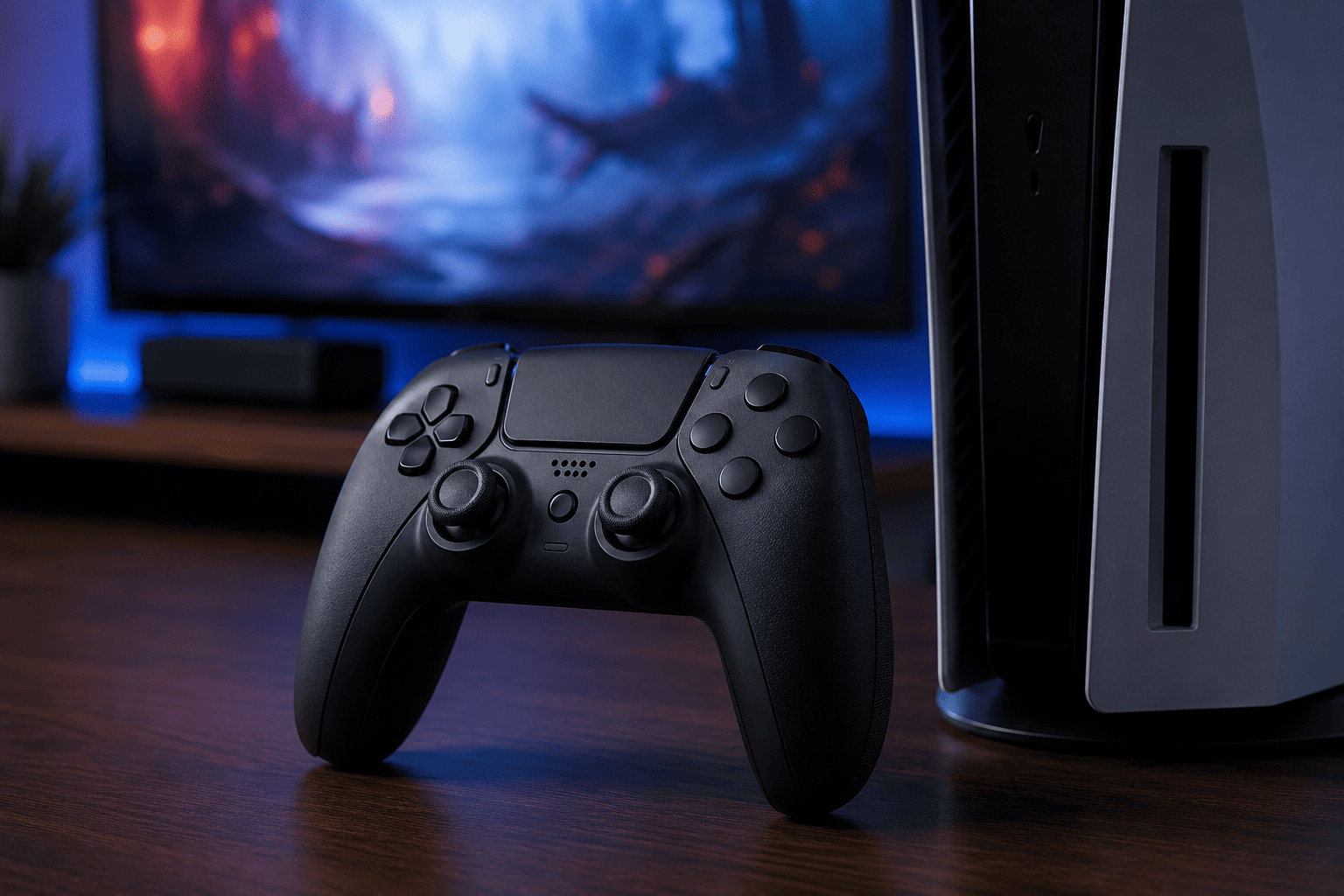
The PlayStation DualSense Wireless Controller in Midnight Black is the one I would pick if I simply wanted another standard PS5 controller without paying extra for a more decorative finish.
It gives you the same core DualSense experience: haptic feedback, adaptive triggers in supported games, motion sensing, built-in microphone functions, and wireless PS5 connectivity.
The Midnight Black design also hides normal marks and visual wear differently from lighter controllers, which some people may prefer if the controller gets used heavily.
At the supplied listing price of about $74.99, it is also slightly less expensive than the Sterling Silver option listed above.
That makes the decision pretty simple.
If the two controllers are close in price, choose whichever color you like more. If Midnight Black is noticeably cheaper when you buy, I would save the money because you’re not giving up core gaming functionality by doing so.
It also makes a practical second controller.
You can use one while the other charges, keep a spare ready for multiplayer, or use the replacement while deciding whether the original controller is worth repairing.
Just remember that buying another DualSense should be the last step, not the first. A bad cable or pairing issue can make a perfectly good controller look dead.
What to Check Before Buying a Replacement
Before spending money, I would run through one final checklist.
Make sure you have:
- Tried a known-good USB data cable
- Tested another USB port
- Fully charged the controller
- Restarted the PS5
- Re-paired the controller
- Reset the DualSense
- Updated PS5 system software
- Updated DualSense device software
- Tested wired operation
- Checked whether another device is interfering with the connection
If the controller still does not respond after all of that, replacement or repair becomes much easier to justify.
Suppose you have access to another DualSense; test that controller with your PS5 too. It is one of the fastest ways to determine whether the original controller or the console is the more likely source of the problem.
Final Thoughts
If your PS5 controller is not connecting, start with USB pairing before doing anything else. Charge the controller, use a proper data cable, restart the PS5, reset the DualSense, and make sure both the console and controller software are current.
Most connection problems should be investigated through those steps before you spend money.
If the controller still refuses to work after wired testing and a reset, check PlayStation repair options if warranty coverage may apply.
If replacement makes more sense, the Sterling Silver DualSense is a good choice if you want something visually different. The Midnight Black DualSense is the option I would choose if I simply wanted a straightforward official replacement at the lower of the two supplied prices.
Either way, troubleshoot first.
A five-minute pairing fix is much better than replacing a controller that was never actually broken.