Cloud storage is a way to keep your files on remote servers instead of relying entirely on the storage inside your phone, laptop, or desktop computer. In 2026, you probably already use some form of cloud storage through Google Drive, iCloud, OneDrive, Dropbox, or another service, even if you rarely think about it.
Affiliate Disclaimer
This website participates in affiliate programs. We may earn a commission
when you purchase products through links on this page, at no additional
cost to you. Our recommendations are based on independent research and
honest opinions.
The bigger question is whether you actually need to pay for more cloud storage. For many people, the answer is yes, but that does not mean cloud storage should be the only place where important files live. Understanding the difference between cloud storage, synchronization, and a real backup can save you a lot of trouble later.
What Is Cloud Storage?
When you save a file normally, it lives on a physical storage device. That might be the SSD inside your laptop, the storage chip inside your phone, or an external hard drive connected through USB.
Cloud storage moves another copy of that data to servers operated by a company such as Google, Apple, Microsoft, or Dropbox. You then access those files through an internet connection using an app, browser, or built-in operating system feature.
The “cloud” sounds abstract, but the files are still stored on real hardware. The difference is that the servers are located in data centers rather than sitting on your desk.
This setup gives cloud storage one major advantage: your files are no longer tied to one physical device.
If your laptop is in another room, you can open a document from your phone. If you replace your phone, your synced photos may already be waiting when you sign into the new one. If you work on several computers, you can keep the same folder available across all of them.
How Cloud Storage Actually Works
Most cloud storage services create a connection between a folder or app on your device and storage on the provider’s servers.
Suppose you save a document to your OneDrive folder. The file first exists on your computer, then OneDrive uploads it to Microsoft’s servers. When you sign into OneDrive on another computer, that device can download or open the same document.
Changes can also synchronize automatically.
Edit the document on your laptop, and the updated version can appear on your desktop. Take a photo with your phone, and services such as iCloud Photos or Google Photos can upload it without requiring you to manually copy anything.
That convenience is the main reason cloud storage has become part of everyday computing.
You May Already Have Free Cloud Storage
You do not necessarily need to purchase a subscription immediately. Most major platforms give you some cloud storage as part of a free account.
For example, Google currently includes 15 GB with a Google Account, shared across services such as Google Drive, Gmail, and Google Photos. Google One plans increase that amount when you need more space.
Microsoft also offers 5 GB of OneDrive storage with its free Microsoft 365 account, while paid plans can provide considerably more. Microsoft 365 Personal, for example, currently includes 1 TB of OneDrive storage.
That free space can be enough if you mainly store documents, PDFs, spreadsheets, and a modest number of photos. It disappears much more quickly once you start backing up years of smartphone photos, 4K video, project files, or multiple computers.
What Cloud Storage Is Really Good At
Cloud storage makes the most sense when accessibility matters just as much as capacity.
Instead of remembering which computer contains a file, you can keep your working documents available through one account. That can be especially useful if you move between a desktop, laptop, tablet, and phone during the week.
A few situations where cloud storage works particularly well include:
- Keeping work documents available across multiple devices
- Automatically uploading smartphone photos
- Sharing large files without emailing attachments
- Collaborating on documents with other people
- Recovering files after replacing a lost or damaged device
- Keeping important documents accessible while traveling
- Reducing dependence on the storage capacity of one computer
Cloud storage is also convenient because much of the process can happen automatically. Once synchronization is configured, you generally do not have to remember to connect a drive every evening just to upload the files you worked on that day.
Cloud Storage Is Not Always the Same as Backup
This is where people often get confused.
A synchronized cloud folder and a backup can look very similar, but they are not necessarily doing the same job.
Synchronization is mainly designed to keep the same files updated in several locations. If you change a file on one device, the change moves to the cloud and then to your other devices.
That is convenient until the change is something you did not want.
Delete a synchronized file accidentally, and the deletion may synchronize too. Some services provide trash folders, version history, ransomware recovery, or other restoration features, which can certainly help. Microsoft, for example, includes file restoration and ransomware-related protection among OneDrive features on applicable plans.
Still, I would not treat synchronization alone as the final safety net for files I could not replace.
A proper backup gives you another independent copy.
The 3-2-1 Backup Idea Still Makes Sense
One of the simplest ways to think about protecting important data is the 3-2-1 backup approach.
The basic idea is:
- Keep three copies of important data
- Store those copies on at least two different types of media
- Keep one copy somewhere separate from the others
CISA and other cybersecurity authorities continue to recommend maintaining multiple copies and keeping an off-site backup as part of good recovery planning.
For a normal home setup, this does not need to become complicated.
Your laptop could hold the original files. An external SSD or hard drive could hold a local backup. Your cloud account could provide the off-site copy.
Now one failure does not automatically become a disaster.
If the laptop dies, you have the external drive. If something happens to both devices in your home, you still have the cloud copy. If you temporarily lose internet access, you still have your local files.
That’s why I usually see cloud storage and external storage as partners rather than competitors.
Is Cloud Storage Safe?
Major cloud services put significant security systems around their infrastructure, but “stored in the cloud” does not mean “impossible to lose.”
Your account security matters just as much as the storage provider’s servers.
A weak password, stolen login session, phishing attack, or compromised email account can create problems even when the underlying storage platform is secure. For that reason, I would always enable multi-factor authentication on an account containing important personal or business files.
You should also think carefully about what you upload.
Tax records, identity documents, private business files, and other sensitive information deserve more attention than a folder of vacation photos. Depending on what you store, you may want additional encryption or a separate offline copy that is not continuously connected to your computer.
What About Privacy?
Cloud storage requires some level of trust in another company because your data is being stored on infrastructure you do not physically control.
That does not automatically make cloud storage a privacy problem. It simply means you should understand the service you are using, protect the account properly, and consider whether extremely sensitive material belongs there.
I would pay attention to:
- Account security options
- Encryption practices
- File-sharing permissions
- Recovery options
- Version history
- Data retention policies
- Whether shared links can be restricted
- How easily you can export your files later
For normal photos, documents, and everyday projects, a reputable cloud service is usually a reasonable choice. For irreplaceable or highly sensitive material, I would still keep another copy under my own control.
Do You Really Need Cloud Storage in 2026?
You probably need some cloud storage. You may not need a large paid plan.
If your computer mostly contains replaceable downloads and a few documents, the free storage included with your existing Google, Apple, or Microsoft account could be enough. There is little reason to pay every month for terabytes you never use.
The situation changes if your digital life has become difficult to replace.
Years of family photos, freelance projects, business records, university work, video footage, creative projects, and important financial documents deserve more protection than one laptop drive.
Paid cloud storage also becomes much easier to justify when you regularly use several devices. The ability to start work on one computer and continue elsewhere without manually moving files saves a surprising amount of friction.
When Cloud Storage Alone Starts to Feel Incomplete
Cloud subscriptions solve access and off-site storage very well, but they have two practical limitations.
First, you continue paying for the storage for as long as you need it. Second, uploading or restoring hundreds of gigabytes can take time, especially if your internet connection is slow or has limited bandwidth.
This is where keeping a local copy becomes useful.
An external drive gives you a large amount of storage that you control directly. You can copy a huge photo library, video archive, or entire project folder without waiting for a cloud download whenever you need it.
For files that genuinely matter, I prefer the combination: cloud storage for convenience and off-site protection, plus a physical drive for fast local backup.
If you like that approach, the type of external drive you choose mainly comes down to speed versus cost.
1
SanDisk 2TB Extreme Portable SSD: Best for Fast Portable Backups

The SanDisk 2TB Extreme Portable SSD makes the most sense if you regularly move large files and do not want your backup drive to feel slow.
It is a solid-state drive, so there are no spinning disks inside. That helps make it smaller, quieter, and much better suited to being carried around than a traditional portable hard drive. The model is rated for read speeds of up to 1,050 MB/s through USB 3.2 Gen 2, although the speed you actually see will depend on your computer, port, cable, and file workload.
The 2 TB capacity is enough for a substantial local backup library. It also has IP65 dust and water resistance, advertised drop protection of up to three meters, and support for 256-bit AES hardware encryption.
Those features make it especially appealing if your drive spends time in a backpack rather than sitting permanently beside a desktop computer.
I’d look at this type of SSD if you edit photos or video, work with large project folders, travel frequently, or simply hate waiting while hundreds of gigabytes transfer. At the supplied listing price of about $309, you’re paying considerably more than you would for a basic portable hard drive, so speed and portability need to matter to you.
If the drive will stay plugged into one computer mainly for overnight backups, however, you may not need SSD performance at all.
When Capacity Matters More Than Transfer Speed
A backup drive has a fairly simple job. Most of the time, it copies data and then sits there until you need another backup or have to restore something.
That means paying extra for SSD speed does not always make sense.
If you’re backing up documents, photos, tax records, archived projects, or a large collection of files once or twice a week, a traditional portable hard drive can give you the same 2 TB of capacity for much less money.
That’s where the second option fits better.
2
Seagate 2TB Portable Hard Drive: Best for Basic Backup Value
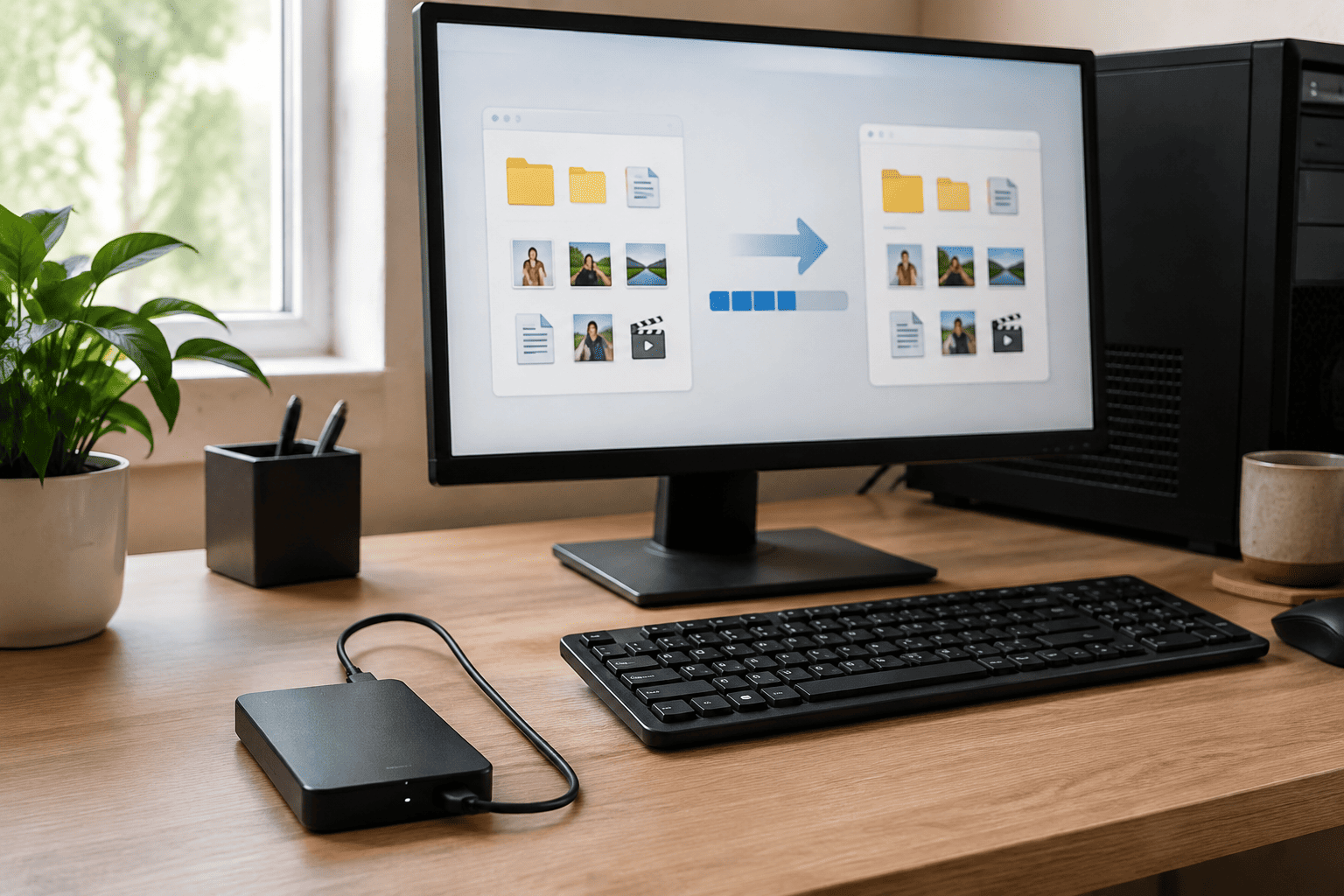
The Seagate 2TB Portable Hard Drive is the more straightforward choice if your goal is inexpensive local storage rather than maximum transfer speed.
This is a traditional portable HDD with 2 TB of capacity and USB 3.0 connectivity. You plug it into your computer and use it much like any other external storage device, making it suitable for scheduled backups, photo archives, documents, and files you do not need to access at SSD speeds.
The biggest reason to choose it over the SanDisk is value. At the supplied listing price of about $155, it costs roughly half as much while giving you the same stated storage capacity.
There is a tradeoff, of course. A mechanical hard drive contains moving parts, so I would be more careful about dropping it or throwing it into a bag while traveling. Transfers will also be noticeably slower when you’re copying very large folders.
For a drive that spends most of its life on a desk, those disadvantages may not matter much.
I’d choose the Seagate for a home computer where the main goal is keeping a second copy of important files without spending hundreds of dollars. It also makes sense for archives that you rarely touch after copying them.
The SanDisk is the better working drive. The Seagate is the better “copy it and keep it somewhere safe” drive.
How Much Storage Do You Actually Need?
It is easy to buy more capacity than you need, so start by checking how much data is currently stored on your computer and phone.
If you only have 100 GB of important data, jumping directly to a huge storage plan may not make sense. On the other hand, buying a drive that is nearly full on day one leaves no room for future backups.
For most people, I would leave plenty of breathing room.
If your important data currently uses 500 GB, a 1 TB or 2 TB drive gives you space to grow. Photographers, video creators, and anyone working with large media libraries may need considerably more.
Cloud capacity should be approached the same way. Pay for the amount you realistically use, not the biggest number on the pricing page.
What I Would Use in 2026
For everyday files, I would use cloud storage because it is simply too convenient to ignore.
I’d keep active documents, phone photos, and files I regularly need on multiple devices in Google Drive, OneDrive, iCloud, or whichever platform already fits my devices.
Then I’d keep another local copy of anything I would genuinely regret losing.
That local copy could live on the SanDisk Extreme Portable SSD if speed and portability matter, or on the Seagate Portable Hard Drive if inexpensive backup capacity matters more.
The important part is not picking one storage method and trusting it with everything.
Final Thoughts
Cloud storage is worth having in 2026 because it makes your files accessible, synchronized, shareable, and less dependent on one computer or phone. For many people, the free storage already included with an existing account is enough to get started, while larger photo libraries and work files can justify a paid plan.
What I would not do is confuse convenience with complete protection.
If your files are important, keep both an off-site cloud copy and a local backup. Choose the SanDisk 2TB Extreme Portable SSD if you frequently move large files and want fast, compact storage. Choose the Seagate 2TB Portable Hard Drive if you mainly want an affordable 2 TB backup that can stay at home.
Cloud storage gives you access almost anywhere. A physical backup gives you another way back when something goes wrong. Having both is the setup I’d trust with files I actually care about.