AirPods are supposed to be one of those accessories you barely have to think about. Open the case, put them in your ears, and they usually connect within seconds. When that suddenly stops happening, though, even something as simple as listening to a podcast can turn into ten minutes of messing with Bluetooth settings.
Affiliate Disclaimer
This website participates in affiliate programs. We may earn a commission
when you purchase products through links on this page, at no additional
cost to you. Our recommendations are based on independent research and
honest opinions.
Most AirPods connection problems are fixable at home. A low battery, temporary Bluetooth problem, incorrect audio output, old pairing data, or software issue is often the real cause. In this guide, I’ll start with the easiest fixes first, so you don’t waste time resetting everything when a simpler step might solve the problem.
First, Figure Out What Your AirPods Are Actually Doing
“AirPods not connecting” can mean several different things. Knowing what is happening makes it much easier to choose the right fix instead of trying random settings.
You might notice that:
- Your AirPods do not appear in the Bluetooth list.
- They appear in Bluetooth but refuse to connect.
- Your iPhone says they are connected, but sound still comes from the phone.
- Only one AirPod connects or plays audio.
- They connect normally and then disconnect a few minutes later.
- The AirPods worked yesterday but suddenly stopped connecting today.
If your AirPods are completely missing from Bluetooth, start with charging and pairing mode. If they appear but won’t connect, Bluetooth and saved pairing information are more likely to be involved.
And if they already say “Connected,” don’t immediately assume the Bluetooth connection failed. Sometimes the real problem is simply where your audio is being sent.
1. Check the AirPods and Charging Case Battery
I always start here because it takes less than a minute and rules out one of the easiest causes.
Place both AirPods inside the charging case and make sure each one is actually charging. If you use an iPhone, opening the case near the phone should normally let you check the battery level of both earbuds and the case.
Apple also recommends confirming that both AirPods are charging as part of its official connection troubleshooting process.
Pay attention to one AirPod
Sometimes the case has plenty of power, but one AirPod was not seated correctly and never charged.
If only one side seems to be working:
- Remove both AirPods from the case.
- Put them back in firmly.
- Check that each AirPod shows a charging status.
- Look inside the case for visible dirt or debris around the charging contacts.
- Let them charge for a few minutes before testing again.
A completely drained AirPod can make the problem look much more complicated than it really is.
Don’t forget the case itself
The case also needs enough power to handle pairing and charging properly. If you’re not sure about its battery level, connect the case to power for a while and then try again.
Once both AirPods have a reasonable charge, move on to Bluetooth.
2. Turn Bluetooth Off and Back On
Bluetooth can occasionally get stuck even when your iPhone still shows it as enabled. The phone remembers the AirPods, but the active Bluetooth connection doesn’t complete properly.
Go to:
Settings > Bluetooth
Turn Bluetooth off, wait a few seconds, and turn it back on.
Apple’s troubleshooting guidance also recommends confirming that Bluetooth is enabled before trying to reconnect AirPods.
Why I prefer Settings over Control Center
Control Center is convenient, but when I’m troubleshooting a connection problem, I prefer going directly into Settings. You can immediately see whether the AirPods appear, whether they say Connected, and whether your phone is detecting other Bluetooth devices normally.
After turning Bluetooth back on:
- Keep your AirPods close to the phone.
- Open the charging case.
- Wait a few seconds.
- Tap the AirPods in your Bluetooth list if they appear.
If they connect, play something immediately and check the audio.
If they already showed as connected but you still heard nothing, the next fix is especially important.
3. Make Sure Audio Is Actually Going to Your AirPods
A Bluetooth connection and an audio connection are not always the same thing.
Your AirPods can technically be connected while your iPhone is still sending sound to its own speaker, another Bluetooth device, a Mac, an Apple TV, or something else you recently used.
This happens more often if you regularly switch between several Apple devices.
Check the current audio output
Open Control Center and look at the audio playback controls. Tap the audio output or AirPlay button and check which device is currently selected.
If your AirPods are listed, select them manually.
Then test them with something simple:
- Play a song.
- Start a YouTube video.
- Play a podcast.
- Raise the volume slightly.
Apple also recommends selecting the AirPods from the available audio devices and testing playback when troubleshooting a connection issue.
If audio starts playing through the AirPods, there was nothing wrong with the pairing itself. Your device was simply using another audio output.
If your AirPods are missing from the audio list, it’s time to put them back into pairing mode.
4. Put Your AirPods Into Pairing Mode Again
Pairing mode tells nearby devices that your AirPods are ready to establish a Bluetooth connection. If your phone no longer recognizes them correctly, manually entering pairing mode can often bring them back.
Start by putting both AirPods inside the case.
Then:
- Close the lid.
- Wait about 15 seconds.
- Open the lid.
- Keep the case close to your iPhone, iPad, Mac, or other Bluetooth device.
The next step depends on which AirPods you own.
AirPods with a setup button
For AirPods 1, AirPods 2, AirPods 3, AirPods Pro 1, AirPods Pro 2, and other models that use the traditional case setup button, press and hold the button on the back of the case until the status light flashes white.
Once it starts flashing, check your Bluetooth settings and select the AirPods when they appear.
AirPods 4 and AirPods Pro 3 work differently
Newer models changed this process.
For AirPods 4 and AirPods Pro 3, Apple instructs you to double-tap the front of the charging case until the status light flashes white. You can then hold the open case near your device and follow the pairing instructions on screen.
That’s worth knowing because older AirPods tutorials often tell you to look for a button on the back of the case. If you own one of the newer models, those instructions may not match what you’re holding.
What If They Appear but Still Won’t Connect?
At this point, you’ve ruled out several basic problems.
You know the AirPods have power. Bluetooth is active. You’ve checked the audio output, and you’ve tried putting the earbuds back into pairing mode.
If your AirPods still appear on the screen but refuse to establish a reliable connection, the saved pairing information may be corrupted or outdated. That’s when I stop repeating the same Bluetooth toggle and move into the deeper fixes.
5. Forget Your AirPods and Pair Them Again
If your AirPods still appear under Bluetooth but refuse to connect, I would clear the existing pairing before doing anything more drastic. Sometimes your iPhone remembers the AirPods correctly by name, but the saved Bluetooth connection itself has become unreliable.
On an iPhone or iPad, go to Settings > Bluetooth, tap the information button next to your AirPods, then choose Forget This Device.
After removing them:
- Put both AirPods in the charging case.
- Close the lid for a few seconds.
- Open the case again.
- Put the AirPods into pairing mode.
- Select them when they appear in Bluetooth.
One thing worth knowing is that forgetting AirPods on an iPhone can remove them from other devices signed in to the same Apple Account as well. Apple confirms this behavior in its current AirPods guidance.
Why re-pairing can help
Bluetooth devices store information about each other after the first connection. Most of the time, that makes reconnecting almost instant.
Occasionally, though, something in that saved connection stops working correctly. Forgetting the AirPods creates a clean pairing instead of asking your phone to keep using the old one.
If this fixes the problem, you probably don’t need to go any further.
6. Restart Your iPhone, iPad, or Mac
It’s easy to focus entirely on the AirPods, but remember that Bluetooth involves two devices. Your AirPods can be perfectly fine while the Bluetooth service on your phone or computer is having a temporary problem.
Restart the device you’re trying to connect to, then test the AirPods again after it boots.
Try another device too
If possible, I would also connect the AirPods to another phone, tablet, or computer.
This quick test tells you quite a lot.
- If they work normally on another device, your original phone or computer is probably the problem.
- If they fail on several devices, the AirPods or charging case become more suspicious.
- If one AirPod works everywhere and the other never does, you may be dealing with a charging or hardware issue rather than Bluetooth.
You don’t need to spend an hour changing settings before doing this. Testing another device can quickly tell you which side of the connection deserves your attention.
7. Update Your Device and AirPods Firmware
Older software can sometimes cause compatibility or connection problems, especially if you recently bought a newer AirPods model.
On an iPhone or iPad, check:
Settings > General > Software Update
On a Mac, open System Settings > General > Software Update.
Apple currently recommends updating your iPhone, iPad, or Mac to the latest compatible operating system when AirPods won’t connect.
AirPods firmware updates work differently
You normally don’t press an “Update AirPods” button.
Apple says AirPods firmware is delivered automatically while the earbuds are charging, within Bluetooth range of an iPhone, iPad, or Mac that is connected to Wi-Fi.
If you want to give the update the best chance to install:
- Update your Apple device first.
- Make sure Wi-Fi and Bluetooth are on.
- Connect the AirPods case to power.
- Put the AirPods inside.
- Close the lid.
- Keep the case near your Apple device.
Apple recommends leaving them this way for at least 30 minutes when trying to update the firmware.
If connection problems continue after that, you’re down to the final troubleshooting step.
8. Reset Your AirPods Completely
A factory reset clears the AirPods setup and lets you configure them again from scratch.
I would save this for last because charging, re-pairing, and restarting are easier. But when AirPods repeatedly fail to connect even after the previous fixes, a reset makes sense.
Reset older AirPods and AirPods Pro models
For AirPods 1, AirPods 2, AirPods 3, AirPods Pro 1, and AirPods Pro 2:
- Put the AirPods in their case.
- Close the lid and wait about 30 seconds.
- Open the lid.
- Forget the AirPods from Bluetooth if they are still listed.
- Press and hold the button on the back of the case for about 15 seconds.
- Wait until the status light flashes amber, then white.
Once the light flashes white, bring the case close to your device and pair the AirPods again.
Reset AirPods 4 or AirPods Pro 3
The newer cases use a different reset method.
With the AirPods inside and the lid open, Apple uses a sequence of double taps on the front of the case. You double-tap while the status light is on, double-tap again when it flashes white, then double-tap a third time when it begins flashing faster.
The reset is complete when the light flashes amber and then white.
That difference is important. If you’re following instructions written for an older AirPods case, you may be looking for a setup button that your newer case does not use in the same way.
Still Not Connecting? It May Be Time to Stop Troubleshooting
After eight fixes, I wouldn’t keep repeating the same Bluetooth steps indefinitely.
Try your AirPods with at least one other device before deciding they’re faulty. If they still fail to connect, frequently disconnect, refuse to charge correctly, or have noticeably poor battery life, hardware wear becomes much more likely.
Age matters here too. Lithium-ion batteries lose capacity over time, and older earbuds can eventually reach the point where fixing one problem simply reveals another.
If your AirPods are otherwise in good condition, Apple service may still be worth checking. But if you’ve already been thinking about replacing them, repeated connection problems can be a reasonable point to consider something different.
And you don’t necessarily need another pair of AirPods.
The better choice depends heavily on the phone you use and how much you actually want to spend.
When a Samsung Alternative Makes More Sense
AirPods are at their best inside Apple’s ecosystem. If you’ve moved to a Samsung Galaxy phone, or you regularly use Samsung devices, staying with AirPods can mean paying for an experience that isn’t really designed around your current setup.
That’s where Samsung’s own earbuds become much more interesting. You get features built specifically around Galaxy devices rather than trying to make an Apple accessory fit into a different ecosystem.
For that situation, one model stands out.
1
Samsung Galaxy Buds3 Pro
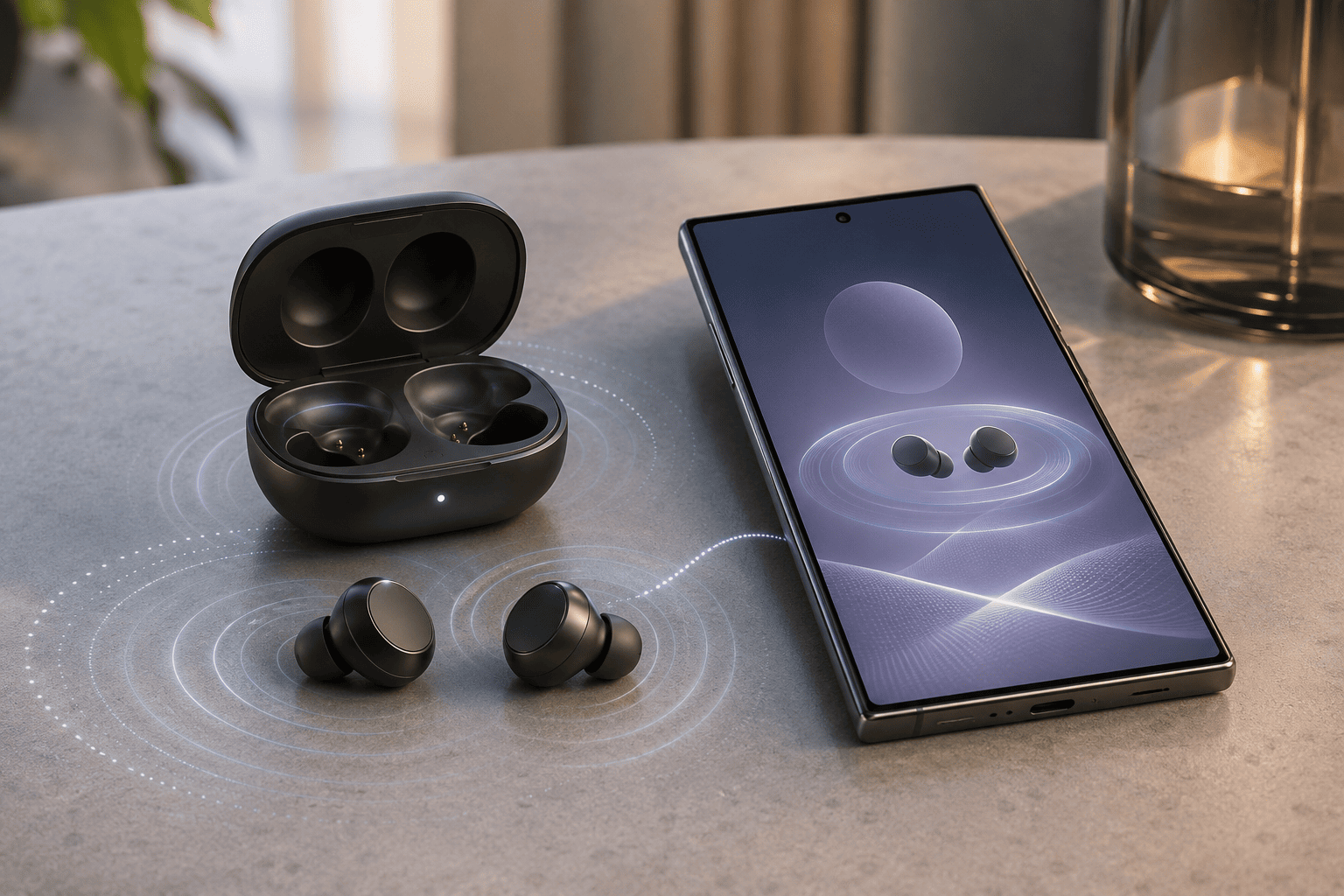
The Samsung Galaxy Buds3 Pro are the alternative I’d consider first if you’re already using a Samsung Galaxy phone and want something closer to the full true wireless AirPods Pro experience.
Samsung gives them active noise cancellation, ambient sound, adaptive noise control, a two-way speaker system, Bluetooth 5.4, and several Galaxy-specific audio features. That makes them much more than a basic pair of Bluetooth earbuds.
Best for Samsung Galaxy phones
The main reason to buy these isn’t simply that they’re good earbuds. It’s how closely they’re tied to Samsung’s ecosystem.
For example, Samsung promotes Interpreter features that can send translated audio through the Buds3 Pro when paired with a compatible Galaxy smartphone. The important detail is that the interpretation is handled through the Galaxy device rather than independently inside the earbuds, and availability varies by language and region.
That’s the kind of feature that makes sense if you already own the right Samsung hardware.
At around $134.39 based on the listing we’re considering, they’re clearly the more expensive recommendation here. But you’re getting true wireless earbuds with ANC and a feature set aimed at someone who listens frequently and wants more control over outside noise.
I would choose the Buds3 Pro if you:
- Use a recent Samsung Galaxy phone.
- Want active noise cancellation.
- Prefer fully wireless earbuds.
- Listen during commuting, flights, or busy workdays.
- Want Samsung-specific software features.
If you’re still using an iPhone, though, I wouldn’t buy them just because your AirPods stopped connecting. There’s another alternative that fits Apple’s ecosystem more naturally and costs much less.
What If You Want to Stay Close to Apple Without Buying AirPods Again?
Maybe your AirPods are old, but spending well over $100 on another pair of earbuds doesn’t sound appealing. You still use an iPhone, you still want easy Bluetooth pairing, and you mainly need something dependable for music, calls, podcasts, and everyday listening.
In that situation, paying for advanced ANC or AI features you may never use isn’t necessary.
I’d look at Beats instead. Apple owns Beats, and some Beats products retain useful Apple ecosystem features without following the same true wireless design as AirPods.
That brings us to the less expensive option.
2
Beats Flex Wireless Earbuds

The Beats Flex Wireless Earbuds take a very different approach. They’re wireless Bluetooth earbuds, but the two earpieces are connected by a flexible cable that rests around your neck.
That may sound less modern than true wireless earbuds, but there are practical advantages. You’re less likely to drop a single earbud, and you don’t have to keep putting them back into a charging case every time you take them out.
Beats uses Apple’s W1 chip here, which supports easier setup and switching with Apple devices. Beats also lists Class 1 Bluetooth, Android compatibility, on-device controls, and Find My support when used with iOS.
Best affordable option for iPhone owners
Battery life is one of the stronger practical points. Beats rates the Flex for up to 12 hours of listening time, and a 10-minute Fast Fuel charge can provide about 1.5 hours of playback.
The magnetic earbuds are useful too. When you take them out, they can attach to each other around your neck, making them convenient for commuting or moving around the office.
At around $49 in the listing we’re using, these make much more sense for someone who doesn’t need ANC or a fully wireless design.
I’d choose the Beats Flex if you:
- Mainly use an iPhone.
- Want to spend around $50 rather than $100 or more.
- Don’t care about active noise cancellation.
- Like the security of connected earbuds.
- Want long battery life for casual everyday listening.
- Prefer Apple W1 integration over generic Bluetooth earbuds.
The main tradeoff is obvious: these aren’t an AirPods-style true wireless replacement. If you want earbuds with no cable at all, this isn’t the pair I’d choose.
What Should You Look for If You Replace Your AirPods?
Once you’ve decided the old AirPods aren’t worth fighting with anymore, don’t buy replacement earbuds based on a giant specification list.
A few things matter much more in everyday use.
Start with your phone
This is the biggest one.
If you’re heavily invested in Apple devices, earbuds with Apple-specific integration are usually easier to live with. If you’re using a Samsung Galaxy phone, Samsung’s own earbuds can give you features AirPods won’t provide in the same way.
Your phone should influence your choice before things like codec names or AI marketing claims.
Decide whether ANC actually matters
Active noise cancellation is useful if you regularly listen in:
- Airplanes
- Buses
- Trains
- Busy offices
- Coffee shops
- Other noisy environments
If you mostly listen at home, ANC may not be worth paying extra for.
The Galaxy Buds3 Pro include ANC. The Beats Flex don’t.
Think about true wireless versus a neck cable
True wireless earbuds look cleaner and disappear into your pocket more easily, but tiny individual earbuds are also easier to lose.
The Beats Flex cable keeps both earbuds together for some people that’s outdated. For others, it’s exactly why they’re convenient.
Neither design is automatically better.
Battery life matters more as earbuds get older
Battery numbers on the box are useful, but long-term battery health is what eventually causes trouble with many older wireless earbuds.
If your current AirPods only last a short time between charges, replacing them may make more sense than repeatedly fixing their Bluetooth connection.
Don’t pay for features you won’t use
AI translation sounds useful, but if you don’t own a compatible Galaxy phone or never use translation features, it shouldn’t influence your purchase.
The same applies to advanced sound modes and ecosystem features.
Focus on what you’ll actually use every week.
Final Thoughts
If your AirPods aren’t connecting, I wouldn’t replace them immediately. Start with charging, refresh Bluetooth, check your audio output, put them back into pairing mode, forget and reconnect them, restart your device, check software and firmware, and finally perform a full reset.
Those eight steps cover most of the connection problems you can reasonably fix yourself.
If the AirPods still fail across multiple devices, or they’re old enough that battery life has become frustrating too, replacement starts making more sense.
For a Samsung Galaxy owner who wants true wireless earbuds with ANC and deeper Galaxy integration, I’d go with the Samsung Galaxy Buds3 Pro.
For an iPhone owner who simply wants reliable everyday wireless earbuds without spending much, the Beats Flex Wireless Earbuds are the better value.
The important part is not replacing AirPods just because Bluetooth misbehaved once. Try the fixes first. If the problem keeps coming back after that, you’ll know you’re replacing them for a real reason rather than a temporary connection glitch.