Adding a second monitor is one of the easiest ways to improve your workspace. Whether you’re working from home, editing videos, coding, studying, or simply multitasking, a dual monitor setup lets you keep more information visible without constantly switching between windows.
Affiliate Disclaimer
This website participates in affiliate programs. We may earn a commission
when you purchase products through links on this page, at no additional
cost to you. Our recommendations are based on independent research and
honest opinions.
The setup process is much easier than many people expect. Both Windows and macOS include built-in tools that make connecting and arranging multiple displays straightforward. In this guide, I’ll show you how to set up dual monitors on both operating systems, troubleshoot common issues, and get the most out of your extra screen.
Why Use Dual Monitors?
A second monitor gives you more screen space, making it easier to organize your work.
Common uses include:
- Keeping email open while working
- Comparing two documents side by side
- Editing photos or videos
- Coding on one screen while viewing documentation on another
- Streaming while monitoring chat
- Attending video meetings while taking notes
Once you become accustomed to two screens, it’s often difficult to return to using just one.
Before You Begin
Before connecting another monitor, check what display outputs your computer supports.
Common display connections include:
- HDMI
- DisplayPort
- USB C
- Thunderbolt
- Mini DisplayPort
Some laptops only support one external display, while others can handle two or more. If your laptop uses USB-C, verify that the port supports video output before purchasing adapters.
You’ll also need:
- A compatible monitor
- The correct display cable
- A power source for the monitor
How to Set Up Dual Monitors on Windows
Windows automatically detects most modern monitors once they’re connected.
Step 1: Connect the Monitor
Turn off your monitor, connect it to your computer using the appropriate cable, and power it on.
Windows should detect the display automatically within a few seconds.
Step 2: Open Display Settings
Right-click on your desktop and select Display settings.
You’ll see numbered display icons representing each connected monitor.
If the second display doesn’t appear, click Detect.
Step 3: Choose Display Mode
Scroll down to Multiple displays.
You’ll usually see several options:
- Duplicate these displays
- Extend these displays
- Show only on Monitor 1
- Show only on Monitor 2
For productivity, choose Extend these displays.
This creates one large desktop across both monitors.
Step 4: Arrange Your Monitors
Drag the numbered monitor icons until they match your physical desk layout.
For example, if your second monitor sits to the left of your primary display, place Display 2 on the left in Windows.
This ensures your mouse moves naturally between screens.
Step 5: Adjust Resolution and Scaling
Each monitor should ideally run at its native resolution.
You can also adjust:
- Display scaling
- Refresh rate
- Orientation
- HDR settings (if supported)
These options are available in the same Display Settings menu.
How to Set Up Dual Monitors on Mac
macOS also makes connecting multiple displays fairly simple.
Step 1: Connect the Second Display
Use the appropriate cable or adapter depending on your Mac model.
Modern MacBooks typically connect through USB-C or Thunderbolt.
Step 2: Open Display Settings
Go to:
System Settings → Displays
Your Mac should automatically recognize the second monitor.
Step 3: Arrange the Displays
Click Arrange and drag the display icons until they match your physical monitor placement.
You can also choose which monitor serves as the primary display by dragging the menu bar to your preferred screen.
Step 4: Configure Display Options
Adjust settings such as:
- Resolution
- Refresh rate
- Brightness
- Color profile
- Rotation
Choose the settings that best match your workflow.
Common Dual Monitor Problems
Even though setup is usually straightforward, a few issues occur more frequently than others.
The Second Monitor Isn’t Detected
Try:
- Reconnecting the cable
- Restarting your computer
- Updating graphics drivers
- Testing another cable
- Selecting Detect Displays
Wrong Resolution
If the image looks blurry, make sure the monitor is running at its recommended native resolution.
Flickering Display
This is often caused by:
- A damaged cable
- Loose connections
- Unsupported refresh rates
- Outdated graphics drivers
Replacing the cable usually solves the issue.
Tips for a Better Dual Monitor Workspace
A dual monitor setup works best when your workspace is organized.
Some helpful tips include:
- Position both monitors at eye level.
- Keep the primary monitor directly in front of you.
- Match brightness levels between displays.
- Use keyboard shortcuts for faster window management.
- Leave enough desk space for comfortable viewing.
Proper monitor placement reduces neck strain during long work sessions.
When It’s Worth Upgrading Your Setup
Adding a second monitor is only part of creating a comfortable workspace.
If your monitors take up too much desk space or aren’t positioned correctly, you may not enjoy the full benefits of a dual display setup.
Likewise, if you’re using an older display with poor color accuracy or limited viewing angles, upgrading your monitor can noticeably improve your daily experience.
That’s where a quality monitor arm or an affordable second monitor can make a real difference.
Accessories That Make a Dual Monitor Setup Even Better
Once your dual monitor setup is working, a few simple upgrades can make it more comfortable and efficient.
A monitor arm helps free up valuable desk space while allowing you to position both displays at the ideal height and angle. This can reduce neck strain during long work sessions and make your workspace feel much more organized.
If you’re still using only one display, adding an affordable second monitor can also provide a noticeable productivity boost without spending a fortune.
Here are two upgrades worth considering.
1
VIVO Dual Monitor Desk Mount: Best Monitor Arm for Two Displays

If you’re using two monitors, the VIVO Dual Monitor Desk Mount is one of the easiest ways to create a cleaner and more ergonomic workspace. At around $35, it offers excellent value while supporting a wide range of monitor sizes.
The mount supports two monitors up to 30 inches and 22 pounds each, making it compatible with many popular office and gaming displays. Its heavy-duty steel construction provides solid stability without taking up valuable desk space.
Each monitor arm is fully adjustable, allowing you to change the height, tilt, swivel, and rotation independently. Whether you prefer your displays side by side or angled slightly inward, it’s easy to find a comfortable viewing position.
Installation is flexible thanks to both C-clamp and grommet mounting options, making it suitable for most desks.
The VIVO Dual Monitor Desk Mount is a great choice if you:
- Want a cleaner desk
- Use two monitors every day
- Need adjustable viewing angles
- Want better ergonomics
- Have limited desk space
For anyone building a dual monitor workstation, it’s one of the most affordable upgrades you can make.
2
Sceptre 24 Inch Curved Monitor: Best Budget Second Monitor
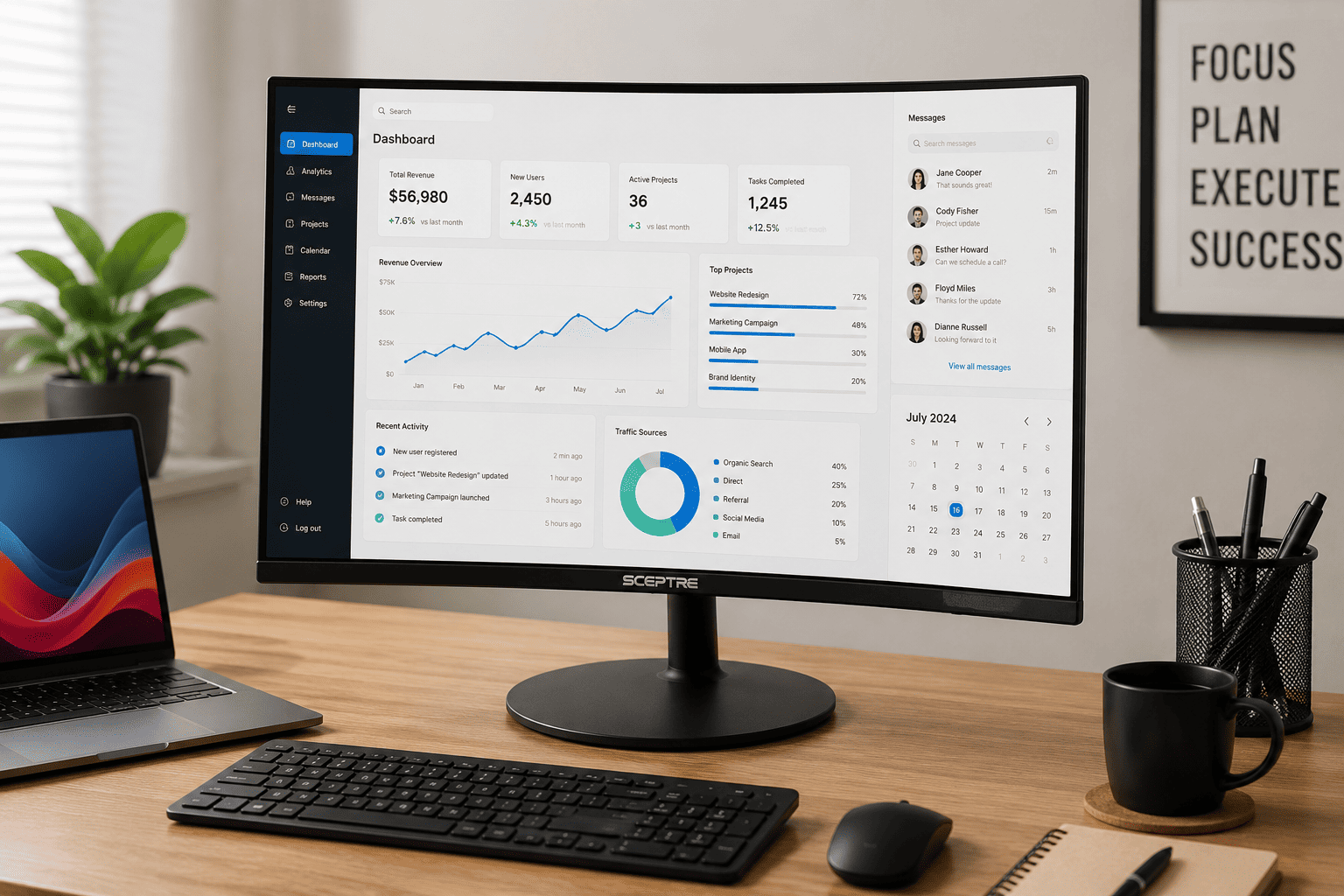
If you’re setting up dual displays for the first time, the Sceptre 24 Inch Curved Monitor is an excellent budget-friendly option. At around $85, it delivers solid everyday performance without stretching your budget.
The 24-inch Full HD (1080p) display offers plenty of screen space for office work, web browsing, spreadsheets, video calls, and entertainment. Its 1500R curved screen provides a slightly more immersive viewing experience while helping keep the edges of the display comfortably within your field of view.
With 98% sRGB color coverage, the monitor produces vibrant colors suitable for general productivity, media consumption, and light photo editing. It also includes two HDMI ports, a VGA connection, built-in speakers, and VESA mount compatibility, giving you flexibility for future upgrades.
The Sceptre monitor is ideal if you:
- Need an affordable second display
- Work from home
- Use spreadsheets or multiple applications
- Want a curved screen without spending much
- Plan to mount your monitor later
For anyone building a productive workspace on a budget, it’s an excellent choice.
Buying Guide: Choosing the Right Dual Monitor Equipment
A great dual monitor setup isn’t just about adding another screen. Choosing compatible accessories makes the entire workspace more comfortable and efficient.
Monitor Size
For most home and office setups, monitors between 24 and 27 inches provide a good balance between screen space and desk usage.
Resolution
Running both displays at the same resolution creates a more consistent viewing experience, especially when moving windows between screens.
VESA Compatibility
If you plan to use a monitor arm, make sure your monitor supports standard VESA mounting holes.
Adjustability
Monitor arms with tilt, swivel, rotation, and height adjustment make it much easier to create an ergonomic workspace.
Connectivity
Check that both your computer and monitors support compatible ports such as HDMI, DisplayPort, USB-C, or Thunderbolt before purchasing cables or accessories.
Final Thoughts
Setting up dual monitors on Windows or Mac is much easier than many people expect. Once connected and properly configured, an extra screen can make multitasking, content creation, programming, remote work, and everyday computing significantly more efficient.
A well-organized workspace also plays an important role in comfort and productivity.
If you already own two monitors, the VIVO Dual Monitor Desk Mount is an affordable upgrade that saves desk space while providing flexible positioning for a more ergonomic setup.
If you’re just getting started with dual displays, the Sceptre 24 Inch Curved Monitor offers excellent value as a second monitor for work, study, or entertainment.
With the right combination of displays, proper positioning, and a few practical accessories, a dual monitor setup can become one of the most worthwhile upgrades you make to your workspace.