Few things ruin an online game faster than lag. One moment you’re lining up the perfect shot, and the next your character freezes, teleports across the screen, or disconnects entirely. Whether you play competitive shooters, racing games, MMOs, or sports titles, a stable connection is just as important as powerful hardware.
Affiliate Disclaimer
This website participates in affiliate programs. We may earn a commission
when you purchase products through links on this page, at no additional
cost to you. Our recommendations are based on independent research and
honest opinions.
The good news is that network lag is often fixable. In many cases, a few adjustments to your network and computer can significantly improve your gaming experience without upgrading your entire setup. This guide covers the most common causes of gaming lag and the practical steps you can take to reduce it.
What Causes Lag in Online Games?
Many people assume slow internet speed is the only cause of lag, but that’s rarely true.
Online gaming depends more on latency, network stability, and packet delivery than raw download speed.
Some of the most common causes include:
- High network latency
- Weak Wi Fi signals
- Packet loss
- Network congestion
- Background downloads
- Outdated network drivers
- Server issues
Identifying the real cause makes it much easier to fix the problem.
Step 1: Use a Wired Ethernet Connection
Whenever possible, connect your gaming PC or console directly to your router using an Ethernet cable.
Compared to Wi Fi, a wired connection offers:
- Lower latency
- More stable speeds
- Fewer interruptions
- Reduced packet loss
- Better consistency during long gaming sessions
Even if your internet speed stays the same, switching from Wi Fi to Ethernet often produces noticeably smoother gameplay.
Step 2: Close Background Downloads
Large downloads can consume available bandwidth without you realizing it.
Before starting an online game, pause:
- Game updates
- Cloud backups
- Video streaming
- File downloads
- Software updates
This allows your connection to focus on game traffic instead of competing with background tasks.
Step 3: Restart Your Router
Routers also benefit from an occasional restart.
Power cycling your router can:
- Clear temporary network issues
- Refresh your internet connection
- Improve overall stability
- Resolve unexpected slowdowns
If your connection has felt unreliable for several days, restarting the router is a quick troubleshooting step worth trying.
Step 4: Move Closer to Your Router
If you must use Wi Fi, signal strength matters.
Walls, floors, furniture, and other wireless devices can all weaken the signal between your gaming device and the router.
Whenever possible:
- Play in the same room as the router.
- Reduce physical obstacles.
- Use the 5 GHz Wi Fi band if available.
- Avoid placing the router inside cabinets or behind large furniture.
A stronger wireless signal usually means fewer connection drops.
Step 5: Update Network Drivers
Outdated drivers can reduce network performance and create compatibility issues.
Check for updates to your:
- Ethernet adapter
- Wi Fi adapter
- Motherboard chipset
- Router firmware
Keeping network software current helps ensure the best possible connection.
Step 6: Check Your Ping
Internet speed tests don’t tell the whole story.
Instead, pay attention to your ping, which measures how long data takes to travel between your device and the game server.
As a general guide:
- Under 30 ms is excellent.
- 30 to 60 ms is very good.
- 60 to 100 ms is acceptable.
- Above 100 ms may become noticeable during competitive games.
Many online games display your current ping directly in their network settings.
Step 7: Reduce Network Congestion
Your connection is shared by every device using your home network.
Streaming movies, video calls, cloud backups, and large downloads all compete for bandwidth.
If possible:
- Schedule downloads outside gaming hours.
- Ask others to pause large downloads.
- Enable Quality of Service (QoS) on your router if supported.
Reducing network traffic often improves connection consistency.
When Your Current Network Hardware Is the Limitation
If you’ve already optimized your network but still experience connection issues, your networking hardware may be the bottleneck.
Older Ethernet adapters may not fully support faster internet plans, while weak Wi Fi connections can introduce additional latency and packet loss.
In these situations, upgrading your network hardware can provide a more stable gaming experience, especially if you’re playing competitive online games.
Network Upgrades That Can Reduce Gaming Lag
If you’ve already tried the software fixes but still experience lag, disconnects, or unstable ping, it may be time to upgrade your networking hardware.
For desktop gamers, a modern Ethernet network card can provide a faster and more reliable wired connection, especially if your motherboard has an older network controller.
If running an Ethernet cable isn’t practical, a Wi Fi to Ethernet bridge can give wired-only devices a more stable wireless connection than many built-in Wi-Fi adapters.
Here are two worthwhile upgrades depending on your setup.
1
TP-Link TX201 2.5 Gigabit PCIe Network Card: Best Wired Upgrade
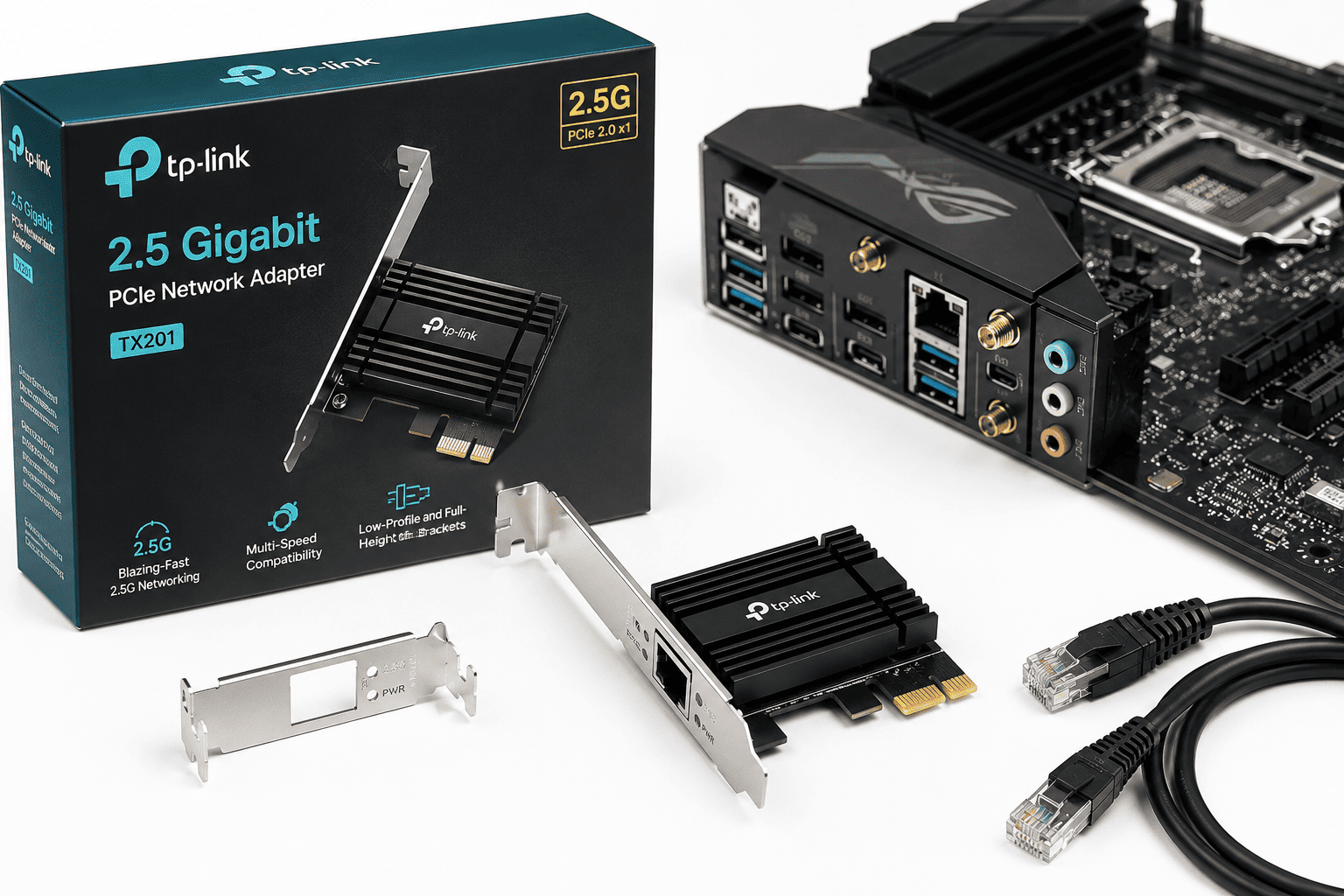
If your desktop PC has an available PCIe slot, the TP-Link TX201 2.5 Gigabit PCIe Network Card is an affordable upgrade that can improve network performance and prepare your system for faster internet plans. At around $22, it delivers excellent value.
The card supports 2.5 Gigabit Ethernet, offering much higher bandwidth than standard Gigabit adapters when paired with compatible networking equipment. Even if your current internet connection doesn’t reach those speeds, the upgraded controller can provide a more stable and efficient wired connection.
Installation is straightforward in most desktop PCs using a standard PCIe slot, and the adapter supports a wide range of operating systems, including Windows 11, Windows 10, Windows Server, and Linux.
The TP-Link TX201 is a great choice if you:
- Game on a desktop PC
- Prefer wired Ethernet
- Want lower latency
- Plan to upgrade your internet speed in the future
- Need an inexpensive networking upgrade
For competitive online gaming, a reliable wired connection remains the best way to minimize latency and packet loss.
2
BrosTrend AC1200 Wi Fi to Ethernet Adapter: Best Wireless Bridge
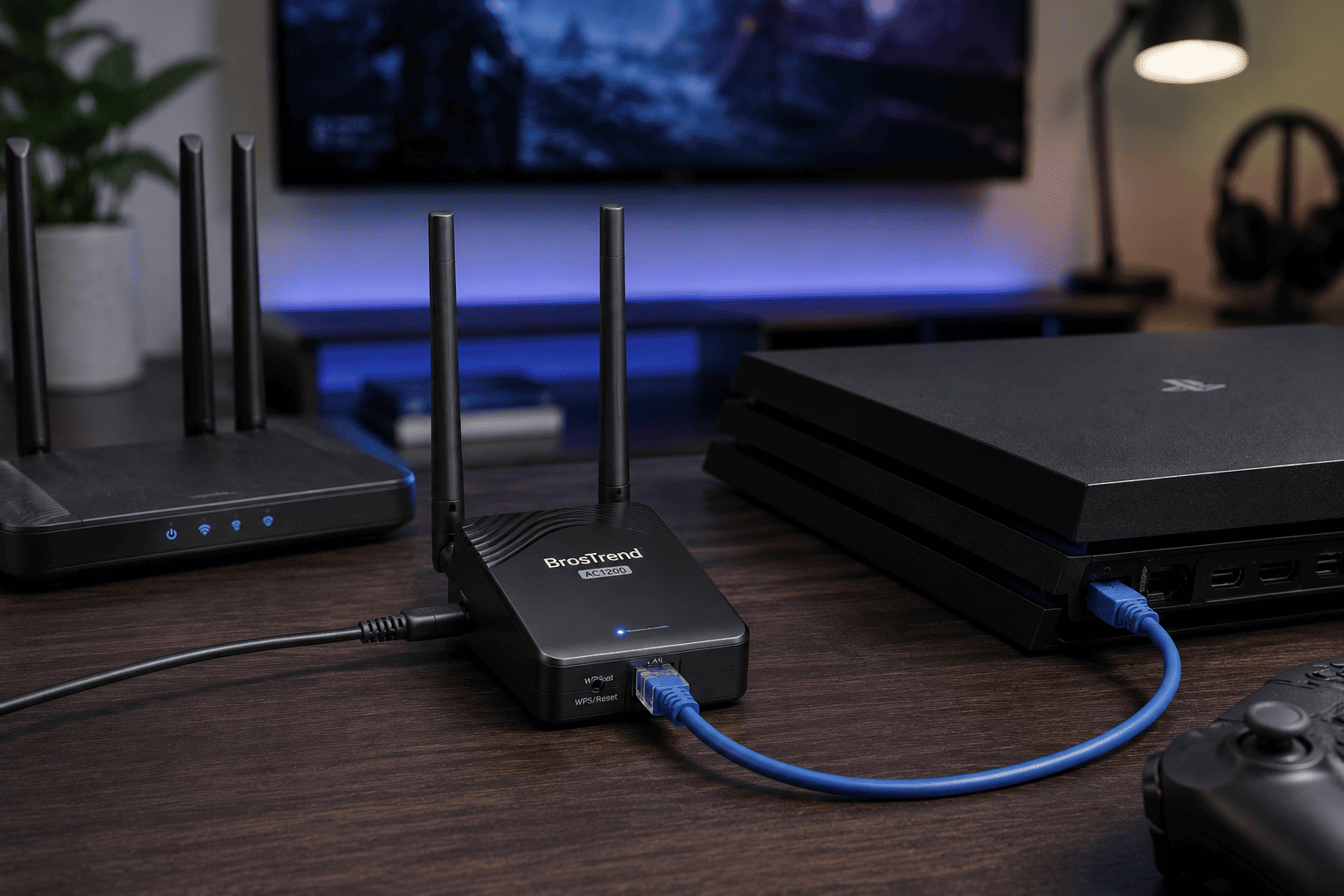
Not every gaming setup allows you to run an Ethernet cable across the house. If that’s your situation, the BrosTrend AC1200 Wi Fi to Ethernet Adapter offers a practical alternative. At around $46, it lets wired devices connect to your home’s Wi Fi network through an Ethernet port.
The adapter works as a wireless bridge, making it useful for desktop PCs, gaming consoles, smart TVs, Blu-ray players, printers, and other devices with an Ethernet connection but limited or unreliable Wi Fi capabilities.
It supports dual-band AC1200 Wi Fi, allowing you to connect over either the 2.4 GHz or 5 GHz band depending on your router and signal strength. Setup is simple thanks to WPS support, making it easy for most users to get connected quickly.
The BrosTrend adapter is ideal if you:
- Can’t run an Ethernet cable
- Game on a console or desktop far from the router
- Want a more stable wireless connection
- Need Ethernet connectivity for devices without built-in Wi-Fi
- Want an easy setup process
While a direct Ethernet cable still provides the best performance, this adapter can offer a noticeable improvement over weak built-in wireless connections.
Buying Guide: Choosing the Right Networking Upgrade
The best networking upgrade depends on your gaming setup and where your computer or console is located.
Wired or Wireless
A direct Ethernet connection almost always provides lower latency and greater stability than Wi Fi. If it’s practical, wired remains the best choice for competitive gaming.
Compatibility
Before buying a PCIe network card, confirm your desktop has an available PCIe slot. For wireless bridges, make sure they’re compatible with your router’s Wi Fi standards.
Internet Speed
If you have a fast fiber or cable connection, choosing hardware that supports higher network speeds can help you get the most from your service.
Ease of Installation
Some upgrades install in minutes, while others require opening your computer. Choose the option that matches your comfort level with hardware installation.
Future Proofing
If you expect to upgrade your home network in the next few years, investing in newer networking hardware now may save you from replacing it again later.
Final Thoughts
Online gaming lag is often caused by unstable connections rather than slow internet speeds. Improving your network setup, reducing background traffic, using Ethernet whenever possible, and keeping your drivers updated can solve many common problems.
If your existing networking hardware is holding you back, upgrading it can provide a more consistent gaming experience.
The TP-Link TX201 2.5 Gigabit PCIe Network Card is an excellent upgrade for desktop gamers who want the stability and low latency of a wired connection.
If running an Ethernet cable isn’t possible, the BrosTrend AC1200 Wi Fi to Ethernet Adapter offers a convenient way to connect wired devices to your Wi Fi network with better reliability than many built-in wireless adapters.
With the right combination of network settings and hardware, you can spend less time dealing with lag and more time enjoying smooth, responsive online gameplay.